A chat bot for website is software in your site’s chat window that answers visitors without a person typing each reply. For an online store, the work is in eight steps, from matching it to your ticket reasons to improving it every week.
What does a chat bot on a store website do?
A chat bot on a store website has three parts: the chat window on your pages, the brain that decides the answer, and the queue where a person picks up what the bot cannot finish. The queue is ideally your help desk.
Putting a bot on a store website is a short job. Making it answer “where is my order?” correctly, and hand off cleanly when it should stop, is the real work. That is what this guide covers.
For the chat software itself (widget, inbox, help desk), see our guide to website chat. For the full picture of live chat for a store, start at the hub.
Which store questions should the bot handle, and what does each need?
Start from your top ten ticket reasons, not from a tool. Questions answered from a policy can be scripted. Questions about a specific order need live order data. Requests to change something, such as a cancellation, an address or a refund, need an action your policy allows. Your tickets decide the set-up.
| Your ticket reason | What the bot must do | Is a scripted flow enough? | Needs live order data? | Needs an action under policy? |
|---|---|---|---|---|
| Shipping times and costs, returns policy | Quote the policy, with exceptions | Yes, if the policy is stable | No | No |
| Where is my order? | Read the order and carrier status | No | Yes | No |
| Is this in stock, which size? | Read live inventory and product data | No | Yes (catalogue) | No |
| Cancel, change address, refund | Check the order, then do it | No | Yes | Yes |
| Complaint or sensitive issue | Stop and pass to a person | Only the hand-off | Pass the order along | No |
If order questions dominate your tickets, a scripted flow or a bot that reads only articles cannot close them. The set-up follows the order data, not the widget.
We do not redefine bot types here. The definition of a chatbot versus an AI agent lives in our chatbot comparison, and tools are compared in our guide to the best chatbots for e-commerce.
What data does the bot need to answer store questions?
A store bot needs three kinds of data: orders (status, fulfilment, tracking, refunds), catalogue (products, variants, stock, prices per market) and policies (returns, shipping, warranty, exceptions). A bot that reads only help articles has the third. Store questions need all three, read live.
| Customer question | Data the bot needs | Where it lives | If it is missing |
|---|---|---|---|
| Where is my order? | Order, fulfilment and carrier status | Store platform and carrier | The bot explains tracking in general, the customer still waits |
| Is this in stock in M? | Live inventory per variant | Store platform | The bot guesses or deflects |
| Which size should I take? | Catalogue, fit notes, size guide | Product data and storefront content | A generic size chart only |
| Can I return this after 40 days? | Returns policy with exceptions | Help centre or policy document | A wrong or vague answer |
| Can you change my address? | The order and an action allowed by policy | Store platform | The bot can only explain the process |
What a bot that answers only from articles can and cannot do is covered in our guide to a knowledge base.
One practical tip: clean up contradictions in your help articles before you connect them, and give each policy an owner. A bot repeats whatever your sources say, including the outdated parts.
Chat bot for website: how do you set one up for a store?
You set one up in eight steps, in this order. Each step starts with an action, and the widget comes fourth, not first.
- Match the bot to your ticket reasons.
- Connect your data.
- Write the rules or policies.
- Install the widget or help desk chat.
- Test.
- Set hand-off rules.
- Go live.
- Improve every week.
The next four sections expand them.
How do you prepare a chatbot before it goes on your website?
You prepare a chatbot in three steps before anything appears on your site: sort your tickets by reason, connect the data those reasons need, and write the rules or policies the bot follows. Skipping this is how stores end up with a polished widget and wrong answers.
1. Match the bot to your ticket reasons
Pull your last 100 to 200 tickets or chats and sort them by reason. Then use the decision table above to mark which reasons need policies only, which need live order data and which need actions. Our view: if order questions dominate, a scripted flow will loop.
2. Connect your data
Connect the store platform (orders, catalogue, stock), your help centre or policy documents, and the help desk where conversations land. Give the bot read access first. Allow actions only when a policy covers them.
3. Write the rules or policies
For a rule-based bot, you write flows and buttons. For an AI agent, you write plain-language policies per ticket type: when it may refund, what it checks first, when it must hand off. Put the exceptions next to the rule. Avoid one giant prompt that mixes every ticket type.
How do you add the chatbot to your website and test it?
You add the chatbot with an app embed, a script snippet or your help desk’s own chat, then test it on real past questions before any visitor sees it. If you already run a help desk, use its chat, so bot and human conversations sit in one queue.
4. Install the widget or help desk chat
On Shopify, a chat bubble is typically an app embed. Shopify’s help lists a corner chat bubble as an example, and says app embeds can be activated, deactivated and customised through the theme editor, on any theme version.
Zendesk messaging runs through a web widget embedded in your website or help centre, and a ticket is created when a customer asks for a live agent. Gorgias documents a quick install for Shopify that puts the chat widget on every page, and says every chat conversation creates a ticket in your help desk.
The standalone-versus-help-desk argument is made in website chat, and Shopify set-up is in our Shopify chat guide. If you run Zendesk or Gorgias, start from the chat your help desk already provides.
5. Test
Replay 30 to 50 real past questions, including messy ones: typos, two questions in one message, an angry customer, an order number that does not exist. Check four things for each: the right answer, the right source or policy, the right action, and a clean hand-off when it should stop. Test after hours and on mobile.
How do you hand off to a person and go live?
You hand off by writing rules for when the bot must stop and what the person receives, then go live on a few ticket types and watch the first days closely. A hand-off that drops context is as bad as no hand-off.
6. Set hand-off rules
The bot must stop when it does not know, when the customer asks for a person, when a refund is over your limit, on a complaint, on legal or safety words, and after two failed attempts. The person should receive the transcript, the order and the reason.
Zendesk’s workflow recipe for escalation shows the pattern: the AI agent tells the customer the request is going to your support team, and human agents are notified. During business hours it can escalate to a human on a messaging channel.
Outside business hours, say when a person will reply and keep the conversation open. Never leave a dead end.
7. Go live
Start on a few ticket types or pages. Tell visitors they are talking to an AI, and watch the first days closely.
The disclosure is a legal point in the EU. Article 50(1) says providers must design AI systems that interact directly with people so those people are informed they are dealing with an AI system, unless that is obvious. Goodwin reports that the Article 50 transparency obligations became generally applicable on 2 August 2026. This is not legal advice.
How do you improve the chatbot after launch?
You improve a chatbot by reading the conversations it handed off or got wrong, finding the cause (missing data, a vague policy or a missing action), fixing that cause and re-testing. A bot you set up once and leave drifts as products, prices and policies change.
8. Improve every week
Each week, review a sample of handed-off chats, the top unanswered questions, the answers customers pushed back on and the policies you changed. Track the share resolved without a person and the share handed off, per ticket type. Why chat earns its place at all is covered in chat benefits.
Weekly review needs an owner and time, which is the step Engaige AI takes over: the section below explains how.
Why is my store chatbot looping, wrong or not handing off?
Loops come from questions outside the bot’s scope with no exit. Wrong answers come from stale or missing data and vague policies. Failed hand-offs come from rules that never trigger or a queue nobody watches. Fix the cause, not the wording.
Our view: a loop is the most visible failure, because the shopper sees the same reply twice and has no way out. A confident wrong answer is quieter and costs more, because the shopper acts on it. The table pairs each symptom with its usual cause.
| Symptom | Likely cause | Fix |
|---|---|---|
| The bot repeats the same menu or answer | The question is outside the flow, and there is no fallback | Add a “talk to a person” exit after two failed turns and route the topic |
| A confident wrong answer | A stale article, no live data or conflicting policies | Fix the source, connect live order data, make the bot cite its source |
| ”Where is my order?” gets a generic tracking link | The bot has no order access | Connect the store platform and ask for the order number or email |
| It never hands off | Triggers too narrow, or hand-off disabled out of hours | Widen the triggers and set an out-of-hours promise |
| It hands off everything | Scope too narrow or data missing | Look at the top hand-off reasons and close the biggest data gap |
| The widget does not show | App embed off, script not on the page or domain not allowed | Check the theme editor app embeds or the snippet placement |
| Customers repeat their details to the person | No context passed | Send the transcript, the order and the reason with every hand-off |
For Zendesk’s chat bot options, see our guide to the Zendesk bot. For what happens when a bot’s answer is wrong, see the Air Canada story in our knowledge base guide.
Where does Engaige fit?
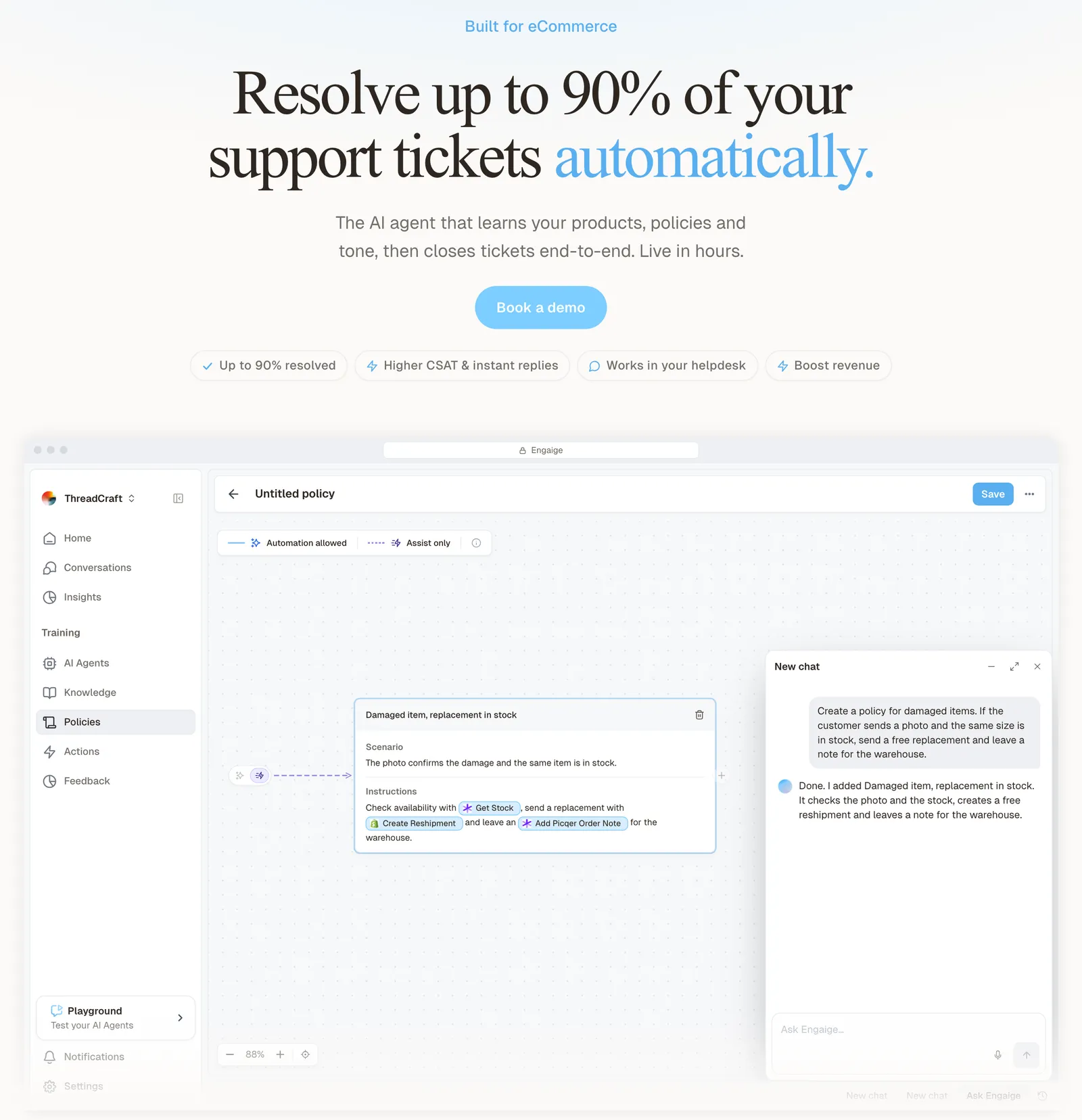
Engaige (that’s us) is the AI support agent for online stores that answers your website chat through the help desk (or Crisp) you already run. Engaige AI configures it from a plain-language brief and keeps improving it.
At MR MARVIS, a Shopify Plus brand, the agent took over routine conversations on chat and email, handling over 120,000 questions a year and resolving over 60% of the conversations it’s involved in. At Otrium, Engaige resolves 60% of 120,000 annual tickets end to end.
You brief Engaige AI in plain language, like a colleague. It configures the agent for you and shows which policy it used: enable an integration and Engaige AI sets it up, with no decision trees and no prompt engineers. That covers steps 2 and 3 above. Engaige AI proposes your first set of support policies from the integrations you enabled, so you do not start from a blank page.
You go live in Agent Assist in hours, where Engaige drafts replies for your team. Step 8 is the loop. Every reply your team sends is one of its training signals. Engaige AI compares what your team said with what the agent suggested, learns from the difference and improves itself, under your supervision: you approve the changes. Once autonomous, it keeps learning from emerging trends and the tickets it hands back to your team.

Hello Potential New Client
What would you like to get done today?
Could you analyse this week's conversations and show me some automation opportunities?
Ask Engaige…
Searched and found 4 contact reasons · 2.4s
Your agent resolved 426 of 512 conversations. 86 were handed over, and one contact reason accounts for most of them.
Searched and found 1 policy · 1.6s
Delivery status hands over whenever tracking is older than 24 hours, which is 40 of those 46.
Editing Delivery status · 1.9s
Done. It now handles stale tracking itself. Those 40 a week stay with your agent.
What were the reasons for handover, and how can we improve?
Fix it.
Reply…
You then switch ticket types to autonomous one at a time, in about a week, or launch autonomous from day one if you are ready.
Keep your helpdesk. Replace the AI.
The action happens in the connected system first, such as a refund, a cancellation or an address change, then Engaige replies and closes.
Where your policy says a person should decide, Engaige hands over with the full context: transcript, order and reason, plus a reasoning summary as an internal note in the help desk ticket. At MR MARVIS, the Engaige agent handles routine questions and, on refund and return cases, collects all relevant information before handing over to human agents. On Shopify it combines live Admin API data (orders, inventory, pricing across markets and SKUs, customers) with your storefront content.
Policy-governed control sets what it may do alone, and transparent reasoning shows why it answered as it did. The full picture is in our live chat hub, and order-status questions are covered in WISMO automation.
After go-live, HelloPrint reached 80% of tickets automated, a first response 90% faster and a team that went from 100 to 28 agents. Read the full story in the HelloPrint case.
Engaige proved to be invaluable. Their hands-on support during the implementation phase resulted in significant improvements to our automated resolution rate and CSAT.

Engaige is built for online stores, not as a horizontal website bot. To see Engaige on your own tickets, book a demo.
Frequently asked questions
How do I add a chatbot to my website?
In eight steps: match the bot to your ticket reasons, connect your data, write the rules or policies, install the widget or help desk chat, test, set hand-off rules, go live and improve every week. Start from your ticket reasons rather than the widget; install comes fourth, through an app embed, a snippet or your help desk’s chat. The set-up section expands each step.
Do I need a scripted bot or an AI agent for my store?
It depends on which ticket reasons need live order data or actions under policy. Fixed policy questions do not; order questions and changes do. For the definition, see our chatbot comparison.
Can a website chatbot answer “where is my order?”
Only with live access to order, fulfilment and carrier data. A bot that reads only articles can explain tracking in general, and the customer still waits.
Do I have to tell visitors they are talking to a bot?
In the EU, Article 50(1) of the AI Act expects people to be informed they are interacting with an AI system, unless that is obvious. The transparency obligations became generally applicable on 2 August 2026. This is not legal advice.
Why does my chatbot keep looping?
The question is outside its scope and there is no exit. Add a hand-off after two failed attempts, and close the data gap behind your top loop topics.
When should a chatbot hand a conversation to a person?
It should stop when it does not know, when the customer asks for a person, on a complaint, when a refund is over your limit and after two failed attempts, and pass the transcript, the order and the reason. See hand-off rules.
Is Engaige a chatbot builder?
Engaige is the AI support agent for online stores, not a chatbot builder. It answers in your website chat through the help desk you already run, and you brief Engaige AI in plain language instead of building flows.
How long does it take to put Engaige live on my website chat?
You go live in Agent Assist in hours, and autonomous in about a week, or autonomous from day one if you are ready. Engaige AI improves it from what your team sends, and you approve the changes. See it in a demo.