To add live chat to a Shopify store, pick one of three routes: turn on Shopify Inbox under Online Store > Edit theme > App embeds, install a chat app and switch on its app embed, or add your helpdesk’s chat widget (our website chat guide compares the options beyond Shopify). Then decide who answers, and whether they can see the order.
How do you add live chat to a Shopify store?
There are three routes to live chat on Shopify: Shopify Inbox, a chat app from the App Store, or your helpdesk’s own widget. Each takes minutes to install and ends in a theme editor switch or a short helpdesk set-up. They differ in where the conversation lands, who can answer, and whether the answerer can see the order.
- Shopify Inbox. Shopify’s own chat, Inbox listing and switched on in the theme editor. Your staff reply from the desktop admin or the iOS and Android apps.
- A chat app. The Shopify App Store’s Chat category listed about 1,000 apps on 12 October 2026, covering live chat and chatbots. You install one and switch on its app embed.
- Your helpdesk’s widget. Helpdesks such as Gorgias ship their own chat widget, so chat lands in the same queue as email. The worked example below uses Gorgias.
Our view: adding the widget is the easy part. With about 1,000 apps in one category, the widget is a commodity. What separates a chat that helps from one that frustrates is who answers inside it and whether they can see the order. That is the thread through the rest of this guide, and it is the same question behind your wider Shopify support set-up.
Which Shopify live chat setup fits your store?
Choose Shopify Inbox if one or two people answer chat from the Shopify admin or their phone. Choose a chat app if you need specific widget features. Move to your helpdesk’s widget once chat, email and social need one queue and more than one person answers; route your contact form into the same queue. Add an AI agent when the questions are about orders.
| Route | Best for | Where conversations land | Who or what can answer | Can it read Shopify orders? | Cost model |
|---|---|---|---|---|---|
| Shopify Inbox | One or two people replying from the admin and phone | Inbox app on desktop, iOS and Android | Your staff; an opt-in Inbox agent in the storefront chat widget only | Order lookups after the customer signs in | Listed as Free |
| Standalone chat app | Specific widget features | The app’s own inbox | Depends on the app | Check each listing | Varies by app, check the listing |
| Helpdesk chat widget | More than one agent, chat and email in one queue | The helpdesk queue | Your team; AI Agent on chat where the helpdesk offers it | Depends on the helpdesk and its Shopify connection; for Gorgias, order management on chat runs through its AI Agent with a connected store | Varies by plan |
| Helpdesk widget plus an AI agent such as Engaige (that’s us) | Order questions, returns, changes, product advice | The helpdesk you already run | The agent, with your team as the back-up | Yes, through the Shopify Admin API | Flat monthly fee tied to a ticket volume, predictable as you scale |
Pick on where the conversation lands and what the answerer can see, not on the colour of the chat bubble. For Inbox detail, including limits and who it suits, read our Shopify Inbox guide.
How do you choose and install a Shopify live chat app?
Choose a chat app by where its chats land, whether it uses a theme app extension and what it does to store speed, then switch it on as an app embed. Both Shopify Inbox and most chat apps appear on the storefront as an app embed, so the switch lives in one place: Online Store > Edit theme > App embeds.
Shopify describes app embeds as floating or overlay elements, and its own example is a chat bubble in the corner of the store.
Steps for Shopify Inbox
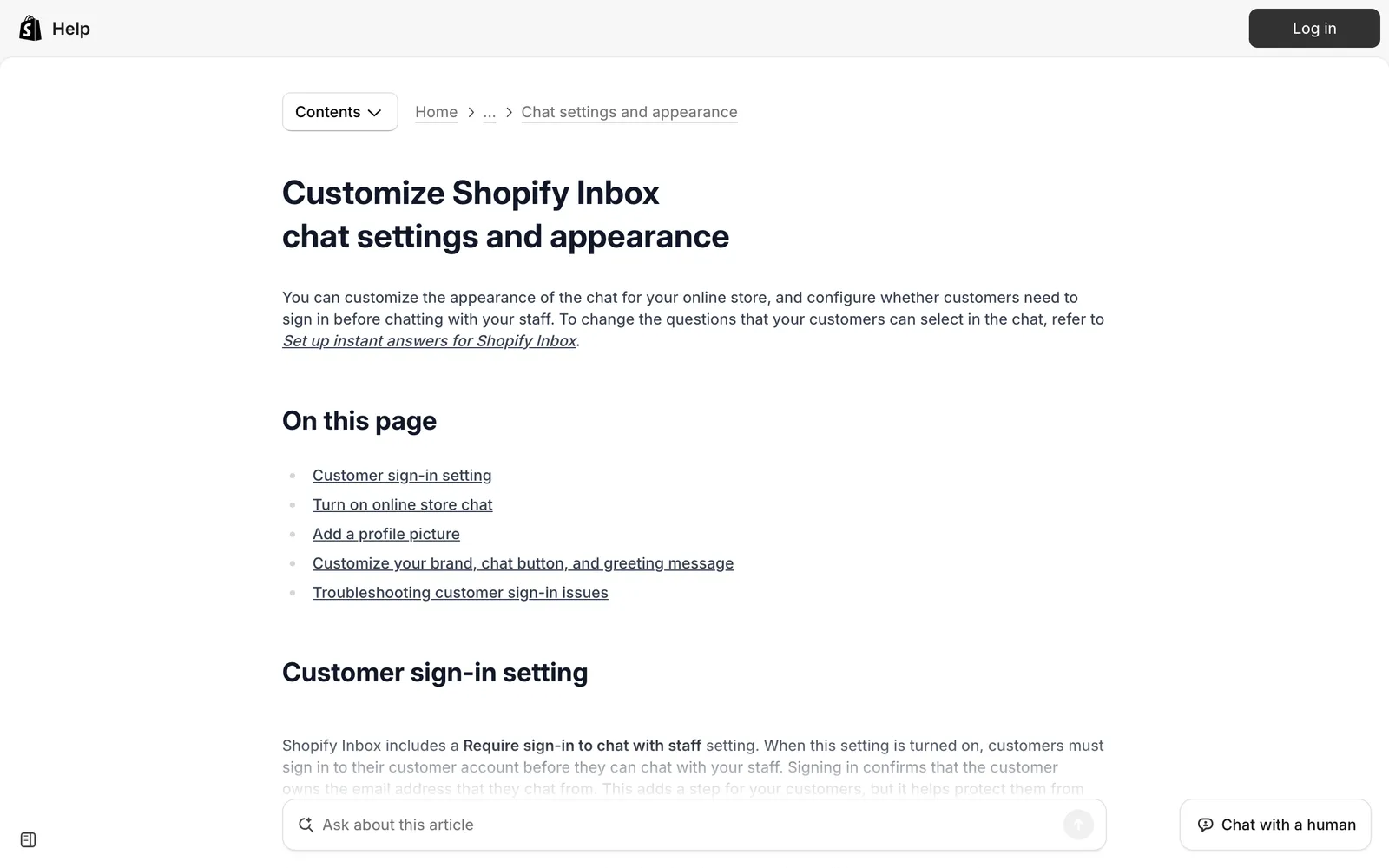
Per Shopify’s Inbox appearance:
- Go to Online Store > Edit theme.
- Select App embeds, then select Online store chat.
- Turn on Online store chat.
- Click Save.
The same panel sets colours, the activator icon, label and position, typography, border radius, featured products and the greeting message.
The Inbox agent is a separate, opt-in feature. Shopify’s wording: “If you already use Inbox, then your conversations stay with your staff until you choose to turn it on.” It also needs new customer accounts.
Steps for any chat app
Per Shopify’s app embeds:
- Install the chat app from the Shopify App Store.
- Go to Online Store, find your theme, and click Edit theme.
- Optional: pick a market from the top of the editor.
- Click the App embeds icon in the sidebar.
- Switch the toggle on beside the app’s embed.
- Click Save, then preview your store.
Check the preview on a phone as well as a desktop. A chat bubble that covers the add to cart button costs you orders.
Does a live chat app slow down your Shopify store?
It can. That is why Shopify’s Built for Shopify standard exists: a Built for Shopify app must not reduce the storefront Lighthouse performance score by more than ten points, per Shopify requirements, and theme app extensions integrate with themes without injecting code. Look for the badge, then measure your own store before you trust it.
Shopify’s requirements also say apps should not add, remove or edit a merchant’s theme files. Both points are worth asking any chat vendor about.
Run this check before you commit to an app:
- Run Lighthouse on your home page and one product page. Note the performance scores.
- Install the app and switch on its embed.
- Run Lighthouse again on the same two pages.
- If either score drops by more than ten points, the app falls short of the bar Shopify sets for Built for Shopify apps.
The same requirements list a rejection reason that is a good rule for your store too: a “Live chat” popover that appears on page load. Do not let chat pop open by itself. Let the shopper open it, and keep the greeting short.
| Pre-install check | Why it matters | Where to look |
|---|---|---|
| Theme app extension, not code injection | Shopify’s requirements say theme app extensions integrate without injecting code into the theme | The app listing and Shopify’s requirements |
| Built for Shopify badge | Built for Shopify apps must meet the ten-point Lighthouse requirement, per Shopify’s requirements page | The App Store listing |
| Lighthouse before and after | Your theme and your apps interact, so test your own store | Chrome DevTools or PageSpeed Insights |
| Where chats land | Chat in a separate inbox means a separate history | The vendor’s setup help |
| Order access | Decides whether chat can answer order questions | The vendor’s Shopify integration page |
How do you connect live chat to your helpdesk?
Install the helpdesk’s own chat widget on the store so chat lands in the same queue as email and social, and connect the Shopify store, where the helpdesk supports it, so whoever answers can see the order next to the conversation. Then send yourself a test chat from the storefront and check it lands in the queue.
Here is the worked example for Gorgias, from its Gorgias setup:
- Click the Settings icon at the bottom left, then go to Channels > Chat.
- Create the chat and connect your Shopify store.
- Brand the widget.
- Choose Quick install for Shopify to add the widget to every page, or Install manually for specific pages.
- To hide it on chosen pages, open the Installation tab > Quick installation for Shopify > Hide on specific pages.
One setup step to plan for: Gorgias order management on chat runs through its AI Agent and needs a connected store (our Gorgias Shopify integration guide covers the connection and its limits).
One queue means one history per customer. That is the reason to move off a standalone widget once more than one person answers. Gorgias is a strong e-commerce help desk and Zendesk a proven ticketing foundation. Engaige plugs into either; see the Gorgias and Zendesk integration pages. Still choosing a helpdesk? Our Gorgias comparison with Tidio is a good start.
What should live chat on Shopify be able to answer?
Most store chat is one of two things: “where is my order” and other post-purchase changes, or pre-purchase product advice. Both need live store data. The first needs order, fulfilment and tracking data. The second needs catalogue, stock and price in the shopper’s market.
A bot that reads only your storefront can describe your returns policy but does not check this order against it.
| Question type | Data it needs | FAQ bot (storefront content only) | Order-aware bot (reads orders) | AI agent with actions |
|---|---|---|---|---|
| Where is my order? | Order, fulfilment, tracking | Points to a tracking page | Answers from the order | Answers from the order |
| Change delivery address | Order status, carrier cut-off | Explains the policy | Checks the status | Needs an action: updates the address under your rules |
| Return or refund | Order, return policy, item | Explains the policy | Checks eligibility | Needs an action: issues the refund under your rules |
| Cancel an order | Order and fulfilment status | Explains the policy | Checks the status | Needs an action: cancels under your rules |
| Sizing and product advice | Catalogue, stock, price in market | Quotes page copy | Limited | Answers from live catalogue data |
| Discount code | Customer, order, your policy | Repeats public offers | Limited | Needs an action: applies a discount under your rules |
For context on Shopify’s own tool: Shopify documents its Inbox agent for product questions, recommendations, order lookups and add to cart. “The customer is prompted to sign in before the Inbox agent shares order information.” Shopify documents no refund, cancellation or address-change actions for it, so those still land with your team.
Order status and product advice are the two jobs above, and each has its own page: WISMO and product advice. For the difference between a bot that answers and an agent that acts, read chatbot vs agent.
Who answers Shopify live chat when your team is offline?
You have three options when your team is offline. Show your offline hours and collect an email to answer later, extend staff hours, or let an AI agent answer and hand back what it should not handle. Shopify Inbox can assign its agent “Only when your staff is unavailable”, which is one way to cover those hours.
Per Shopify’s assignment guide, the assignment modes are All conversations, Only when your staff is unavailable, and Never. Shopify’s help says the Inbox agent “can’t send email on your behalf” and, with no staff available, shares your store’s sender email address so the customer can email you. If you want chat answered when no one is online, that is a job for an agent in your helpdesk.
With Engaige, you go live in Agent Assist in hours: the agent drafts, your team sends. Engaige AI compares what your team sent with what the agent drafted, learns from the difference and proposes improvements with its reasoning; you approve what goes live.
Once a ticket type is autonomous, the agent answers when no one is online and hands back what it should not handle. You set the policies for what it may do alone, such as a refund or cancellation, and where a person checks first. You switch ticket types to autonomous one at a time, and going autonomous from day one is also supported.
Scenario
The customer asks about a delivery address.
Instructions
Read the order with Get order , then take the branch that matches.
 Get order
 Scenario
The order has not been picked yet.
Instructions
Move it with Change picqer shipping address .
 Change picqer shipping address
 Scenario
The parcel has already left the warehouse.
Instructions
Say it cannot be redirected, then offer Process refund .
How do you know if Shopify live chat is working?
Judge chat on resolution, not reply speed. Track first response time, resolution rate, hand-off rate, satisfaction and chat-assisted orders, and compare them before and after any change. Record a month of baseline numbers first. A fast “let me check with the team” is not an answer, and it should not count as one.
| Metric | Definition | Why it matters |
|---|---|---|
| First response time | Time from the customer’s message to the first reply, human or AI | Shows whether anyone is there, nothing more |
| Resolution rate | Share of chats closed without the customer coming back on the same issue | The one that tells you chat solves problems |
| Hand-off rate | Share of AI chats passed to a person | Shows where the agent needs better policies or data |
| CSAT | Share of rated chats rated positive | Catches answers that were quick but wrong |
| Chat-assisted orders | Orders placed after a chat | Links chat to revenue |
Even the free route gives you a baseline. Shopify’s Inbox conversations describes an Overview with assisted sessions, assisted orders, satisfaction rate (the share of rated responses that were positive) and average response time. Record these for a month before you change anything, so you have a number to beat.
Where does Engaige fit?
Engaige (that’s us) isn’t another live chat app for your team to staff. It is the e-commerce-native AI support agent that plugs into the helpdesk you already run and answers the chats that land there. Engaige AI learns from your conversations, configures your support agent and shows which policies it used. Keep your helpdesk. Replace the AI.
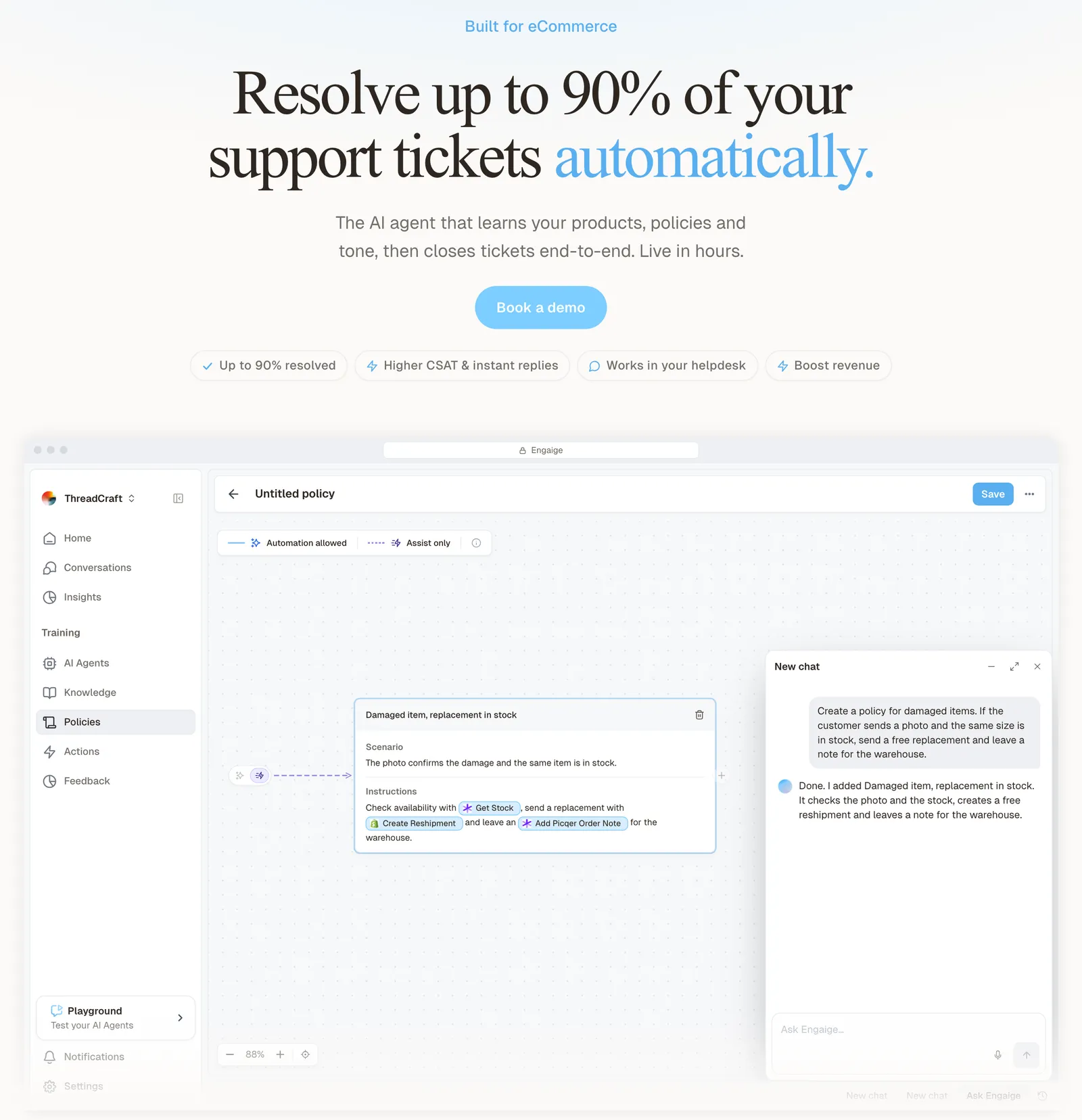
On Shopify, Engaige reads live orders through the Admin API and takes policy-governed actions such as refunds, cancellations, address changes and discounts, as listed on our Shopify integration page. The same agent works as an AI shopping assistant in your storefront chat widget, giving pre-sale product advice. It is text-first by design: email, chat, WhatsApp, SMS and social DMs, no voice AI.
One thing that impresses me every day is the quality of the product recommendations.

Proof: MR MARVIS, a Shopify Plus brand, runs Engaige on chat and email, where Engaige resolves over 60% of the conversations it is involved in, with personal product advice 24/7.
Engaige is priced as a flat monthly fee tied to your ticket volume, so your cost stays predictable as you scale and you can set it against what a person costs per chat, a sum our ROI guide sets out.
Comparing agents before you decide? See our Shopify agents guide, and if you also run Adobe Commerce, the Magento equivalent. For what Shopify’s built-in suggestions do, read Shopify Magic.
Frequently asked questions
Is live chat on Shopify free?
Shopify Inbox is listed as free on the App Store. Chat apps and helpdesk widgets vary by plan, so check each listing. The real cost of a free route is your team’s time answering every question by hand. See our Shopify Inbox guide for the detail.
Do I need a helpdesk for Shopify live chat?
Not to start. Inbox or a chat app is enough while one or two people answer. You need a helpdesk once more than one person answers, or once chat and email need one queue and one customer history.
Can Shopify live chat answer order questions like where is my order?
Only if whoever answers can read the order. Inbox does order lookups after the customer signs in. Engaige reads live order data through the Shopify Admin API, so the answer comes from the order itself, with the policy it used shown alongside.
What is the difference between live chat and a chatbot on Shopify?
Live chat means people answer in the widget. A chatbot means software answers. An AI agent goes a step further and acts on the order. Our chatbot vs agent guide explains where each one fits.
Can an AI agent on Shopify chat issue refunds or change an address?
Engaige can, under your policies. Its Shopify actions include refunds, cancellations, address changes and discounts. You set the rules, and each answer shows which policy it applied.
How fast can I put an AI agent on my Shopify live chat?
With Engaige you go live in Agent Assist in hours, with your team approving each reply. You then switch ticket types to autonomous one at a time. Most brands get there in about a week, and autonomous from day one is also supported.