An email to ticket system turns every message sent to your support address into a ticket: a tracked record with a reference number, the customer as requester, a status and an owner. Replies thread back onto the same ticket, so nothing gets lost in a shared inbox. For an online store, each ticket should carry the order it is about.
What is an email to ticket system?
An email to ticket system is software, usually your help desk, that receives mail sent to a support address and turns each new conversation into a ticket. The ticket has a reference, a requester, a status and an owner, and every reply threads onto it. You may also see it called an email ticketing system or help desk email.
Most online stores start with support@ or hello@ in Gmail or Outlook. That works until several people answer the same inbox and nobody can tell who owns what. A ticketing system fixes that by giving every conversation one record.
This page is about customer support email, not a traffic or parking ticket sent by post. It is one of several support templates for online stores.
How does an email ticketing system turn an email into a ticket?
An email ticketing system receives the message at a support address, reads the headers to find the customer, opens a ticket with an ID and the status New, sends an acknowledgement and threads every later reply onto the same ticket. The six steps below show where each one can go wrong.
| Step | What happens | What can go wrong |
|---|---|---|
| 1. Support address and forwarding | You forward your existing address to the help desk’s address at server level | Manually forwarding an email that came in on an external address can give a suspended ticket, and aliases, distribution groups and multi-forwarding may not be supported |
| 2. Parsing | The system reads the headers to set the requester: usually the reply-to header, otherwise the from header | The body plays no role, and a reply-to header that differs from the from header decides who becomes the requester |
| 3. Spam check | The message is checked before it becomes a ticket | Spam filtering is not perfect, so real requests can land in the suspended queue |
| 4. Ticket created | The ticket gets an ID and the status New, and an acknowledgement goes out | Check that the acknowledgement quotes the ticket number, so the customer has one reference to use |
| 5. Threading | A reply is matched to its ticket using the message IDs in the References and In-Reply-To headers, or an encoded ticket ID in the body | Header data is not kept forever, so a reply to a very old email can open a new ticket |
| 6. Status changes | The status moves as the conversation moves | Tickets stay New or Open when nobody owns them |
Hold off on forwarding until you are ready to process tickets, because once forwarding is on, every email becomes a ticket.
Does the ticket ID in the subject line thread the reply?
The number in the subject line is there for people. The reliable threading keys are the hidden headers and the encoded ID, which can need to sit inside square brackets in the email. Static message IDs can also make unrelated emails thread into one ticket.
Some help desks let agents update a ticket by replying to its notification email, because the ticket ID sits in the Reply-To address.
Zendesk example: Zendesk’s wrong-ticket article says it keeps threading header data for 30 days, so a reply to an older email can open a new ticket.
For the message the customer receives, see our acknowledgement templates.
What does an email ticket contain?
An email ticket records who asked, what about, what was said, where it stands and who owns it. A mail ticket, meaning a ticket created from an email, holds the fields in the table below, and a store needs one more: the order.
| Field | Where it comes from | Why it matters for an online store |
|---|---|---|
| Requester | The email headers (see the Zendesk requester) | Decides who gets the reply and whose history you see |
| Subject | The email subject, often editable by the agent | A clear subject makes the queue easy to scan |
| First message and attachments | The email body and files | Photos of a damaged parcel save a round trip |
| Ticket ID | Generated by the system | Gives both sides one number to quote |
| Status | New on arrival | Shows whether anyone has acted yet |
| Assignee or group | Set by a person or a rule | One owner stops duplicate replies |
| Tags or ticket type | Added by a person or a rule | Lets you sort where is my order, returns and damaged items |
| Priority | Set by a person or a rule | Puts urgent cases first |
| Internal notes | Written by agents (see internal notes) | Keeps context off the customer’s screen |
| Order number and customer record | Often missing from the email | Without it the agent has to ask, or the store must be connected so it is looked up |
Here is a worked example. A customer emails “Where is my order?” It arrives as a ticket with the customer as requester, that subject, the message as the body, an ID, the status New, a WISMO tag and, if the customer included it, an order number. If the number is missing, the agent asks for it, and the customer waits for an answer that the store already holds. The WISMO tickets covers that scenario.
Which statuses does an email ticket move through?
Most help desks use a short lifecycle: New, Open, Pending, On-hold, Solved and Closed. In an email to ticket system, the status tells you who must act next, which a shared inbox cannot show. The definitions below are a worked example, and your help desk may name the steps differently.
- New: no action has been taken on the ticket yet.
- Open: assigned to an agent and waiting for the agent to act.
- Pending: waiting for the requester. When the requester replies, the ticket resets to Open.
- On-hold: waiting for someone other than the requester, such as a courier or a warehouse.
- Solved: the agent has submitted a solution. A reply from the requester moves it back to Open.
- Closed: closed by the system, and the requester can no longer reopen it.
For the message that moves a silent Pending ticket towards closed, see the closing sample.
Shared inbox or ticketing system: which do you need?
A shared inbox is enough while one or two people answer a few dozen emails and each reply is a one-off. A ticketing system pays off once several people answer, you need to see what is waiting on whom, or you want reporting. The table compares them without figures, because the right switch point depends on your team.
| Dimension | Shared inbox (Gmail or Outlook group) | Email ticketing system |
|---|---|---|
| Ownership | Implicit: whoever answers first | An assignee per ticket |
| Status | Read or unread | New, Open, Pending, Solved |
| Duplicate replies | Two people can answer the same email | One owner, and collision detection in many tools |
| History | Search the mailbox | Every message, note and status on one record |
| Customer context | None | Requester profile, often order data through integrations |
| Reporting | None | First reply and resolution times |
| Automation | Filters | Triggers, auto-replies and routing |
| Setup | None | Forwarding, plus sender authentication (SPF and DKIM) for your domain, as your help desk asks |
If you are choosing between help desks, our guide to the AI agents covers the AI side. This page does not rank help desks.
How do you stop auto-reply loops?
Loops start when two automatic responders answer each other, for example your acknowledgement and a customer’s out-of-office reply, with each message creating a new ticket. RFC 3834 is the email standard for avoiding them, and its rules give you a short checklist to put to your help desk admin.
RFC 3834, published in August 2004, lists the rules:
- Do not auto-respond to any message whose Auto-Submitted header has a value other than “no”.
- Do not send the same automatic response to the same sender more than once within several days. The RFC recommends 7 days as the default.
- Mark your own automatic replies with Auto-Submitted: auto-replied.
- Send automatic responses to the Return-Path address, not to From or Reply-To.
- A responder may ignore messages carrying List-* headers, which mark mailing lists.
For the Zendesk fix, which uses a trigger and a tag, see our automatic reply guide.
How do you measure an email ticketing setup?
Measure whether email arrives, threads and gets answered: first reply time, resolution time, reopened tickets, duplicate tickets per customer and how many real requests land in the spam or suspended queue. Set your own targets, because a benchmark from another store tells you little.
- Duplicate tickets per customer: a rise means threading is broken, for instance through headers that expired or static message IDs.
- Reopened tickets: a reply reopens a Solved ticket, so a high rate means answers were incomplete.
- Suspended queue: check it regularly, because spam filtering is imperfect and real requests can sit there.
- First reply and resolution time: the pair that shows whether tickets are being worked at all.
For the next step, see the automation guide and how to work out support ROI.
Where does Engaige fit?
Engaige (that’s us) isn’t an email ticketing system: it never turns email into tickets or routes them, because your help desk does that. Keep your helpdesk, replace the AI. Engaige AI configures the e-commerce support agent that works on the tickets in that help desk, and shows which policies it used. At Otrium, the agent resolves 60% of 120,000 annual tickets end to end.
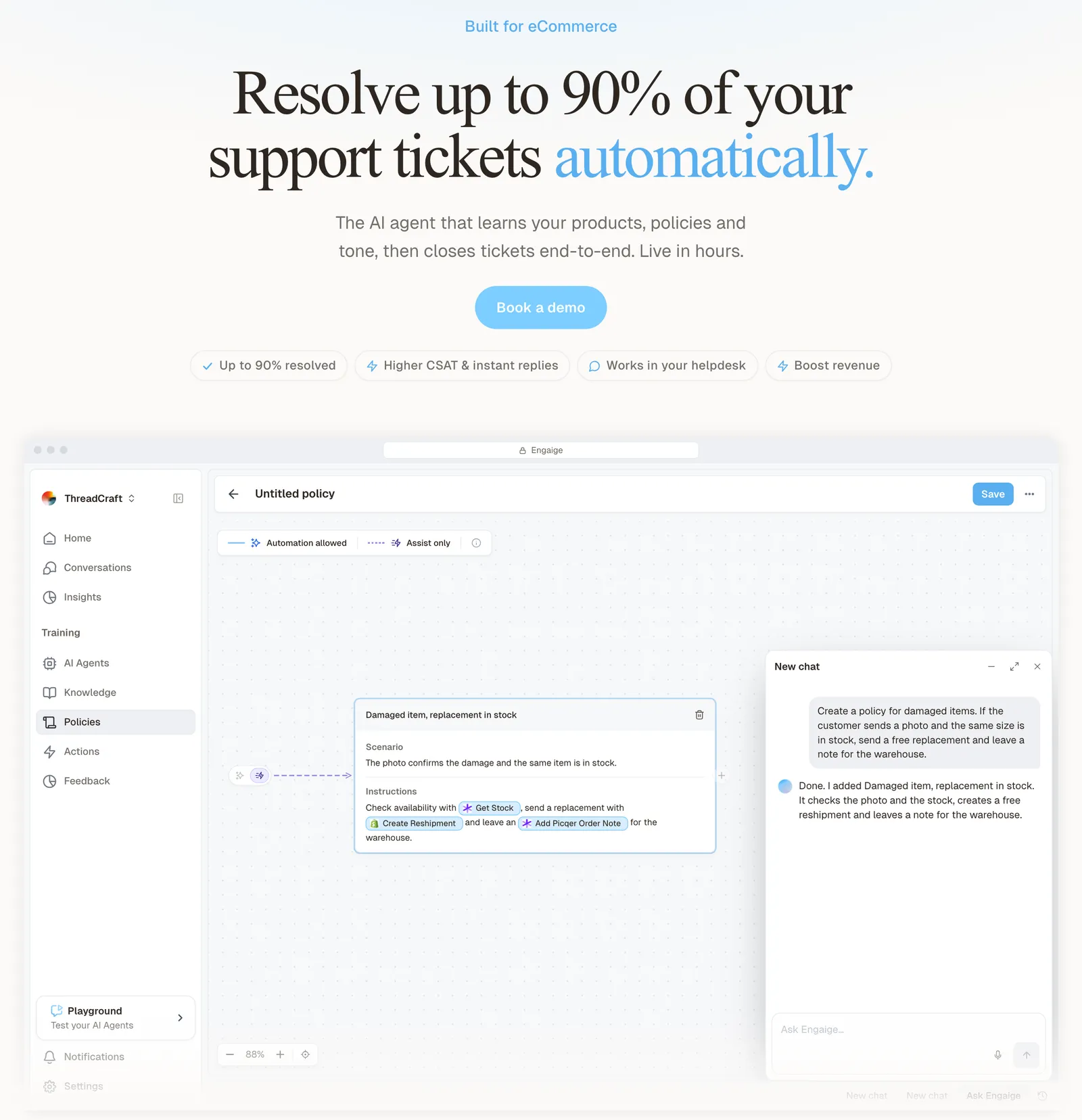
Once an email has landed as a ticket in your Zendesk or another help desk, Engaige works on that ticket there. It goes live in Agent Assist in hours, drafting replies and suggested actions inside your helpdesk, with no migration. Email is one of its text channels: Engaige is text-first by design, covering email, chat, WhatsApp, SMS and social DMs, with no voice AI.
It also closes the order-number gap from the ticket table. On Shopify, Engaige combines live Admin API data with content from your storefront, so the order and the customer come from store data and nobody asks twice.
Your team stays in the loop on that gap. Because the agent drafts inside the ticket first, your team sees which order it found and corrects it where it is wrong. Every reply your team sends becomes training data, and you can move the ticket types where the order lookup is the whole job to autonomous first. The full loop sits in the templates hub.
The Otrium case shows that loop at scale.
With Engaige, we are able to automatically resolve 60% of the 120,000 support tickets that we receive annually.

To see it on your own tickets, book a demo. For the replies themselves, see the response template.
Frequently asked questions
What is an email to ticket system?
Software, usually your help desk, that turns each email sent to your support address into a ticket with a reference, a requester, a status and an owner. Replies thread onto the same ticket.
How does an email become a support ticket?
The email reaches the support address, the system reads its headers to set the requester, opens a ticket with an ID and the status New and sends an acknowledgement. Later replies are matched to the ticket by message IDs or an encoded ticket ID.
What is the difference between a shared inbox and a ticketing system?
A shared inbox shows read or unread mail and relies on people to avoid duplicate replies. A ticketing system gives each conversation an owner, a status, a history and reporting.
Why do customer replies sometimes open a new ticket instead of threading?
Threading depends on headers and an encoded ID, not the visible subject. Header data is not kept forever, so a reply to a very old email can open a new ticket.
How do I stop auto-replies from creating endless tickets?
Follow RFC 3834: do not respond to messages with an Auto-Submitted header other than “no”, send the same response to a sender at most once in 7 days, and mark your own replies Auto-Submitted: auto-replied. In Zendesk, the usual fix is a trigger that tags the automatic reply and a condition that skips tagged tickets.
Does Engaige turn emails into tickets?
No. Your help desk does that. Engaige works on the tickets inside it, drafting in Agent Assist or resolving the ticket types you let it handle on its own.
Do I have to move help desks to use an AI agent on my email tickets?
No. Keep your helpdesk, replace the AI. Engaige goes live in Agent Assist in hours, with no migration.