Zendesk macros are saved sets of actions an agent applies to a ticket by hand: a prewritten reply plus changes to fields, tags, assignee or status. A macro has no conditions, never runs on its own and carries no order data.
This guide is for an online store already on Zendesk. It covers what a macro is, how to create and apply one, placeholders, the limits, the Macros API and what a macro cannot do for an order. For the wider picture, see our Zendesk guide.
What are Zendesk macros?
Zendesk macros are saved sets of actions an agent applies to a ticket by hand: a prewritten reply plus changes to fields, tags, assignee or status. A macro has no conditions and never runs on its own. Admins build shared macros in Admin Center under Workspaces > Agent tools > Macros, up to 5,000 per account.
Zendesk’s macro guide describes a macro as something an agent applies by hand while creating or updating a ticket. Macros are available on all Suite plans and on Support Team, Professional and Enterprise.
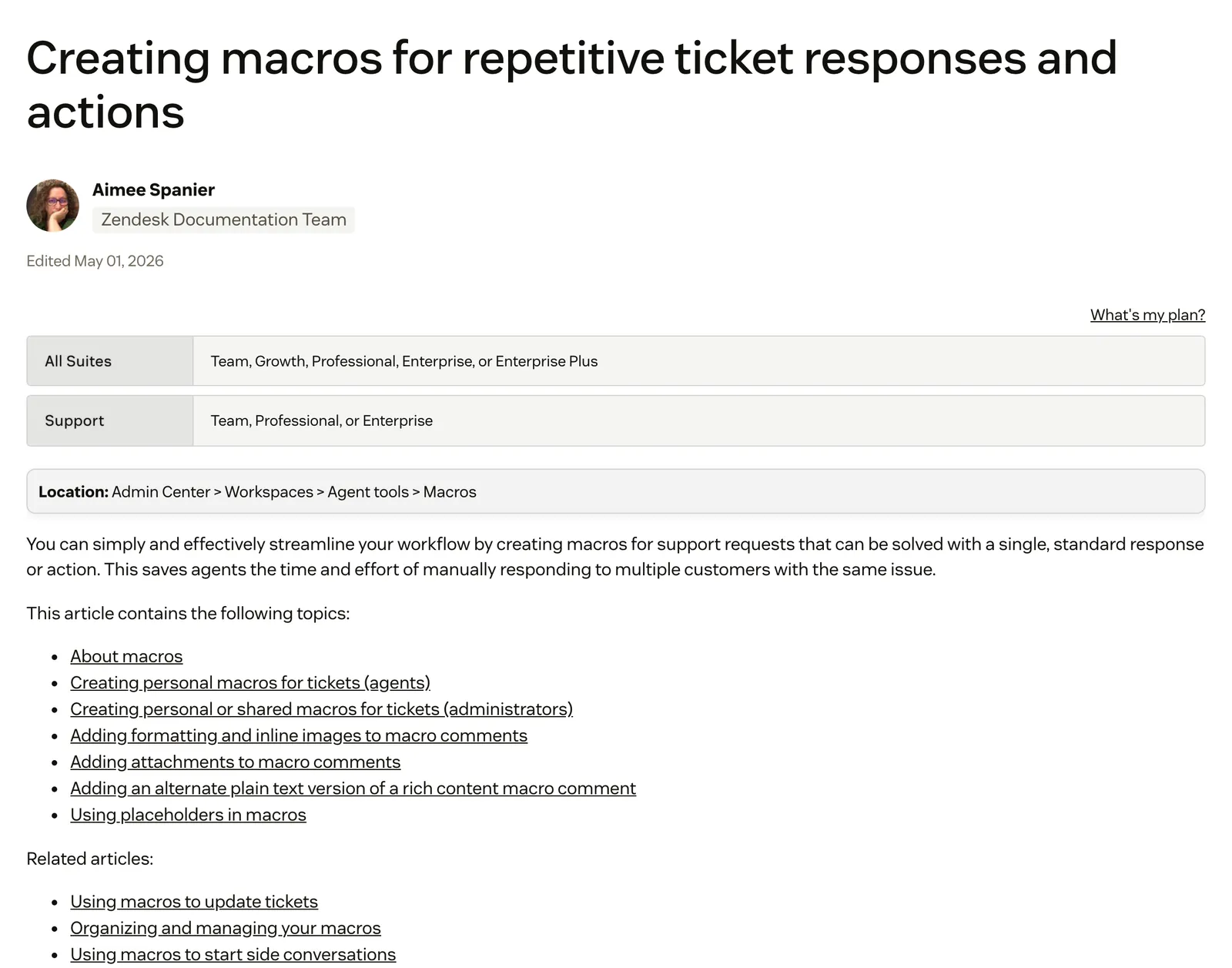
One macro can add comment text, update ticket fields, add or remove tags, add followers, change the assignee, set the subject, attach files to the comment and start side conversations. Rich text comments can carry a plain-text fallback, used in the Zendesk mobile app, SMS and messaging channels.
There are two types. A personal macro is for its creator only, and admins can see and clone it. A shared macro is built by an admin, or by a custom-role agent with permission, for all agents or for a group.
Our view: a macro makes a person faster. It writes the message and tidies the ticket. It does not look anything up, and it does not change anything outside Zendesk.
How do you create a macro in Zendesk?
To create a macro in Zendesk, go to Admin Center > Workspaces > Agent tools > Macros and select Create macro. Name it, choose who can use it, add the actions and select Create. The steps below follow Zendesk’s flow.
- Open Admin Center, then Workspaces > Agent tools > Macros.
- Select Create macro.
- Enter a Macro name and, optionally, a description.
- Under Available for, choose All agents, Agents in group or Me only.
- Add the actions: the comment text, field changes, tags, assignee and so on.
- Select Create.
Agents in group needs Suite Growth and up or Support Professional and up. Agents can also create personal macros, and you can build a macro from an existing ticket. With the Copilot add-on, generative AI writing tools help draft the text.
How do you organise macros into categories?
Put the category and subcategories in the macro title, separated by two colons. Zendesk’s organising guide uses “Assign to::me::question” as its example, and any naming structure works.
For a store, our pattern is to mirror ticket types: Orders::WISMO::In transit, Returns::Inside window, Refunds::Confirmed. The library then reads like your inbox, and agents find a macro by typing the ticket type.
August 2026We recently introduced separate escalation macros for Incidents, Service Requests, and Questions, and being able to surface only the relevant macro based on ticket type would reduce agent confusion and prevent the wrong macro from being applied. · Zendesk CommunityWhat are the Zendesk macro limits?
The limits that matter sit in different Zendesk articles, so the table gathers them in one place.
Zendesk macro limits at a glance
| Limit | Value | Source note |
|---|---|---|
| Shared macros per account | 5,000 | Zendesk macro guide |
| Attachments per macro comment | 5 | Zendesk macro guide, same for the API |
| Linked attachment size | 50 MB | Zendesk macro guide |
| Attachments in bulk updates | Not included | Zendesk macro guide |
| ”Agents in group” availability and sorting by usage | Suite Growth and up, Support Professional and up | Create and organising guides |
| API usage sideloads | Same plans | Macros API reference |
| Records per API list page | 100 | Macros API reference |
| Suggested macros | Professional and up, 100 tickets, 3 macros, 9 months | Suggested macros guide |
Housekeeping matters at the cap. Only deactivated macros can be deleted, and Zendesk states that deleted macros cannot be recovered, so deactivate first and delete later.
How do agents apply a macro to a ticket?
Agents apply a macro from the Apply macro button in the bottom toolbar of a ticket, or by typing a slash (/) in the Agent Workspace comment. Zendesk’s apply guide says the seven most-used macros from the past week appear first, and typing filters the list.
Before applying, preview a macro with the preview icon or Shift + Enter. You can stack several macros on one ticket, and you can apply one macro to many tickets from a view. The comment text stays editable before you submit.
That last point is why the agent is still the last check on every fact in the reply. A macro does not know the order, so the person applying it has to.
Zendesk’s apply guide lists the caveats worth knowing:
- A field action only applies if the field is on the ticket form.
- If the agent lacks permission for an action, it does not happen.
- A later macro can undo an earlier one.
- Simultaneous updates block the macro until the latest ticket data shows.
- Triggers or automations can conflict with an update and cause tag collisions, so check the events log.
- Attachments drop out when you bulk apply.
How do placeholders and Liquid work in macros?
Placeholders are double-curly-bracket references to Zendesk data that fill in when the macro is applied. Examples from Zendesk’s placeholder reference are the ticket ID, the requester’s name and the current agent’s name. Liquid markup adds logic, such as looping over the ticket’s CCs.
Hi {{ticket.requester.name}},

Thanks for getting in touch about #{{ticket.id}}.
{{current_user.name}}
Four caveats from that reference apply to store macros:
- On a Problem ticket, a placeholder renders when the macro is applied, so the requester’s name goes to every linked ticket. Escape it with a backslash to render on submit.
- Multi-line placeholder content loses its line breaks.
- Values follow the requester’s language in most instances, and that cannot be disabled.
- Placeholders do not work inside code blocks.
For a store, the point is what the reference lacks. It covers ticket, user, organisation, comment, satisfaction rating and custom-object data, and Zendesk documents no order, tracking or return-window placeholder. Custom fields and custom objects that you populate yourself can be referenced, but someone or something has to fill them first.
Which Zendesk macros does an online store need?
Mirror your top ticket types. The reply can be prewritten, the facts cannot. This section is not in Zendesk’s reference, so the table is our template, built around the order ticket types most stores handle.
Our template, not Zendesk’s: macros for an online store
| Ticket type | Macro name | What the macro sets | What the agent still does outside the macro |
|---|---|---|---|
| WISMO | Orders::WISMO::In transit | Reply, tag, status pending | Looks up carrier status and ETA |
| Return inside window | Returns::Inside window | Reply with return steps, tag | Checks the order date against the window, creates the return |
| Refund confirmation | Refunds::Confirmed | Reply, status solved | Issues the refund in Shopify first |
| Cancellation before dispatch | Orders::Cancel::Before dispatch | Reply, tag | Checks fulfilment status, cancels the order |
| Address change | Orders::Address change | Reply, tag | Checks it has not shipped, edits the address |
| Damaged item | Orders::Damaged | Reply asking for a photo, tag | Checks stock, arranges the resend or refund |
| Subscription skip or pause | Subscriptions::Skip | Reply, tag | Changes it in the subscription app |
| Product or sizing question | Pre-sale::Sizing | Reply with the size guide link | Checks stock in the variant |
The last column is where the handling time sits. It includes the order refunds and cancellations that Zendesk’s own Shopify page puts in the human agent’s sidebar app.
How does the Zendesk macros API work?
The Zendesk macros API is a set of REST endpoints under /api/v2/macros that list, search, create, update and bulk-delete macros, and that preview what a macro would do to a ticket. Nothing in the Macros API changes a ticket. You send the result to the Tickets endpoint. The developer reference has the full detail.
| Method and path | What it does |
|---|---|
| GET /api/v2/macros | Lists shared and personal macros available to the current user; admins see all |
| GET /api/v2/macros/active | Lists active macros |
| GET /api/v2/macros/search?query= | Searches macros |
| GET /api/v2/macros/categories | Lists macro categories |
| GET /api/v2/macros/actions | Lists macro actions |
| GET /api/v2/macros/definitions | Returns the macro action and value definitions |
| GET /api/v2/macros/{macro_id} | Returns one macro |
| GET /api/v2/macros/new?macro_id=&ticket_id= | Returns an unpersisted replica of a macro |
| GET /api/v2/macros/most_used | Returns up to 10 most-used macros for the current user |
| POST /api/v2/macros | Creates a macro |
| PUT /api/v2/macros/{macro_id} | Updates a macro |
| PUT /api/v2/macros/update_many | Updates several macros |
| DELETE /api/v2/macros/{macro_id} | Deletes a macro |
| DELETE /api/v2/macros/destroy_many?ids= | Deletes several macros |
| GET /api/v2/macros/{macro_id}/apply | Returns the changes the macro would make; the ticket is untouched |
| GET /api/v2/tickets/{ticket_id}/macros/{macro_id}/apply | Returns the full ticket as it would be; the ticket is untouched |
| POST /api/v2/macros/{macro_id}/attachments | Adds an attachment, up to five per macro |
Three gotchas follow from the reference:
- Apply endpoints preview, they never write. Zendesk says you can use the response in a later call to the Tickets endpoint to update the ticket.
- An update replaces the whole actions array. Zendesk says “Include all your actions when updating any action”, or the others are cleared.
- Usage sideloads need a higher plan. usage_1h, usage_24h, usage_7d and usage_30d need Support Professional or Suite Growth and above. Our tip: usage_30d is the quick way to find macros nobody uses before you hit the 5,000 cap.
Zendesk’s own create example is a status change:
{"macro": {"actions": [{"field": "status", "value": "solved"}], "title": "Roger Wilco"}}Actions are field and value pairs, such as status, priority, type, assignee_id, group_id and comment_value.
Can Zendesk suggest macros with AI?
Yes. Suggested macros shows up to three shared macros at the top of the macro list, on Suite Professional and up and Support Professional and up. It is off by default, and an admin turns it on account-wide under Agent tools > Macros > Actions > Manage settings.
The thresholds sit in Zendesk’s suggested macros. Your account needs at least 100 tickets from the last nine months, in a supported channel, with a shared macro applied, and at least three shared macros used at least once. A new macro takes two weeks to join the model, and personal macros are never suggested.
With the Copilot add-on, auto assist may also suggest macros.
Our view: a suggestion picks which of your templates fits. It still picks from text you wrote.
Can a Zendesk macro run automatically?
No. A macro has no conditions and runs only when someone applies it, or when an API call previews it and you write the result to the ticket. For rules that fire on their own, Zendesk has triggers, which run right after a ticket is created or updated, and automations, which run hourly on time conditions.
Can a Zendesk macro pull Shopify order data?
Not through placeholders. Zendesk documents no order placeholder, so the tracking status, the return window and the refund still sit in Shopify. Zendesk’s Shopify page puts order refunds and cancellations in the human agent’s sidebar app.
Our view: Zendesk is a proven ticketing foundation, but it doesn’t think in orders, returns or subscriptions. It wasn’t built to. A macro library grows with every new policy and carrier, and each change means editing static text. For the help centre content an AI answers from, see our knowledge base guide. If you are weighing an e-commerce help desk instead, see Gorgias comparison.
July 2026Triggers, macros, fields, and integrations have piled up, and today no one really has a full, exhaustive picture of what does what and why. · Zendesk CommunityWhere does Engaige fit?
Engaige isn’t a macro tool or a Zendesk feature: it’s the e-commerce AI support agent that plugs into the Zendesk you already run, and it works alongside your macros. Your team keeps its macros for the work it still does by hand, and Engaige takes the order tickets macros leave to an agent. Keep your helpdesk. Replace the AI. Behind it is Engaige AI, which learns from your conversations and inputs, configures your support agent and shows which policies it used.
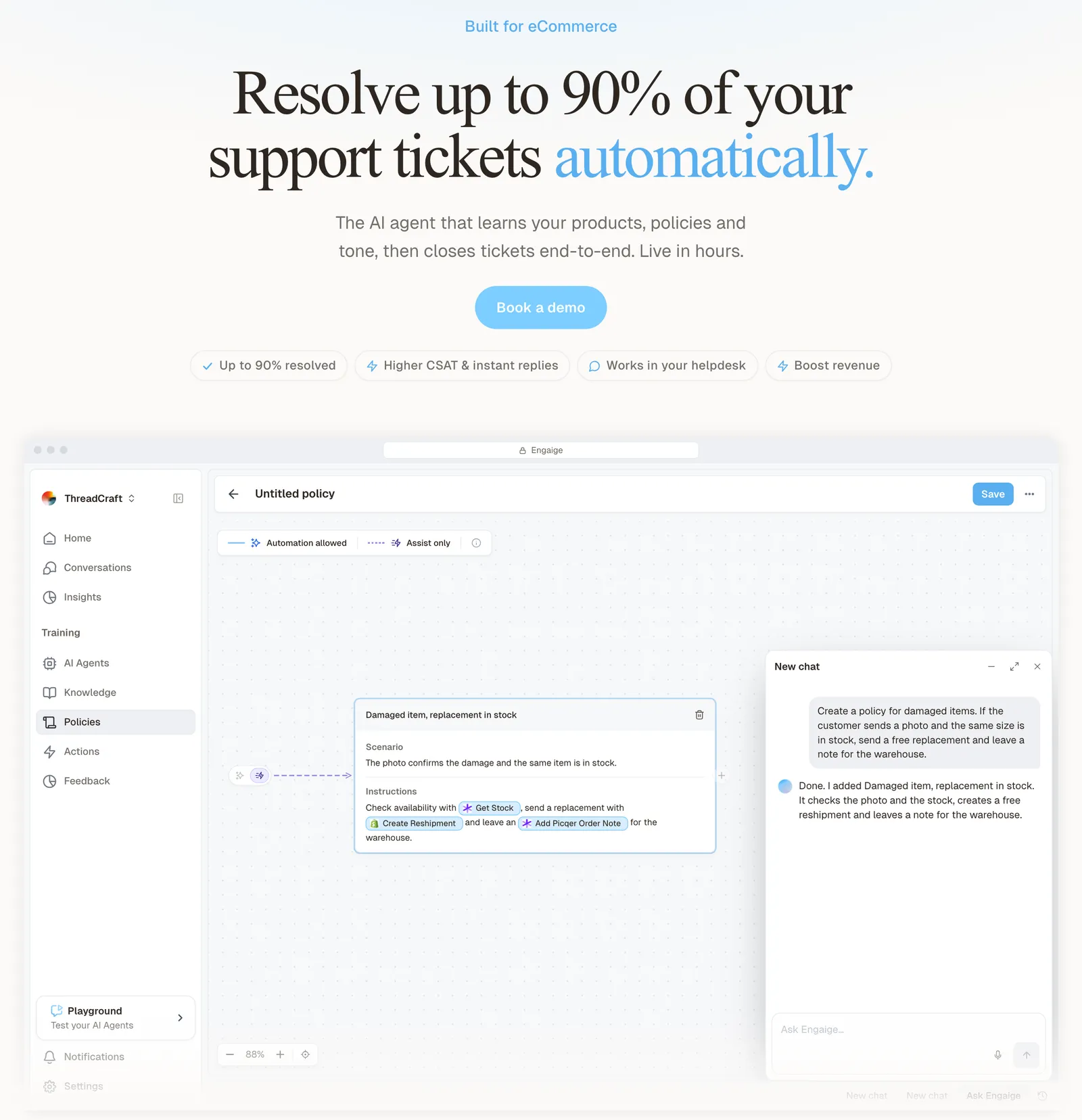
The difference is actions, not text. A macro types “we’ve sent a replacement” and sets the tags. Engaige runs the refund, resend, cancellation, address or subscription change in the connected system first, then replies and closes the ticket in Zendesk, under your policies. See the Zendesk integration for how it works inside the agent workspace, and the returns and subscriptions pages for those ticket types.
On Shopify, Engaige combines live Admin API data with your storefront content. Policies decide how it reasons, which process it follows and when it may act. You set, per policy, what the agent may do alone and where a person checks first.
Scenario
The customer asks about a delivery address.
Instructions
Read the order with Get order , then take the branch that matches.
Scenario
The order has not been picked yet.
Instructions
Move it with Change picqer shipping address .
Scenario
The parcel has already left the warehouse.
Instructions
Say it cannot be redirected, then offer Process refund .
Every answer and action also shows why, with the source it drew on.
Hi, where is my order? It's been eight days and the tracking hasn't moved.

Shopify
Order 48219 · fulfilled

Picqer
Still processing Contradicts Shopify

DHL
Returned to depot · 3 delivery attempts
Settles it: the parcel is not with the customer
Reasoning…
Not deliverable. Reship to a confirmed address, booked in Picqer.
Suggested reply
Your parcel went back to the depot after three delivery attempts, so it will not arrive. I have booked a reshipment to the address you confirmed, arriving Thursday.
You go live in Agent Assist in hours. In Agent Assist, Engaige AI compares what your team said with what the agent suggested, learns from the difference, and you approve the changes. That includes replies your team sends from a macro: Engaige AI learns from what was actually sent. Ticket types then switch to autonomous one at a time, most brands in about a week, up to 90% of supported tickets.
MR MARVIS (Shopify Plus) is handling over 120,000 questions a year and resolving over 60% of the conversations it’s involved in. Otrium has 60% of 120,000 annual tickets resolved end to end.
With Engaige, we are able to automatically resolve 60% of the 120,000 support tickets that we receive annually.

To see how this compares with running Zendesk’s own AI, read the Zendesk comparison.
Frequently asked questions
What are Zendesk macros used for?
Macros apply a prewritten reply and a set of changes to fields, tags, assignee or status in one click. Agents use them for repeated ticket types such as order status or returns. They do not look anything up outside Zendesk.
How many macros can you have in Zendesk?
Up to 5,000 shared macros per account. Each macro comment can carry up to five attachments. Deactivate a macro before you delete it, because deleted macros cannot be recovered.
What is the difference between a macro and a trigger?
A macro is applied by a person and holds actions only. A trigger checks conditions and fires on its own after a ticket is created or updated.
Do I have to give up my macros to add an AI agent to Zendesk?
No. Keep your helpdesk and your macros. Engaige works alongside them, inside the Zendesk you already run.
Can an AI agent issue a refund on a Zendesk ticket instead of a macro?
Yes, under your policies: Engaige runs the refund in the connected system first, then replies and closes the ticket. A macro only writes the reply and sets fields.