The Slack and Zendesk integration is Slack for Zendesk Support, an app built by Zendesk that connects your Zendesk account to one or more Slack workspaces. Admins post ticket alerts to channels with Slack triggers, and your team can create tickets, add internal notes and run side conversations from Slack. The ticket itself stays in Zendesk.
This guide is for an online store already on Zendesk. For the wider picture, start with our guide to Zendesk e-commerce.
What is the Slack and Zendesk integration?
The Slack and Zendesk integration is Slack for Zendesk Support, a Built-by-Zendesk integration that connects one or more Zendesk subdomains to multiple Slack workspaces. You work with tickets and approval requests in Slack channels. Zendesk lists it for Customer Service Suite Team, Growth, Professional, Enterprise and Enterprise Plus, and for Support Team, Professional and Enterprise.
It is an internal tool. Your team talks about tickets in Slack, and the customer never sees Slack. It is also not a messaging channel: the separate Slack Direct Messages channel lets end users open tickets by messaging a handle, and Zendesk says it is not a replacement for the integration.
Our view: Slack is where your team hears about a ticket, and Zendesk is where the ticket gets resolved. Keep that split in mind, because it decides what you should send to Slack and what you should leave in your queue.
What does the Zendesk Slack integration include?
Zendesk and Slack meet in four ways: the Slack for Zendesk Support app with Slack triggers for ticket alerts, side conversations in Slack, Slack actions inside action flows, and custom webhooks into a Slack app you build. Ticket creation, internal notes and approval requests from Slack come with the app.
| Part | What it does | Who sets it up | Where it lives |
|---|---|---|---|
| Slack triggers (the app) | Posts ticket event alerts to channels; an admin chooses the conditions and the message | Zendesk admin | Zendesk triggers, Slack channel |
| Tickets, notes and approvals from Slack | Create a ticket with the /zendesk shortcut, the Create a ticket message action, the sidebar app or @zendesk in Slack Connect; add an internal note from a notification thread | Slack users, once an admin has installed the app | Slack, writing to Zendesk |
| Side conversations in Slack | Agents start and join Slack threads from a ticket | Admin turns it on per workspace | Ticket in Zendesk, thread in Slack |
| Slack actions in action flows | Post to a channel, DM one person, reply in a thread, add a reaction and more | Zendesk admin | Action flow in Admin Center |
| Custom webhooks | A Zendesk webhook sends ticket data to a Slack incoming webhook you set up | Zendesk admin plus a Slack app owner | Trigger, webhook, custom Slack app |
Tickets created in Slack get the created_from_slack tag, as Zendesk documents. Side conversations in Slack need Suite Professional or above, or Support with the Collaboration add-on, and have their own guide: see side conversations. One footnote: Answer Bot for Slack exists only for accounts that had a legacy AI agent as of 2 February 2025 (Zendesk), so do not build on it.
How does the Slack for Zendesk Support integration work?
One installation links one Zendesk account to one Slack workspace, and you repeat it for each extra connection. Tickets can be created from any channel, but the Zendesk app must be added to every channel that should receive alerts. Notifications are high-level summaries that link back to the ticket in Zendesk.
Information flows both ways. From Zendesk to Slack, you get notifications: the subject links to the ticket, and the footer shows status, account and time. From Slack to Zendesk, you get new tickets, internal notes added from a notification thread and approval responses.
You can run the installation again for each extra connection. If your brands share one Zendesk account instead, see our multi-brand guide.
How do you set up the Zendesk and Slack integration?
Install the app from Admin Center as a Zendesk admin who may install Slack apps, add the Zendesk app to each channel, then create a Slack trigger that decides which tickets post where. Turn on Slack side conversations per workspace if you use them. A channel can take up to 15 minutes to appear.
How do you connect Zendesk to a Slack workspace?
You need Zendesk admin rights and permission to install apps in Slack. The integration cannot be installed on a shared workspace you were invited to as an external user.
- In Admin Center, go to Apps and integrations, then Integrations, then Integrations.
- Click the options menu next to Slack, then click View.
- Click Connect workspace.
- Choose the workspace in the top-right drop-down and click Allow.
- Click Set up in Zendesk Admin Center.
Zendesk’s tip: turn on Slack’s Approve apps setting. With it off, another install can break the integration.
How do you add the app to your Slack channels?
Type /invite @Zendesk in the channel. This is required for private channels. For public channels you can also go to Configure, then the Channels tab, select channels and choose Add app to channels. Per Zendesk, a channel can take up to 15 minutes to appear.
How do you create a Slack trigger?
You must be an admin, and the app must already be in the channel. Zendesk’s Slack trigger guide covers the full steps; for trigger basics, conditions and run order, see our triggers guide. The Slack-specific parts are these:
- Add the action Notify Zendesk integration, then Slack integration.
- Choose the workspace and the channel.
- Edit the notification header and body, using placeholders.
Zendesk suggests naming the trigger with the workspace and channel, as in its example “New ticket for #delivery-support - Workspace 1”. Keep the conditions simple: Zendesk says the more complicated a trigger is, the harder it is to troubleshoot. In the message, Slack formatting works: <!here> alerts the channel, <@USERID> mentions a user and <!subteam^ID> mentions a user group.
What if your channel does not show up?
Only channels the app has been added to appear in the list. “Slack channels couldn’t be loaded” means the app is in no channels yet. Private channels show only if you are a member. Zendesk also asks you to confirm that your Zendesk and Slack accounts use the same primary email.
How do you use Slack actions in Zendesk action flows?
Action flows are Zendesk’s multi-step automations. Connect Slack once in the action builder, then add Slack steps such as Post message to channel or Send direct message after Zendesk lookups. Zendesk’s own recipe messages an agent in Slack the moment a ticket is assigned to them, with ticket, requester and organisation details.
To connect, go to Admin Center, Apps and integrations, Actions, Action flows, edit a flow, then open External actions, Slack and Connect. Authenticate, then run /invite @Zendesk Connector in Slack. External actions are attributed to whoever connected the system, so Zendesk recommends a dedicated service account.
The Slack actions are Post message to channel, Send direct message, Reply to message thread, Fetch thread messages, Add reaction, Fetch message and Find user. Send direct message reaches one person only, and Slack Workflow Builder is unrelated to action flows. Check your plan before you plan around action flows: Zendesk’s articles do not agree on the tier.
Because Zendesk added Shopify actions such as order lookups to action flows on 3 September 2026, a flow could in principle look up order data and post it to Slack. That is our reading, not a documented recipe.
How do online stores use Slack with Zendesk?
Use Slack for the few tickets that need someone outside the queue fast, not for every ticket. Typical store jobs are urgent or VIP order tickets to an escalations channel, negative satisfaction alerts to a team lead, and questions for the warehouse team. Everything else stays in Zendesk views.
These are our scenarios, built on documented conditions. The vip tag is one you would set yourself.
| Store job | Zendesk part | Condition or step | Slack destination |
|---|---|---|---|
| Urgent order ticket | Slack trigger | Priority is Urgent | #cs-escalations |
| VIP customer | Slack trigger | Tags contains at least one of vip | #vip-orders |
| Negative satisfaction | Zendesk webhook workflow (custom Slack app, incoming webhook, trigger) | Satisfaction changed to Bad, or Bad with comment | Team lead channel |
| Warehouse question on a missing item | Slack side conversation from the ticket | Agent starts it from the ticket | #warehouse |
| New assignment | Action flow | Direct message to the assignee | The agent, in Slack |
Zendesk’s trigger conditions offer four priority values (Low, Normal, High, Urgent) and the Tags operators Contains at least one of and Contains none of. The negative-rating workflow uses a custom Slack app with an incoming webhook, a Zendesk webhook and a trigger.
Our tip: name channels by job, use <!here> only for urgent tickets, and keep one trigger per channel so you can switch an alert off without touching the rest.
One privacy line. Zendesk tells admins to redact or sanitise personal data before routing ticket details to third-party webhooks, and the Slack incoming webhook URL itself includes the secret, so treat it like a password. Store tickets carry addresses and order numbers, so this matters.
What does the Slack Zendesk integration cover, and what stays in Zendesk?
Slack is the notification and collaboration layer, and ticket handling stays in Zendesk. Zendesk’s FAQ says you cannot currently close tickets or edit ticket fields from Slack, assignment goes to groups only, attachments do not travel with notifications, and every channel needs the app added. Side conversations and action flows carry their own caps.
- Zendesk’s FAQ says you cannot currently close tickets using Slack.
- You cannot currently edit ticket fields in Slack.
- A ticket can be assigned only to a group, not a user.
- Comment attachments are not included in notifications; inline images and image links are.
- Anyone in a channel can see tickets created in that channel.
- Approval requests work for one Slack workspace only, and comments over 400 characters are not recorded.
- The integration cannot be installed on a shared workspace you do not own, and organisation-shared Enterprise Grid channels are not supported.
- Slack side conversations accept comments of 1,000 characters or less, no direct messages, and replies from a channel shared across workspaces do not return to the ticket.
- Action flows are capped at 100 flows, 60 steps each and one instance of each connected system.
- Reinstalling keeps your settings, but you must re-add the app to your channels.
Where does Engaige fit?
Engaige (that’s us) is not a Slack app. It is the AI support agent inside your Zendesk, where your customers’ tickets land, and it resolves them there: the action happens in the connected system first, for example the order in Shopify, then Engaige replies and closes the ticket. Keep your helpdesk. Replace the AI. Engaige AI configures the agent and keeps improving it, with your approval.
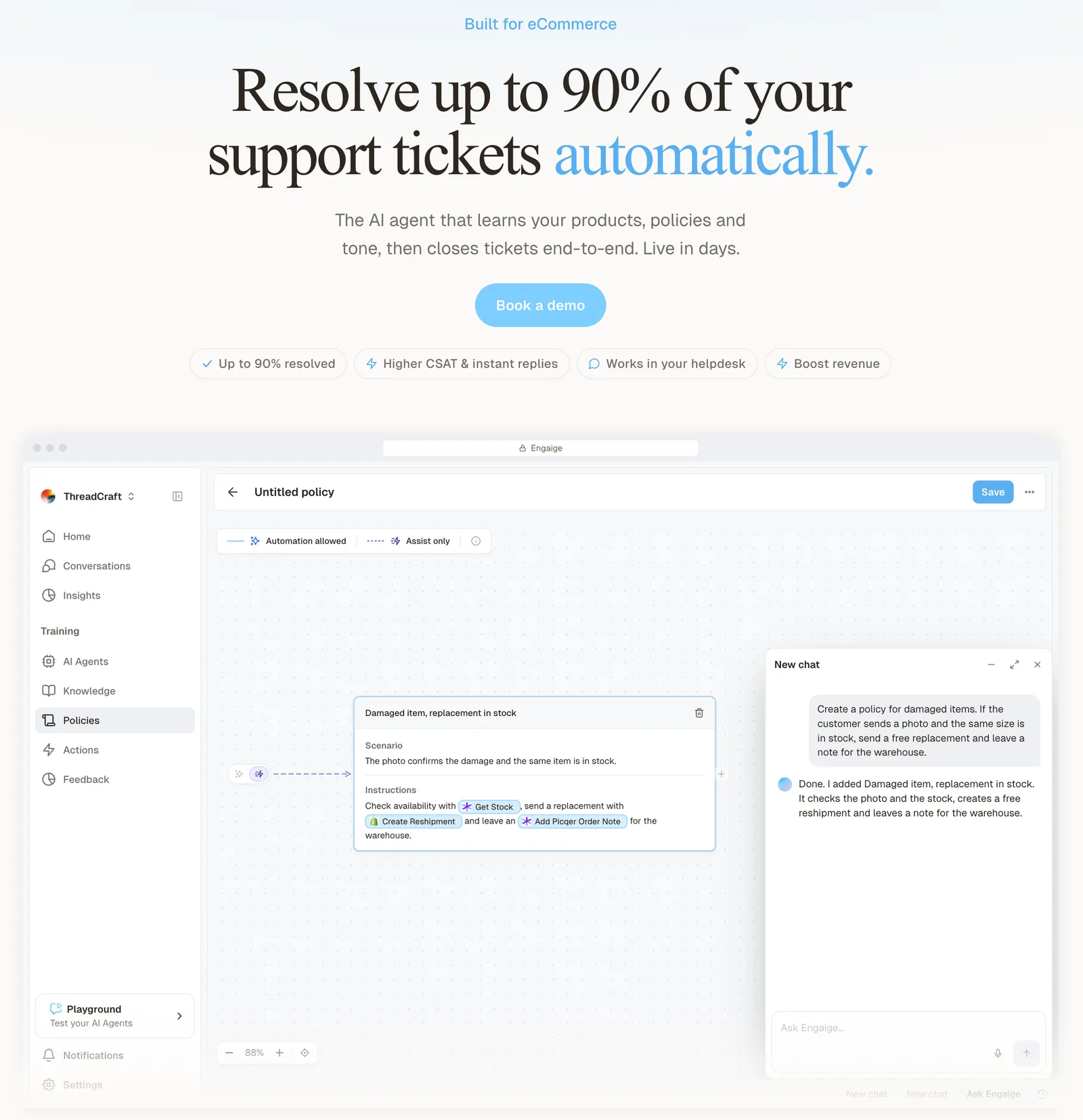
MR MARVIS, on Shopify Plus, has Engaige resolving over 60% of the conversations it’s involved in. Those tickets close inside Zendesk, so they only reach Slack if one of your triggers matches them.
When a ticket needs a person, Engaige hands it over and leaves a summary of its reasoning as an internal note in the ticket. The context sits where the next agent works, not in a Slack thread. Open any conversation in Engaige and you see the full reasoning behind every answer and action.
Within the AI we can see the reasoning, and how it comes to a response. That shows us where information is missing or unclear, and helps us improve our workflow.

Zendesk stays your proven ticketing foundation, and Engaige is the AI layer built for orders, returns and subscriptions, which Zendesk wasn’t built to think in. You go live in Agent Assist in hours, decide per step whether the agent acts or drafts, and Engaige AI learns from your team’s normal work. If you want a Slack ping when a handed-over ticket reaches your team, build a Zendesk trigger on a condition you already use, such as the assigned group.
See how it plugs into Zendesk on the Zendesk integration page, read the Zendesk comparison, or start with the Shopify integration guide for the order-data side. Slack alerts sit on top of the wider ticketing system you run.
Frequently asked questions
Does Zendesk integrate with Slack?
Yes. Slack for Zendesk Support is a Built-by-Zendesk integration that connects Zendesk subdomains to Slack workspaces. It posts ticket alerts to channels with triggers, and lets your team create tickets and add internal notes from Slack.
Is the Slack for Zendesk Support integration included in my plan?
Zendesk lists it for Customer Service Suite Team, Growth, Professional, Enterprise and Enterprise Plus, and for Support Team, Professional and Enterprise. Zendesk’s article states no price, so confirm with Zendesk.
How do I send Zendesk ticket notifications to a Slack channel?
Add the Zendesk app to the channel, then create a trigger in Admin Center with the action Notify Zendesk integration, then Slack integration. Choose the workspace and channel, and write the notification header and body.
Why does my Slack channel not appear in the Zendesk trigger?
Only channels the app has been added to appear. Private channels need the app invited and you as a member, and channels can take up to 15 minutes to show. Zendesk and Slack should use the same primary email.
Can I close or update Zendesk tickets from Slack?
Zendesk’s FAQ says you cannot currently close tickets or edit ticket fields in Slack. You can add an internal note from a notification thread, and assign a ticket to a group.
What is the difference between the Slack integration and the Slack Direct Messages channel?
The integration gives your internal team a way to collaborate and create tickets in Slack. The Slack Direct Messages channel lets end users open messaging tickets by messaging a handle, and it is not a replacement for the integration.
Can Zendesk action flows post to Slack?
Yes. After you connect Slack in the action builder, a flow can post to a channel, send a direct message to one person, reply in a thread or add a reaction. Check your plan before you rely on action flows.
Does an AI agent in Zendesk need Slack to hand tickets to my team?
No. A handed-over ticket stays in Zendesk with the context attached. With Engaige, the agent leaves a summary of its reasoning as an internal note in the ticket.
How do handed-over tickets reach my team in Slack?
Engaige works inside your Zendesk, where the ticket is resolved. When it hands a ticket to your team it leaves a summary of its reasoning as an internal note, and a Zendesk trigger on a condition you already use, such as the assigned group, can send the Slack alert, so your team keeps the alerts it already relies on.