Zendesk side conversations are separate threads inside a ticket where an agent talks to a specific group of people by email, Slack, Microsoft Teams or a child ticket, away from the customer’s conversation. An admin turns them on. They are included in Suite Professional and above, or Support Professional and above with the Collaboration add-on.
If you run an online store on Zendesk, this is how you ask the warehouse, 3PL, carrier or supplier something while the customer waits. Our view: it is the right way to ask a third party, because the question and the answer stay on the ticket. It does not move the order. Something still has to happen in the other system, and the customer waits until it does. Our Zendesk hub covers the wider product.
What are Zendesk side conversations?
Zendesk side conversations are threads in a ticket where agents talk with a specific group of people, by email, Slack, Microsoft Teams or child ticket, kept apart from the conversation with the customer. They are off by default, and an admin activates them in Admin Center, per Zendesk’s guide.
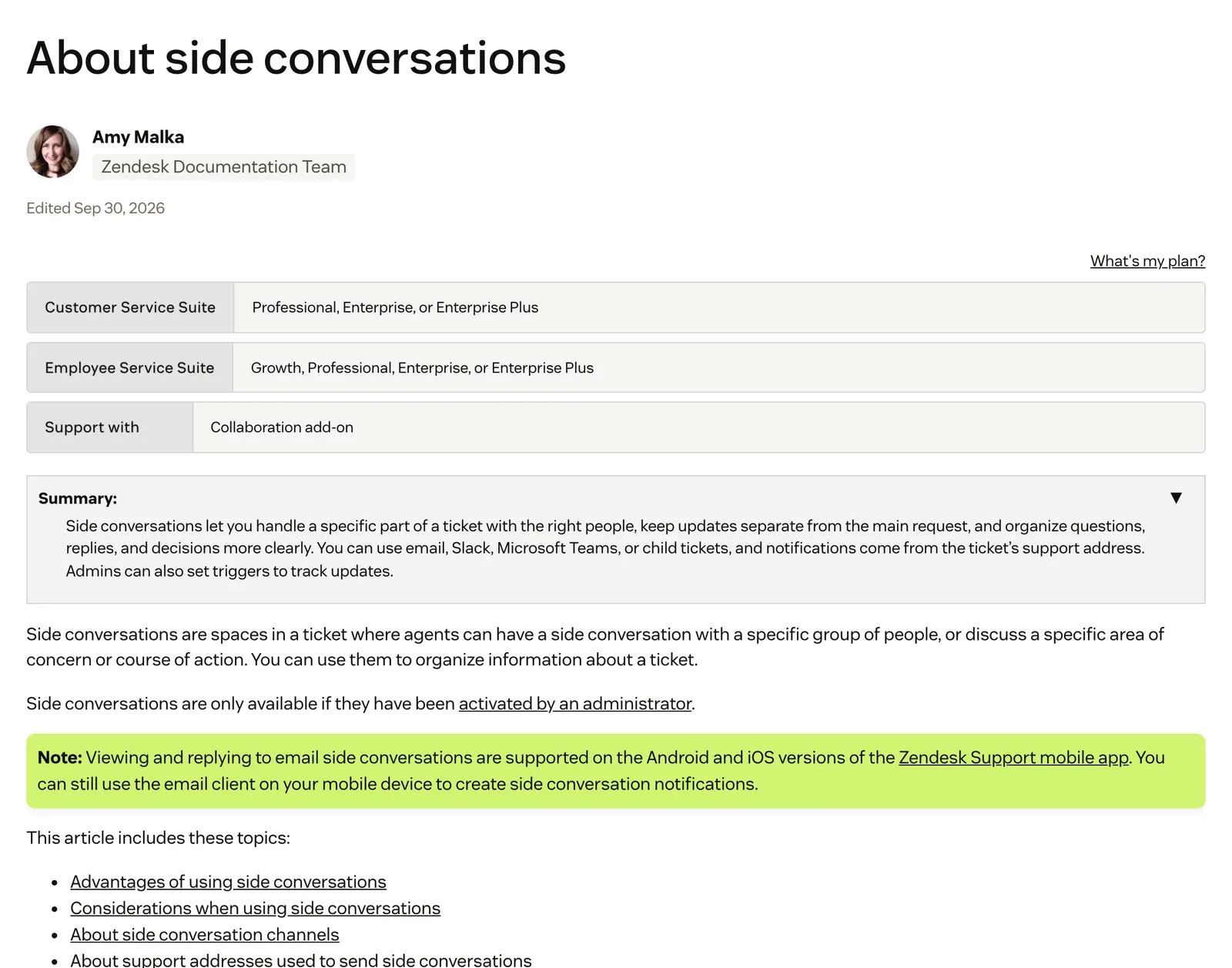
They are stored separately from the main ticket thread and can include people who have no account access. Zendesk’s own example for collaboration is an e-commerce company reaching out to suppliers for product information and shipping estimates.
Which Zendesk plans include side conversations?
Side conversations are included in Zendesk Suite Professional and above, and available as a Collaboration add-on for Support Professional plans and above, per Zendesk’s collaboration overview. We leave prices to our help desk guide.
Once on, they are available to all agents. Agents, light agents and admins can start them on open or closed tickets. On Enterprise plans a custom role can switch off “Contribute to side conversations”. Zendesk documents no setting that hides a side conversation from other agents.
Which channels can a side conversation use?
There are four channels, chosen per thread. Email reaches anyone with an address. Slack and Teams reach one channel in your workspace. A child ticket reaches a group or agent inside Zendesk. The store examples in the table are our scenarios, and the limits come from Zendesk’s articles on email, Slack, Teams and child tickets.
| Channel | Who it reaches | Store example | Watch out for |
|---|---|---|---|
| Anyone with an address, up to 100 recipients, at most 48 of them non-agents | Ask the 3PL whether a parcel left the warehouse | New addresses become end users in your account | |
| Slack | One channel in your workspace; members reply without a Zendesk login | Ask the in-house warehouse team about a missing item | No direct messages; a Slack Connect channel must be owned by your workspace |
| Microsoft Teams | One team and channel; members reply without a Zendesk login | Ask finance to approve a refund outside policy | No direct messages or Teams @mentions; Zendesk says a third party, Softserve, owns the Teams functionality |
| Child ticket | A group or agent inside Zendesk, as a separate subordinate ticket | Hand a damaged-parcel claim to the returns team | Does not inherit later status changes; triggers fire twice |
Child tickets can also run on a clock: an SLA policy with the condition “Channel is Side conversation” makes an internal operational level agreement, and Zendesk’s OLA article uses support and shipping teams as its example. The rest of SLA policy is in our Zendesk SLA guide.
How do you start a side conversation in Zendesk?
Open the ticket’s context panel, click the Side conversations icon, then the plus sign. Choose email, Slack, Teams or ticket, add recipients, a subject and your message, and click Send. Mobile apps can read and reply to side conversations but cannot create them, per Zendesk’s creating guide.
- Open the ticket and its context panel.
- Click the Side conversations icon, then the plus sign.
- Pick a channel.
- Add recipients, a subject (required), your message and any attachments.
- Click Send.
Email side conversations do not use your email templates, and agent names and addresses are visible in the thread, per Zendesk.
How do you add recipients and context?
Use To, CC and BCC for email. To bring the customer’s words along, choose “Forward via email” on a ticket comment, or add several comments. That does not work for tickets created from messaging or social channels. Attachments can come from the 100 most recent comments.
How do you use macros with side conversations?
Zendesk has three macro actions: a side conversation via email, via Slack and via child ticket. Placeholders can pull the requester’s first message, custom field values and the ticket ID and URL, per Zendesk’s macro article. The thread is not saved until you add a recipient and click Send, and other field changes in the macro are lost unless you also submit the ticket.
Our tip for stores: one macro per partner (3PL, carrier desk, supplier), so every question carries the order context. For general macro mechanics, see our Zendesk macros guide.
How do triggers work with side conversations?
Ticket triggers have a condition, Ticket > Side conversation, with four values: Is Created, Closed, Replied to and Reopened. It applies to the parent ticket and is not on Team plans, per Zendesk’s trigger reference.
| Condition value | When it fires | Store use |
|---|---|---|
| Is Created | A thread is started | Tag the ticket as waiting on a partner |
| Replied to | The partner answers | Reopen or reassign so someone reads it |
| Closed | The thread is marked Done | Clear the waiting tag |
| Reopened | The thread is reopened | Put the ticket back in the queue |
Triggers can also start a side conversation by email or child ticket. Zendesk advises adding a tag such as triggered_sc and a “Tags contains none of” condition, so they do not create unnecessary threads.
Our view: add a reply trigger, because when an end user replies to a side conversation, the parent ticket’s assignee is not notified unless a trigger does it. Tell agents never to reply to that notification email, because Zendesk says it posts a public comment; the trap is in the limits section below. For general trigger and timed-rule mechanics, see Zendesk automations.
How do online stores use side conversations?
Use them whenever the customer’s answer depends on someone outside the support team: the warehouse or 3PL, the carrier, the supplier or finance. These are our scenarios, with no real figures:
- Missing item: email the 3PL with the order and packing details, using a macro.
- Parcel stuck: email the carrier desk with the tracking details.
- Restock question: ask the buying team in Slack.
- Damaged item over a threshold: open a child ticket for the returns team, with an OLA.
Write the outcome back as an internal note before you reply to the customer, so the decision sits on the ticket. Our guide to internal notes covers who sees what. Then mark the side conversation Done, and check what happens if the ticket is already closed (below). These threads usually serve jobs like WISMO and damaged items.
What is the difference between a side conversation and an internal note?
An internal note is for your agents. A side conversation is for people outside the ticket, including outside your company. Neither reaches the customer. Zendesk describes private comments as visible only to agents, per its comments guide.
| Attribute | Internal note | Side conversation |
|---|---|---|
| Who reads it | Agents only | The recipients, and Zendesk documents no setting to hide it from other agents |
| Outside people | No | Yes, by email, Slack or Teams |
| Channel | The ticket | Email, Slack, Teams or child ticket |
| Best for | Recording a decision | Asking a third party |
Use both: a side conversation to ask, a note to record the answer.
What are the limits of Zendesk side conversations?
Side conversations move messages, not orders. The parcel is re-sent, the refund issued or the address changed only when someone acts in the warehouse, carrier, returns or store system, and the customer’s reply still waits on a person. The documented traps:
- Replying to a trigger’s notification email adds a public comment to the ticket, per Zendesk. Replies inside the thread are always private.
- End-user replies do not notify the assignee unless a trigger does.
- On closed or archived tickets, triggers do not run, so a reply creates a follow-up ticket with an internal note. The original stays closed.
- Mark done closes the thread, not the ticket, and child tickets do not follow parent status.
- With child tickets on, triggers and notification emails fire twice.
- Slack Connect channels owned by an external workspace do not work, and neither do direct messages in Slack or Teams.
- A started thread cannot be deleted, except in Slack, per Zendesk.
- Every email recipient who is not yet a user becomes an end user in your account.
- A Zendesk employee said in March 2024 that stopping a ticket being solved while a side conversation is open was not natively possible, and suggested a three-trigger workaround. It is an old community thread, so check it against the current product.
Zendesk has also accepted feedback about cluttered email threads, in April 2026, with no fix promised. Each side conversation adds a hand-off and a second inbox to watch, and that wait is the real cost. For the customer’s side of the same exchange, see our guide to conversational service.
Where does Engaige fit?
Engaige (that’s us) is the e-commerce-native AI support agent that works alongside the Zendesk you keep, and Engaige AI learns from your conversations and inputs, configures your support agent and shows which policies it used. It acts in the connected systems itself, so the order moves without a thread to wait on, then replies in the ticket and hands the rest to your team. Keep your helpdesk, replace the AI.
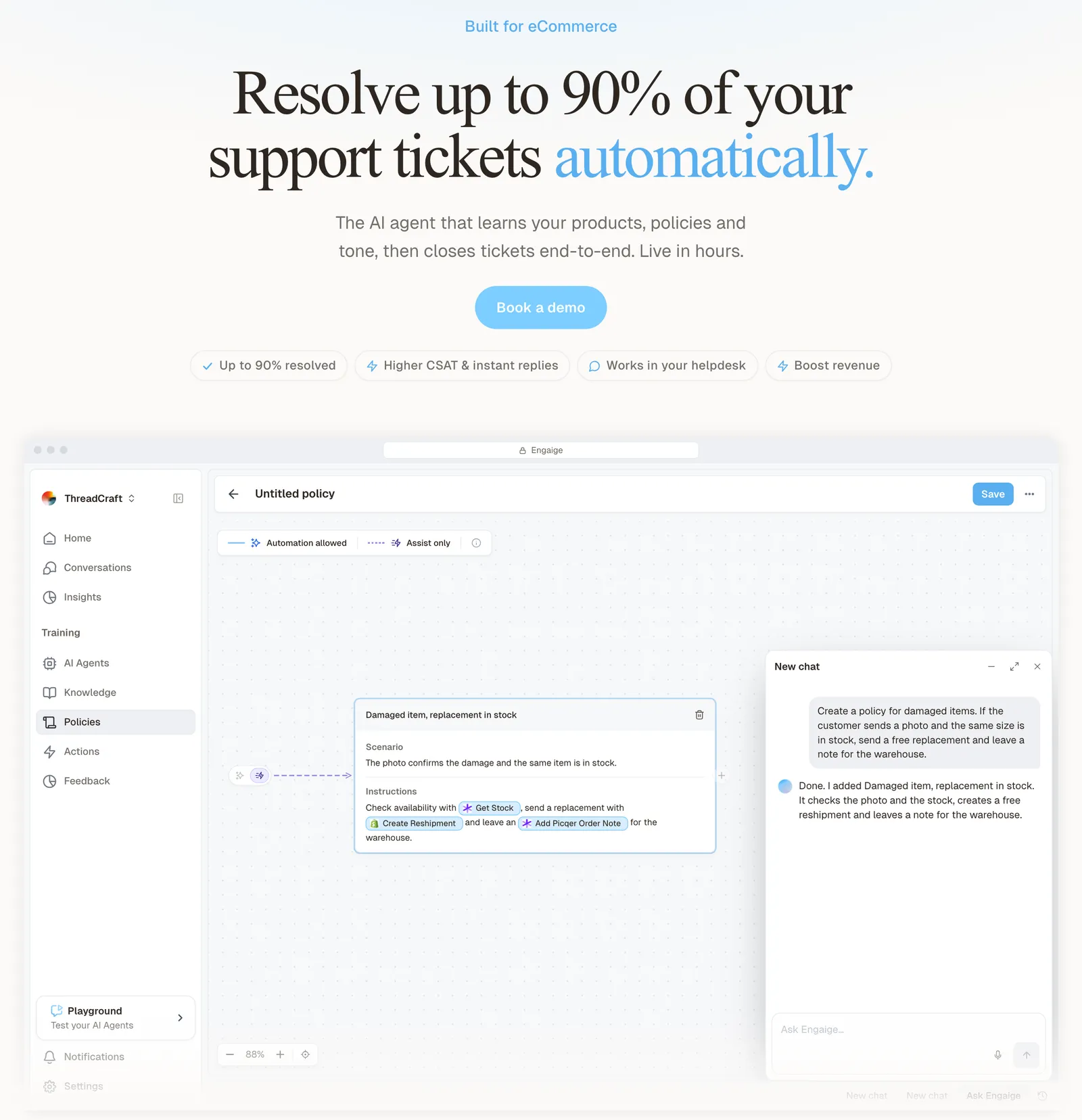
With a side conversation, an agent writes to the 3PL and waits. With Engaige, the connected tools are read and acted on under your policies: each resolution happens in the connected system first, then Engaige replies and closes the ticket inside Zendesk. Alongside your store and Zendesk, Engaige connects to your returns, subscription and carrier tools, so one ticket can be resolved across the connected systems your store uses. You decide which actions need a person to check first.
Anything that needs a person at a partner, such as a supplier decision or a carrier investigation, still goes to your team, and side conversations remain the right tool for it. Otrium has 60% of 120,000 annual tickets resolved end to end with Engaige. Zendesk is a proven ticketing foundation, but it doesn’t think in orders, returns or subscriptions. It wasn’t built to. Engaige resolves where a bolt-on suggests and waits.
With Engaige, we are able to automatically resolve 60% of the 120,000 support tickets that we receive annually.

You go live in Agent Assist in hours, or launch autonomous from day one. Engaige AI compares what your team said with what the agent suggested, learns from the difference, and improves the agent, under your supervision: you approve the changes. Most brands that start in Agent Assist go autonomous in about a week. Engaige automates up to 90% of supported tickets. See the Zendesk comparison and the Zendesk integration.
Related Zendesk guides: Zendesk marketplace, data export and intelligent triage.
Frequently asked questions
What are side conversations in Zendesk?
Threads off a ticket with a specific group of people, by email, Slack, Microsoft Teams or child ticket, which an admin must turn on first.
Which Zendesk plans include side conversations?
Suite Professional and above, or Support Professional and above with the Collaboration add-on, as covered in the plans section.
Can people outside my company reply to a side conversation?
Yes, by email, without a Zendesk login. Slack and Teams reach one channel; for Slack Connect it must be owned by your workspace. A new email address becomes an end user in your account.
Does the customer see side conversations?
No, but replying to a trigger’s notification email about one posts a public comment on the ticket.
How do I get notified when a 3PL replies?
Set a trigger with the condition Side conversation Is Replied to; without one, the assignee is not notified.
What is the difference between a side conversation and a child ticket?
A child ticket is one of the four channels, creating a separate subordinate ticket for a group or agent.
How does Engaige work alongside side conversations?
Engaige acts in the connected systems itself, then replies in the ticket and closes it. Anything that needs a person at a partner goes to your team, who keep using side conversations for it.
Do I still need side conversations if I use Engaige?
Yes, for anything that needs a person at a partner, such as a supplier decision.