Zendesk automations are time-based business rules. Once an hour, Zendesk checks every ticket that is not closed against your conditions, such as hours since pending, and runs actions like adding a tag, emailing the customer or closing the ticket. Triggers fire the moment a ticket changes. Automations wait for time to pass, and each must stop itself after firing.
This guide is for an online store already on Zendesk. It covers how automations differ from triggers and macros, the limits, setup, ticket tagging, store-ready recipes, solved vs closed, and where a clock-based rule stops. For the wider picture, see our Zendesk guide.
What are Zendesk automations?
Zendesk automations are one of three business-rule types, with triggers and macros. They act when a time event occurs, not when a ticket is created or updated. You find them in Admin Center under Objects and rules > Business rules > Automations, on every Suite plan and on Support Team, Professional and Enterprise.
Zendesk’s automations guide says all automations run once an hour on all non-closed tickets. On plans other than Enterprise, agents can see automations but only admins can edit them.
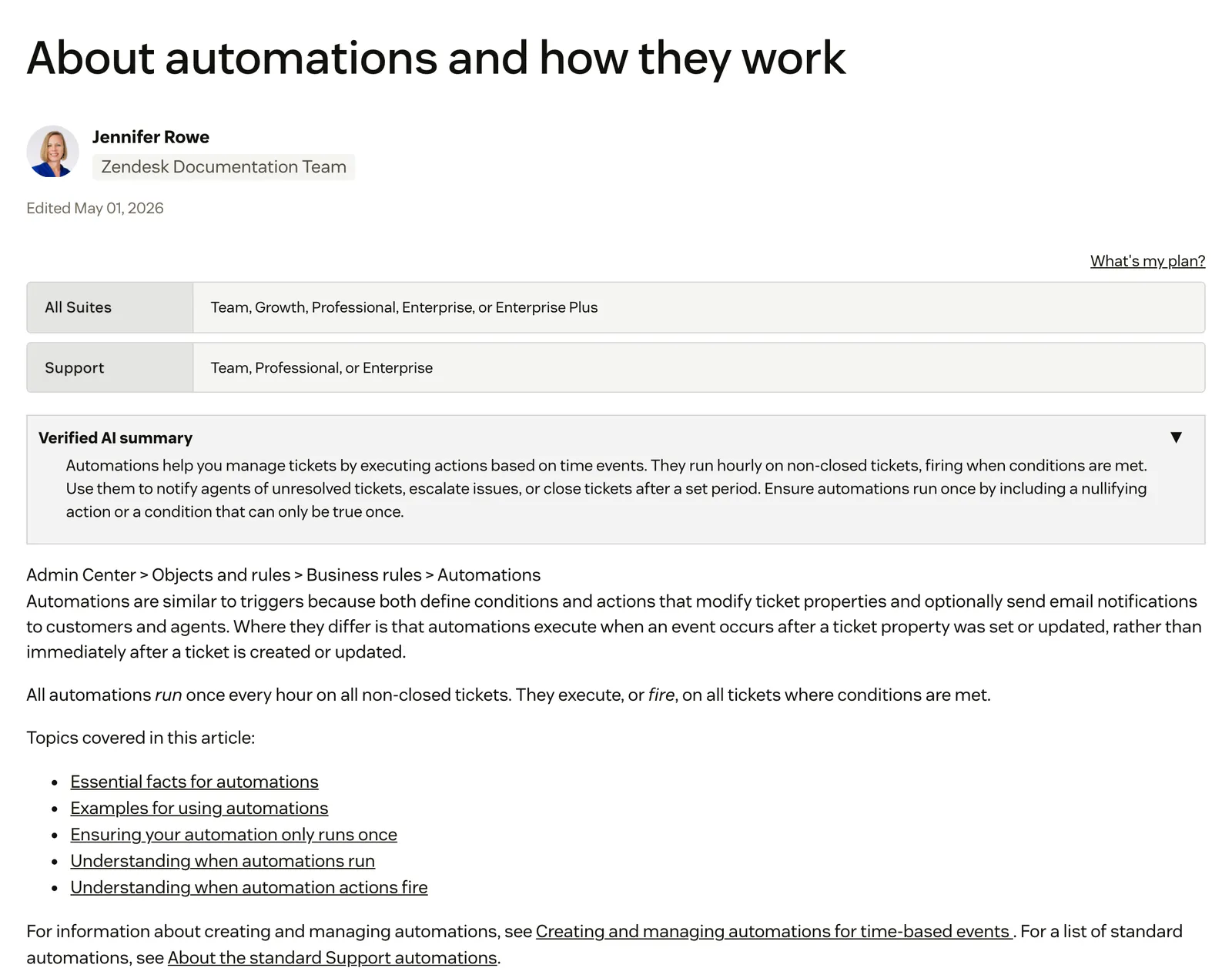
Zendesk’s own blog calls them helpful for reminders, closing tickets after a set time and reprioritising. Our view: an automation is a clock. It moves tickets along on a timer.
How do automations differ from triggers and macros?
Triggers fire immediately after a ticket is created or updated. Automations fire on elapsed time, once an hour. Macros fire only when an agent clicks them. These are the three business rules, and the stop rule is what separates them in practice: in our view, automations are the only one that can loop forever.
Triggers, automations and macros side by side
| Triggers | Automations | Macros | |
|---|---|---|---|
| What sets it off | A ticket is created or updated | Time passing on a ticket | An agent applies it |
| When it runs | Immediately | Once an hour, on non-closed tickets | When clicked |
| Typical store job | Acknowledge a new ticket, route by tag | Chase a quiet customer, close a solved ticket | Send a prewritten return reply |
| Stop rule | Never fires twice in one cycle | Needs a once-only condition or a cancelling action | None needed, one click |
Zendesk’s trigger guide says ticket triggers run in list order, the cycle restarts when a trigger updates the ticket, and a trigger never fires more than once in the same cycle. The trigger overview adds that changes made by automations can cause triggers to run, and the reverse.
That hand-off is the trigger-plus-automation pattern stores build: a trigger tags a ticket, an automation acts on the tag later. Note that trigger conditions are not the same as automation conditions: triggers match on what changed in the ticket, while automations match on elapsed time.
Creating and applying macros is covered in our macros guide.
How do Zendesk automations work?
An automation has conditions, actions and a stop. The stop is a condition that is true only once, or an action that cancels at least one condition. Without it the rule fires in an endless loop. Zendesk’s own suggested stop is a tag: check that the tag is absent, add it, act.
Every hour the automations run first to last on non-closed tickets, starting at some point within the hour rather than at the top of it. One automation’s change can make the next one fire in the same hour. Zendesk’s example: a ticket updated at 10:15 gets its notification at 11:10 if that is when the run starts, 55 minutes after the conditions were met.
Zendesk’s documented limits on automations
| Limit | What Zendesk documents |
|---|---|
| Active automations | 500 at a time |
| Tickets per automation per hour | 1,000, the rest roll to later hours |
| Updates per ticket | 100 by automations, the Close ticket automation is exempt |
| Size of one rule | Under 65 KB |
| Closed tickets | Automations do not run or fire on them |
| Hours since closed | No such condition exists |
| Inactive accounts | No runs if nobody signed in for 14 days |
All of these come from the automations guide and the conditions reference.
Two rules about the clock catch stores out. The ‘is’ operator on an hours-since condition matches only within a narrow window, and if the run comes later the rule does not fire. Zendesk recommends ‘greater than’ or ‘less than’. And hours-since-status conditions only fire if the ticket stays in that status: an ‘Hours since open is 2’ rule will not fire if the ticket moves to pending first. Any update counts for ‘Hours since update’, including an automation firing.
How do you set up a Zendesk automation?
Open Automations in Admin Center, click Add Automation, name it, add conditions and actions, build in the stop, then use ‘Preview match for the conditions’ to list the tickets that would match before you click ‘Create automation’. Zendesk’s setup guide lists the steps.
- Go to Admin Center > Objects and rules > Business rules > Automations and click Add Automation.
- Enter a title that says the job, for example the ticket type and the wait.
- Add conditions. Choose ‘Meet all’ for time-based conditions, as the conditions reference says they are not available under ‘Meet any’.
- Add actions, such as emailing the requester, changing the group or priority, or adding a tag.
- Build the stop: add a tag in the actions and exclude that tag in the conditions.
- Click ‘Preview match for the conditions’ and read the list of tickets.
- Click ‘Create automation’, then use the reorder page if the run order matters.
Time conditions can use calendar hours or the business hours of a schedule. Business-hours rules treat scheduled holidays as outside business hours, so in practice a ticket does not age over a bank holiday. The workflow most stores want, a trigger tags and an automation follows up, uses both.
Clone the standard automations rather than editing them, as Zendesk advises. Deactivate rather than delete: deactivated automations stay listed and can be reactivated, while deleted ones cannot be retrieved.
One warning before you save. The ‘Set tags’ action, per Zendesk’s reference, deletes every tag on the ticket, including tags tied to ticket fields, and replaces them. Use ‘Add tags’ unless you mean to wipe the list.
How does ticket tagging work in Zendesk?
A Zendesk tag is a word you attach to a ticket so rules, views, search and reports can act on it. Agents add tags by hand, and macros, triggers and automations add them too. Tags on users and organisations are copied onto their tickets. Automatic ticket tagging also exists, but it is off by default.
Zendesk’s tags guide says tags work in macros, triggers, automations, views, search and reports. In an automation, a tag condition uses ‘Contains at least one of the following’ or ‘Contains none of the following’, which is how the stop works.
Automatic ticket tagging is under Admin Center > Objects and rules > Tickets > Settings > Tags. Per Zendesk’s activation guide, it scans new ticket descriptions for words longer than two characters, compares them with tags already used and adds the top three matches. Three limits apply:
- It only tags tickets from end users, not tickets an agent submits inside Support.
- It might not work in languages other than English.
- Zendesk advises against it with conditional ticket fields.
Our view: that is keyword matching, not understanding. A ‘return’ or ‘refund’ tag only appears if you have used those tags before, and a Dutch or German shopper’s ticket may get none.
The AI route is intelligent triage, which classifies tickets by topic, sentiment, language and entities from the subject and first public comment. Classifications are on Suite and Support Professional and above, and using them in workflows needs the Copilot add-on. Zendesk’s intelligent triage page notes that accounts which bought Copilot before 11 June 2026 see ‘Intent’ instead of ‘Topic’.
Which Zendesk automations should an online store set up?
A handful of time-based jobs cover a store’s inbox hygiene: chasing quiet customers on pending tickets, solving after the chase, escalating ageing return tickets, and nudging assignees. The table below is our example configurations, not tested results and not customer data. Adjust the hours to your carriers and return window.
Example configurations for an online store (ours, not Zendesk’s)
| Job | Conditions | Actions | Stop |
|---|---|---|---|
| WISMO chase | Status pending, hours since pending greater than 48, tag wismo, tag reminder_sent absent | Email the requester, add reminder_sent | The reminder_sent tag |
| Auto-solve after the chase | Status pending, hours since pending greater than 120, tag reminder_sent | Set status solved, add auto_solved | Status is no longer pending |
| Return escalation | Tag return_request, hours since created greater than 4 business hours, unassigned, tag escalated absent | Set group Returns, priority High, add escalated | The escalated tag |
| Ageing open ticket | Status open, hours since requester update greater than 24, tag nudged absent | Notify the assignee, add nudged | The nudged tag |
The chase is the WISMO job, and the escalation suits returns tickets. The wording of the chase email is yours to set, and who receives it is covered in our requester guide. For reply and resolution time targets, see our Zendesk SLA guide.
What are the standard automations, and what is solved vs closed?
Zendesk ships a close automation, two pending notifications that are off at signup, and a satisfaction-rating automation that appears when CSAT is on. Solved means the issue is resolved but the ticket stays open to a reply. Closed means the ticket is locked and cannot be reopened or updated.
The standard automations are:
- Close ticket 4 days after status is set to solved. You can edit it up to 28 days, but you cannot disable or delete it. Solved tickets not closed by a rule are closed after 28 days.
- Pending notification 24 hours and Pending notification 5 days. Both email the requester and are inactive until you activate them.
- Request customer satisfaction rating. Added when CSAT is enabled.
A solved ticket stays solved until it is closed. After that, a reply creates a follow-up ticket. Per Zendesk’s follow-up guide, the new ticket references the closed one and inherits all its tags, but not its comments, priority or type. Group and assignee are not carried over unless an admin enables that setting.
There is a trap in the channel. Follow-up tickets arrive on the ‘Closed ticket’ channel, so a rule built on the Email channel will not fire on them unless you add ‘Channel is Closed ticket’ under ‘Meet any’.
Our view for a store: a 4-day close window lands inside most delivery and return windows. A customer asking “where is my parcel” on day five starts a fresh ticket without the thread. Lengthen the window, or accept the new ticket.
Where do Zendesk automations fall short for e-commerce?
Automations read the clock and the ticket’s fields, not the order. They can chase, tag, escalate and close, but Zendesk documents no automation condition that checks a tracking event, a return window or a refund, so every ticket they touch still waits for someone to resolve it.
Granularity is the first limit: hourly at best, 1,000 tickets per rule per hour, and out of reach once a ticket is closed.
October 2026Today an agent promised a B2B customer a call-back before 10:00 about a delayed order. The ticket stayed in Pending until the daily automation reopened it, and the deadline was missed. · Zendesk CommunityOrder data is the second. Zendesk’s Shopify page puts order refunds and cancellations in the human agent’s sidebar app and has bots answer common questions such as return policies. In the conditions reference we read, Zendesk documents no automation condition that reads Shopify order state, so in our view a rule only knows what someone has written into a ticket field.
Maintenance is the third. When a policy changes, say a longer return window for the holidays or a new carrier, you find and edit every affected rule by hand, in the right list order. Tagging stays keyword-based unless you add Copilot. Zendesk doesn’t think in orders, returns or subscriptions. It wasn’t built to.
If you want a bot to take the conversation instead, read our chat bot guide. If you are weighing a switch, see the alternatives comparison.
Where does Engaige fit?
Engaige isn’t an automation tool, a trigger or a Zendesk feature: it’s the e-commerce AI support agent that works inside the Zendesk you already run, and it works alongside your automations. Keep your helpdesk, keep your automations for inbox hygiene, and replace the AI. Behind the agent is Engaige AI, which learns from your conversations and inputs.
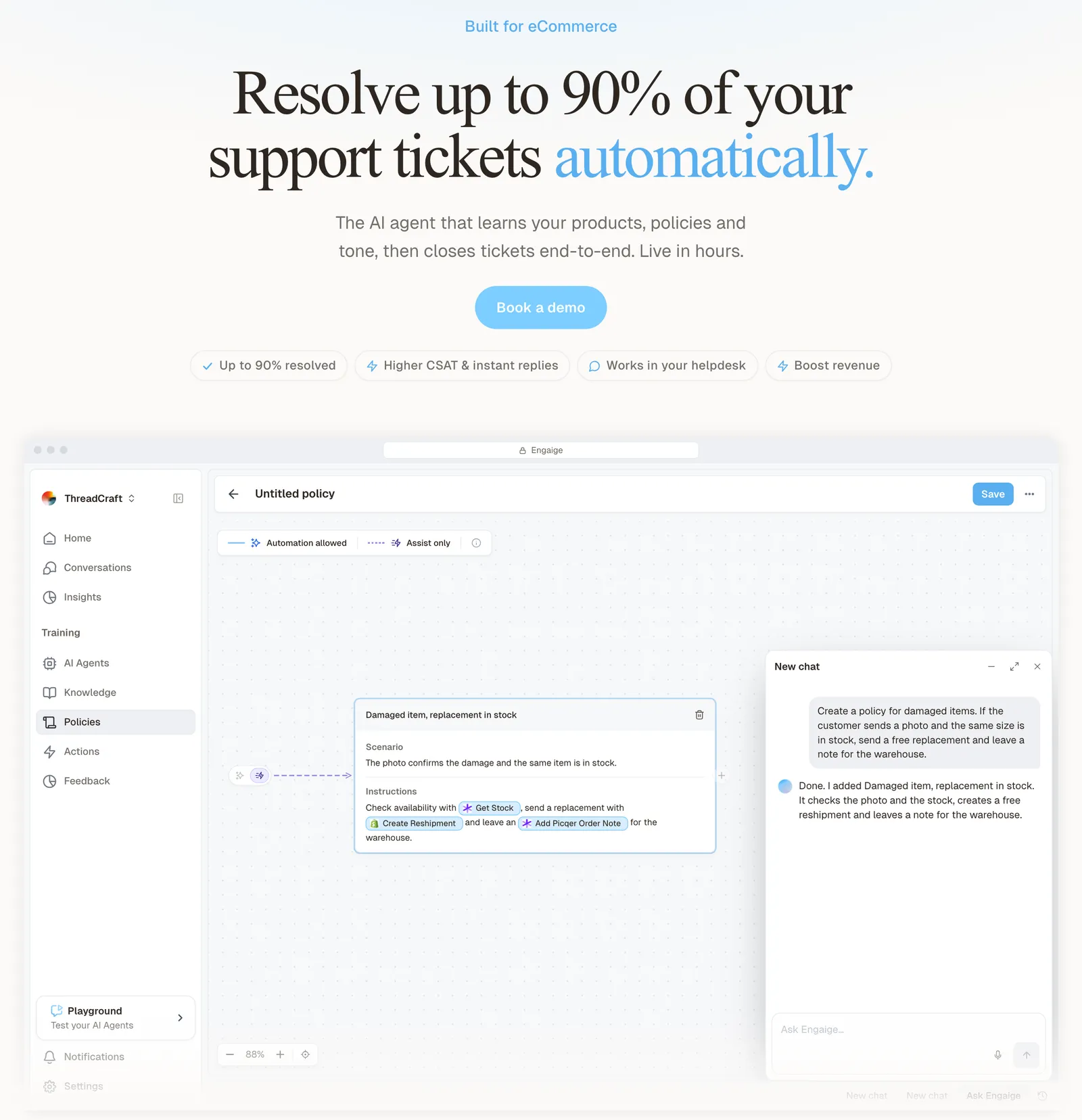
Your automations chase, tag, escalate and close. Engaige resolves the ticket itself: the action happens in the connected system first, such as the order lookup, return, refund or address change, then Engaige replies and closes the ticket in Zendesk. On Shopify it combines live Admin API data on orders, inventory, pricing across markets and customers with your storefront content. See the Zendesk integration for how it works in the agent workspace.
The angle is changing behaviour in plain language. When your return policy changes, an automation means editing conditions by hand. With Engaige you tell Engaige AI in plain language, it configures the agent and shows which policies it used. You can test a policy before launch, and you approve what goes live. No decision trees, no prompt engineers.

Hello Potential New Client
What would you like to get done today?
Could you analyse this week's conversations and show me some automation opportunities?
Ask Engaige…
Searched and found 4 contact reasons · 2.4s
Your agent resolved 426 of 512 conversations. 86 were handed over, and one contact reason accounts for most of them.
Searched and found 1 policy · 1.6s
Delivery status hands over whenever tracking is older than 24 hours, which is 40 of those 46.
Editing Delivery status · 1.9s
Done. It now handles stale tracking itself. Those 40 a week stay with your agent.
What were the reasons for handover, and how can we improve?
Fix it.
Reply…
Policies also set, per step, what the agent may do on its own and where a person checks first, by ticket type.
Engaige offered control, flexibility, and the ability to really incorporate AI in a more human way.

You go live in Agent Assist in hours. There, Engaige AI compares what your team said with what the agent suggested and learns from the difference, and you approve the changes. Ticket types then switch to autonomous one at a time, most brands in about a week, up to 90% of supported tickets.
When a policy changes, such as a new return window, the change takes effect once you approve it, with no rule to edit.
MR MARVIS is handling over 120,000 questions a year and resolving over 60% of the conversations it’s involved in. Otrium resolves 60% of its 120,000 annual tickets end to end. To see how this compares with running Zendesk’s own AI, read the Zendesk comparison.
Frequently asked questions
How often do Zendesk automations run?
Once every hour, on all non-closed tickets, in list order. They start at some point within the hour rather than at the top of it, so an action can come up to an hour after the conditions are met.
What is the difference between a trigger and an automation in Zendesk?
A trigger fires immediately after a ticket is created or updated. An automation fires on elapsed time, once an hour, and needs a stop so it does not loop.
Why is my Zendesk automation not firing?
Check four things: the ticket is closed, the ‘is’ operator missed its narrow window, the ticket left the status an hours-since condition needs, or the ticket is a follow-up on the ‘Closed ticket’ channel. Preview the match before saving.
How many automations can you have in Zendesk?
500 active automations. Each can act on 1,000 tickets per hour, and each ticket can be updated 100 times by automations.
What is the difference between solved and closed in Zendesk?
Solved means resolved but still open to a reply. Closed means locked and impossible to reopen. A reply to a closed ticket creates a follow-up ticket that keeps the tags but not the comments.
How do I automatically tag tickets in Zendesk?
Turn on automatic ticket tagging in the Tags settings. It adds the top three matches from tags you already use, to new end-user tickets, and might not work outside English. Automations and triggers can also add tags with ‘Add tags’.
Can Zendesk automations act on Shopify orders?
In the conditions reference we read, Zendesk documents no automation condition that reads Shopify order state. Refunds and cancellations sit in the agent’s sidebar app, so in our view a rule only knows what is written into ticket fields.
Can an AI agent work alongside Zendesk automations?
Yes. Keep your automations for inbox hygiene. Engaige resolves the ticket from live order data inside Zendesk.