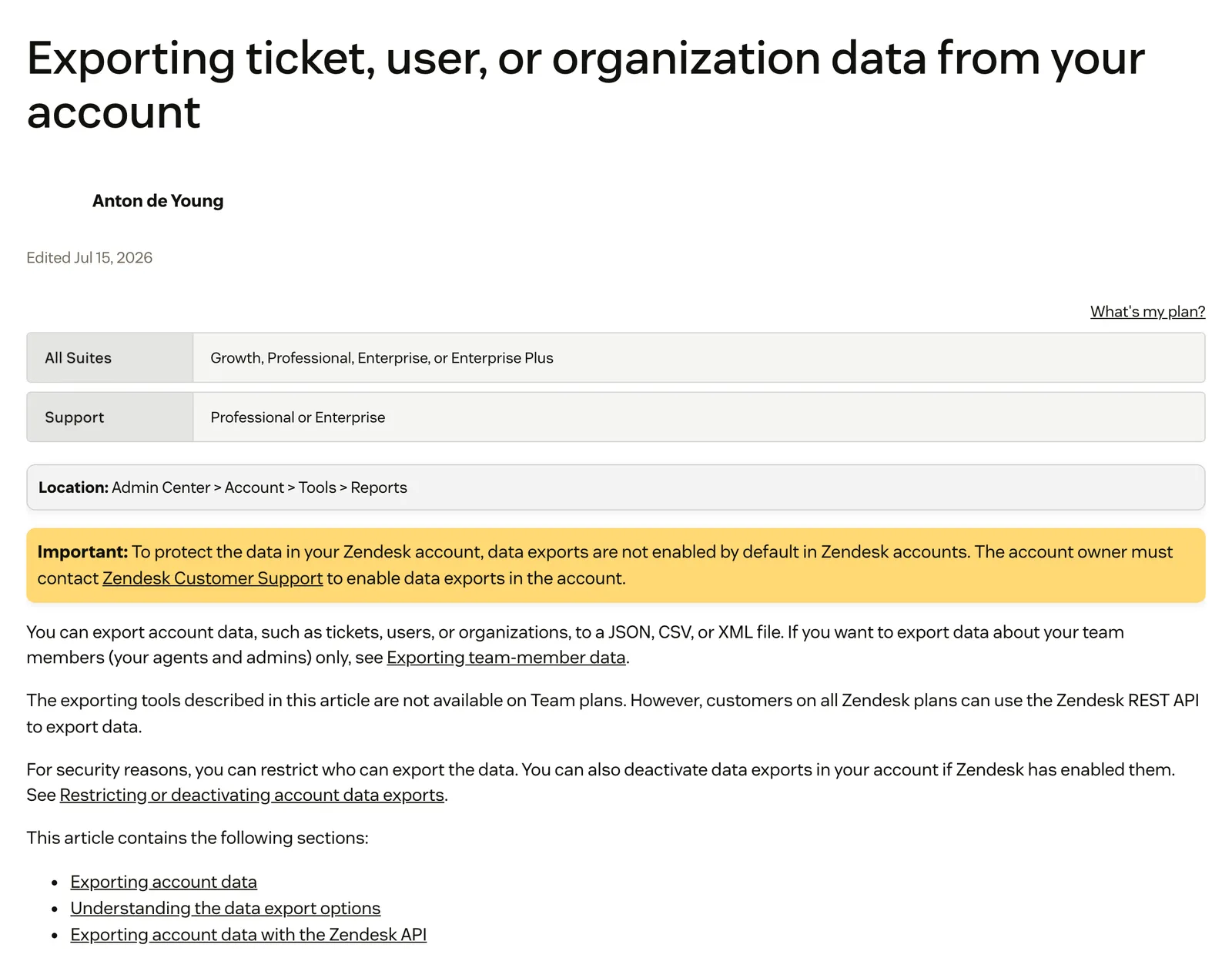
To export data from Zendesk, an admin opens Admin Center > Account > Tools > Reports and exports tickets, users or organisations as JSON, CSV or XML, once the account owner has asked Zendesk to switch exports on. It needs Suite Growth or above, or Support Professional or Enterprise. Views, Explore reports and help centre articles each export separately.
What does it mean to export data from Zendesk?
To export data from Zendesk is to copy records out of it into files (JSON, CSV, XML) or into another system. Zendesk documents no single export button, so there are five routes: the Admin Center account export, a CSV from a view, Explore exports, the Help Center API and the Incremental Export API. Each has its own plan, format and gaps. Zendesk is a proven ticketing foundation trusted by large teams, and its exports are spread across several tools.
Our view: an export is a snapshot. The moment the file lands, it is already behind your live tickets. The Zendesk hub has the full overview of the product.
What data can you export from Zendesk?
You can export tickets, users and organisations through the Admin Center, ticket lists from views, reports and datasets from Explore, and team members from the Team members page. Help centre articles go out only through the API. Attachments and AI agent tickets are the gaps. If you are weighing a move, our ticketing system guide covers what to look for in the next helpdesk. The table shows each route, per Zendesk’s export guide.
| Data | How you export it | Format | Plan needed | Who can run it |
|---|---|---|---|---|
| Tickets, users, organisations | Admin Center > Account > Tools > Reports, after Zendesk enables it | JSON; CSV (tickets only); XML | Suite Growth or above, or Support Professional or Enterprise | Admins, or a custom role with export permission |
| Tickets in a view | Views > Export CSV | CSV | Every plan, including Team | A custom role permission controls it on Enterprise |
| Explore reports and dashboards | Export in the report builder or dashboard | CSV, Excel, Image, PDF (dashboards: CSV, Excel, PNG, PDF) | Every Suite plan | Not stated |
| Explore datasets | Dataset exports | CSV | Suite Professional or above | Explore admins |
| Help centre articles | Help Center API | JSON through the API | REST API on every plan | Per API access |
| Attachments | Per record through the API, with links in the JSON export | The files themselves | API | Per API access |
| Team members | People > Team > Team members > Actions > Export | CSV | Every plan; data exports need not be activated | Not stated in Zendesk’s team-member article |
| AI agent tickets | Not exportable through the account export; Zendesk points to viewing transcripts, views and the Ticket Audits API | Not applicable | Not applicable | Not applicable |
AI agent tickets are not in the account export, per Zendesk’s export article. Messaging and legacy live chat have their own exports, covered in Zendesk’s all-products guide above.
How do you export data from Zendesk in Admin Center?
Ask Zendesk to enable exports, open Tools > Reports, choose a format and date range, and download the zip from the emailed link. The steps below follow Zendesk’s article, updated 21 July 2026.
- The account owner asks Zendesk Customer Support to enable data exports, quoting the Zendesk Support subdomain.
- Open Admin Center > Account > Tools > Reports (the Export tab on some legacy accounts).
- Choose Full JSON (a date range, and tickets, users or organisations), CSV (a date range, tickets only) or XML (you request the file, with no date range).
- Select Export.
- Download the zip from the emailed link. It is valid for at least three days. If the email never arrives, click “latest” next to the export type; that gives the last file generated, not current data.
Admins can run an export, and so can agents in a custom role with export permission, per Zendesk. Standard agents can only use an API token, depending on how the admin set up authentication. Admins can also restrict exports to an approved email domain, the account owner’s by default. That restriction does not apply to API exports.
If Tools > Reports is missing, the usual causes are the plan, the role permission or that domain restriction.
An export takes anywhere from a few minutes to a day or more. On an error, narrow the date range and retry.
Zendesk’s current article lists only Full JSON, CSV, Full XML and User XML in Admin Center. Exports of only what changed come from the API, covered further down.
Which export format should you choose: JSON, CSV or XML?
Choose JSON for the complete ticket history, including comments. Choose CSV for a spreadsheet of ticket metrics. Choose XML only for small accounts and legacy tooling. The table compares what each format includes and leaves out, per Zendesk’s export article.
| Format | What it includes | Best for |
|---|---|---|
| JSON | Tickets, users or organisations, with comments; output is NDJSON | The complete ticket history |
| CSV | Ticket fields and metrics: status, tags, channel, satisfaction, first reply and resolution times | A spreadsheet of ticket metrics |
| XML | Full: account settings, groups, organisations, tickets with comments, users | Small accounts and legacy tooling |
Zendesk’s article says the JSON and CSV exports are not available in sandbox instances; our Zendesk sandbox guide covers what a sandbox is. What each format leaves out is in the limits below.
How do you export tickets from a view or an Explore report?
A view gives a quick CSV of the tickets in a queue, which is the same queue that omnichannel routing fills if you use it. Explore exports aggregated reports, and dataset exports give granular CSVs without the report row cap. The view route is the one most people mean by “export tickets from Zendesk”, per Zendesk’s guide.
From a view. Open Views, open the view, then choose Export CSV (or Actions > Export as CSV). Zendesk emails the download link to the agent’s primary email, with one row per ticket and the view’s columns.
From Explore. In the report builder, use the arrow next to Save and choose Export (CSV, Excel, Image or PDF). Dashboards export one tab at a time, per Zendesk. The row cap and load limit are in the limits below. Our guide to ticket reporting covers which reports to run.
Dataset exports. These need Suite Professional or above and an Explore admin, per Zendesk. They run once or on a schedule (up to 14 recurring exports), as granular CSV without the 50,000-row report limit. Each CSV can be downloaded up to three times. For a store, a weekly Support - Tickets dataset feeding your BI tool is the practical use.
How do you export help centre articles and attachments?
Neither has an export button. Articles go out through the Help Center API. Attachments are downloaded one by one, from links in the JSON export or the comments API. Zendesk documents no prebuilt tool for either, per its help centre guide.
Articles. The API returns content in all locales, metadata, categories and sections, with attachments separately. Zendesk’s developer tutorial backs up every article as HTML with a short Python script. Images in articles are out of scope, and Zendesk does not support the code.
Theme code is separate: download it on Knowledge Professional and above, or copy it by hand. It can’t be reached through the API. Zendesk advises against scraping. For the content itself, see our guide to the AI knowledge base.
Attachments. Zendesk Support has no bulk export for attachments. The JSON export holds links to attachment records: you GET each record, then download the file at its content_url. Private attachments (accounts created on or after 5 December 2024, or using messaging) need authenticated requests. Their links expire and return 403 Forbidden if you store them. User-photo links fail for deleted users.
Our view: if you need attachments, budget for a script, not a click.
How does the Zendesk Incremental Export API work?
The Incremental Export API returns what was created or changed since your last request, so a scheduled job pulls only changes. Zendesk recommends it for daily or weekly exports. It works on every plan, because the REST API does. This is an outline, not a tutorial.
Per Zendesk’s API reference, it is admins only. Endpoints cover tickets, ticket events, users, organisations, ticket metric events, custom object records and articles. Cursor-based exports are preferred. The start_time must be more than a minute in the past, each page holds up to 1,000 results, and you can make 10 requests per minute. Comments arrive only through ticket events with the comment_events sideload.
This is how BI pipelines and backup tools stay current. It is a developer job.
What are the limits of a Zendesk data export?
The limits are plan, permission and size, and the bigger formats drop data quietly. This list is the one place the limits are stated. Each comes from Zendesk’s export article or its linked guides.
- Exports are off by default, and the account owner must ask Zendesk to enable them.
- The account export is not on Team plans; the REST API is.
- The download link lasts at least three days; Explore dataset CSVs are deleted after seven.
- CSV has no comments, descriptions or deleted tickets, and drops multi-line, multi-select and custom date fields. Tickets over 1 MB are skipped. Our guide to custom fields covers how those field types work.
- XML stops at 500 MB or roughly 200,000 tickets, and has no custom fields.
- JSON drops comments on tickets over 1 MB, and accounts above 1 million tickets download in 31-day increments.
- UI exports above 100,000 records may time out.
- A view can be exported once every 10 minutes, the view must be unfiltered, and a large view can fail even if it displays (trim it or use the Views API).
- Explore report exports stop at 50,000 rows, and a report that can’t load within two minutes is cancelled, per Zendesk’s Explore limits.
- Explore exports leave out applied filters, and Excel keeps no charts, per Zendesk.
- Date ranges filter on the last update, not on creation.
- Attachments are not exported, and private attachment links expire.
- AI agent tickets cannot be exported through the account export.
- Record order is not guaranteed, and items updated in the last six minutes are left out. CSV times use the account time zone, so they won’t match JSON (UTC) or Explore.
Zendesk’s main export article says the tools are not available on Team plans. Check your own plan before you plan around it.
Why do online stores export Zendesk data?
Stores export for four jobs: a backup they control, reporting in a BI tool, answering a customer’s data request, and leaving Zendesk. The first three keep Zendesk as the helpdesk. Only the last one ends the subscription.
Backups. Scheduled Incremental API jobs or recurring dataset exports keep a copy current. A one-off JSON export is a snapshot.
BI. Dataset exports or the Incremental API let you join tickets with order data, for example contact reasons by order value or returns by product.
GDPR requests. Zendesk’s privacy guide says to export users through Full JSON, filter for the person, or use the Users API. The file doesn’t include all of a user’s personal data, so treat it as one input, not the whole answer. This is not legal advice.
Switching tools. Export before the subscription ends. About seven days after an account is suspended or expired, ticket and email activity stop, and then the account becomes inaccessible. Our guide to Zendesk alternatives covers the decision to switch.
Our view: many stores looking at exports are really asking how to get better automation. That rarely needs the data to leave Zendesk.
Where does Engaige fit?
Engaige (that’s us) isn’t an export or migration tool: it is the e-commerce-native AI support agent that plugs into the Zendesk you keep. Keep your helpdesk, replace the AI. Where Zendesk runs if-then rules, Engaige works from policies you control. Engaige AI learns from your conversations and inputs, configures your support agent, and shows which policies it used. Otrium has 60% of 120,000 annual tickets resolved end to end.
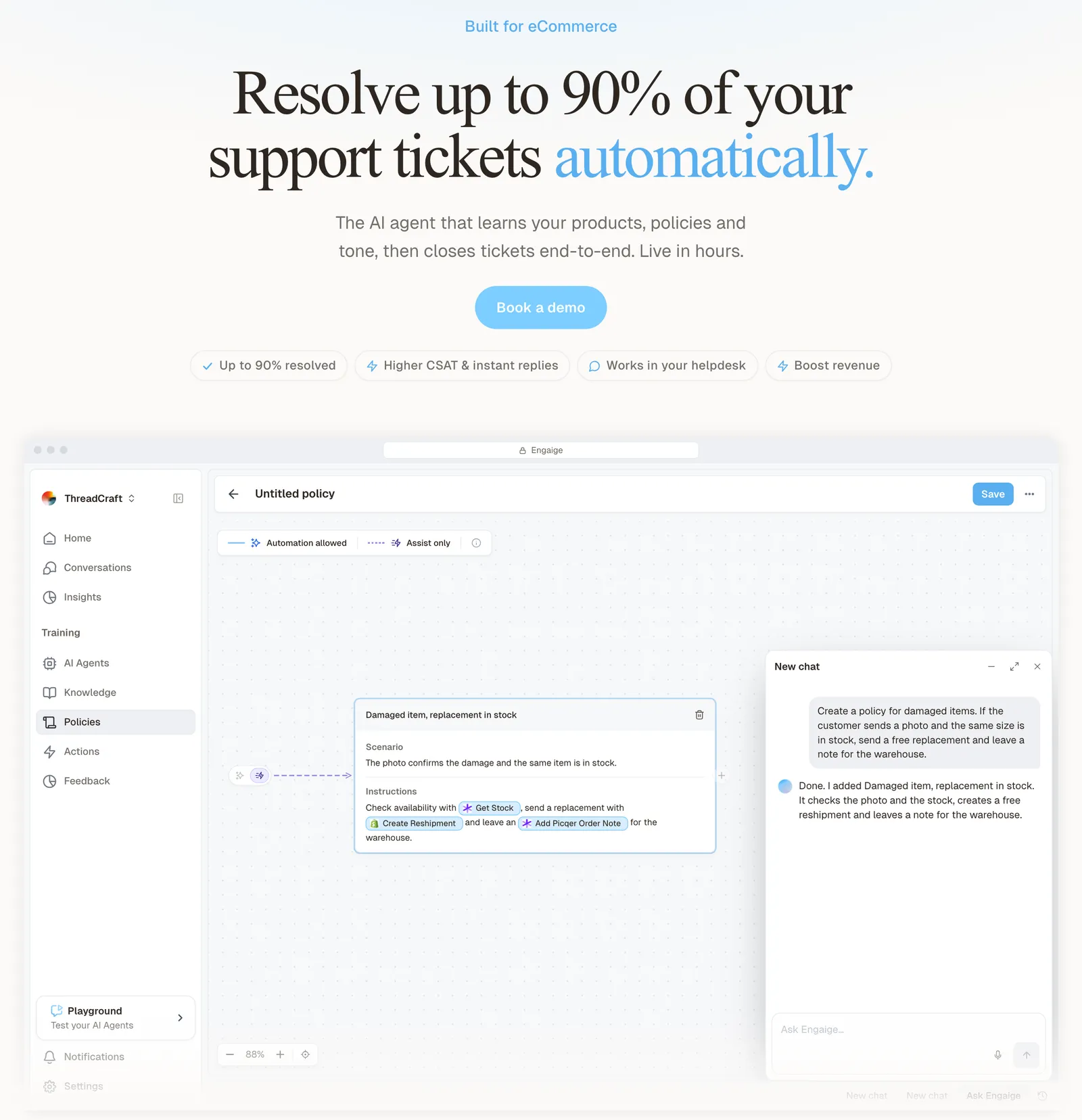
If you are exporting because you want a tool with better AI, you don’t have to leave. Engaige works on your existing tickets inside the Zendesk agent workspace, so there is no migration and no export. Your tickets, history, views and team workflow stay where they are, and there is no change to the workflows your team already knows.
You go live in Agent Assist in hours, with Engaige drafting replies inside Zendesk, or launch autonomous from day one. Engaige AI compares what your team sent with what the agent suggested, learns from the difference, and improves the agent, under your supervision: you approve the changes. Ticket types go autonomous one at a time, and brands that move quickly reach autonomy in about a week, with up to 90% of supported tickets automated.
Engaige proved to be invaluable. Their hands-on support during the implementation phase resulted in significant improvements to our automated resolution rate and CSAT.

The action happens in the connected system first, such as the store, returns or carrier tool. Then Engaige replies and closes the ticket, and the rest goes to your team. On Shopify, Engaige reads live Admin API data. See how it compares on our Zendesk comparison and the Zendesk integration page.
Frequently asked questions
How do I export all my data from Zendesk?
Use the Admin Center Full JSON export for tickets, users and organisations, once Zendesk has enabled exports. Help centre articles go out through the Help Center API, and attachments are downloaded through the API from links in the JSON file.
Can I export Zendesk tickets to Excel or CSV?
Yes. A view exports to CSV on every plan, and the account export offers CSV for tickets.
Which Zendesk plans include data export?
The Admin Center export needs Suite Growth or above, or Support Professional or Enterprise. View CSV and the REST API work on every plan. Dataset exports need Suite Professional or above.
Why can’t I see the data export option in Zendesk?
Exports may not be enabled yet, your plan or role permission may not allow it, or an approved email domain restriction may apply. Start with the account owner, who asks Zendesk to switch exports on.
Do Zendesk exports include attachments?
No. The JSON export holds links to attachment records, and you download each file through the API.
How long is a Zendesk export download link valid?
At least three days. Dataset CSVs are deleted after seven days.
How do I schedule regular Zendesk exports?
Use the Incremental Export API, Zendesk’s recommended route for daily or weekly exports, or recurring Explore dataset exports on Suite Professional or above.
Do I need to export my Zendesk data to switch AI tools?
No. Engaige plugs into the Zendesk you keep and works on your existing tickets in the agent workspace. There is no migration and no export.
Is Engaige a Zendesk migration or export tool?
No. Engaige is the e-commerce-native AI support agent. Zendesk stays your helpdesk, and Engaige replies, acts in connected systems and closes the tickets it resolves.