Zendesk custom fields are extra fields an admin adds to tickets, users or organisations to capture details such as an order number or reason for contact. This guide covers the field types, setup, conditional and required fields, and the limit that matters most to a store.
What are Zendesk custom fields?
An admin creates Zendesk custom fields in Admin Center under Objects and rules > Tickets > Fields, choosing a type such as drop-down, text, date or regex. User and organisation fields are set up separately under People. Once filled in, the values feed triggers, views, macros and reports.
Zendesk documents custom fields for four record kinds: tickets, users, organisations and custom objects. They are on every Suite and Support plan. User and organisation fields are visible to your team only; only ticket fields can be shown to customers.
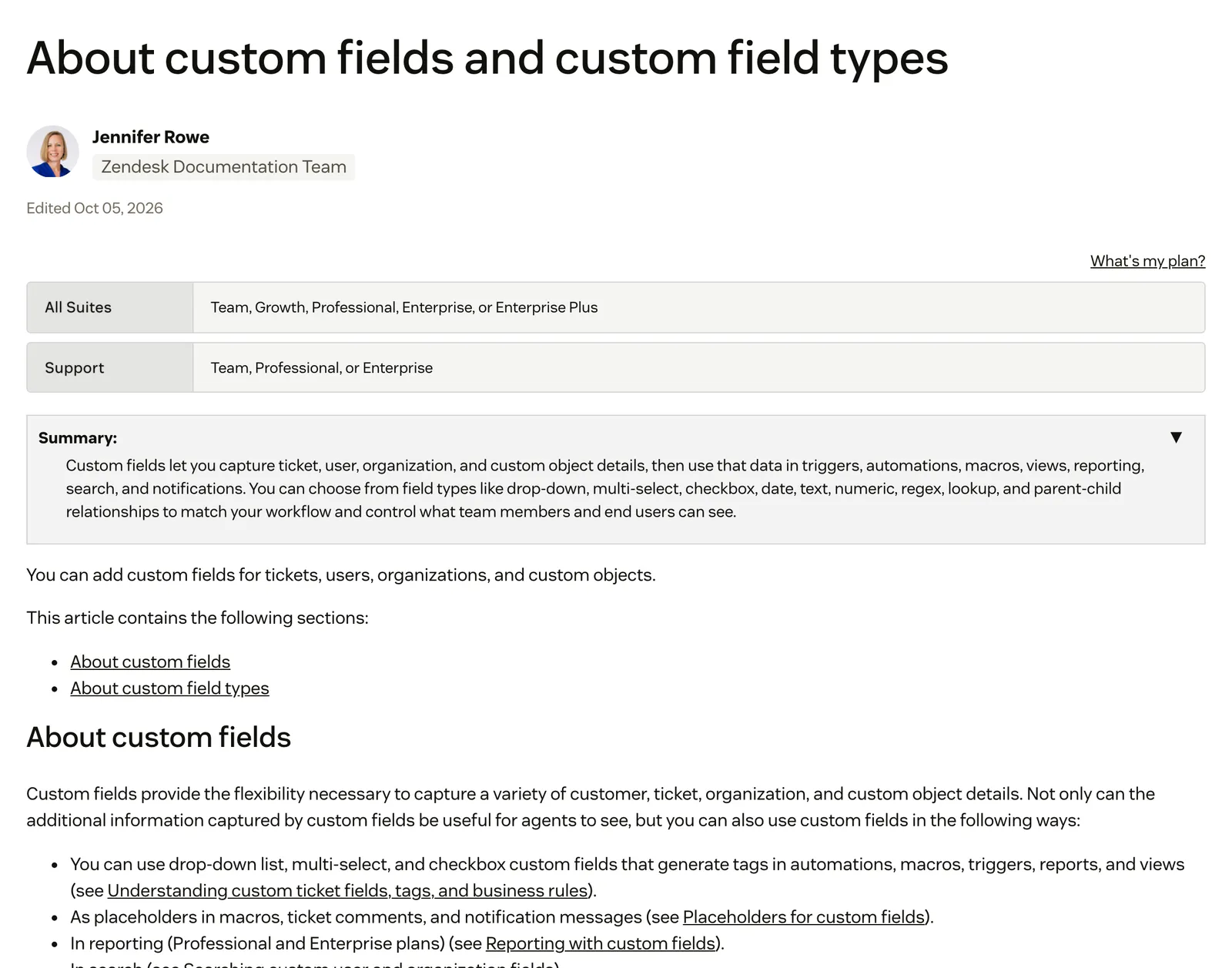
The values feed triggers, automations, macros, views, SLAs, search and placeholders, and reporting on them needs Professional or Enterprise. Our Zendesk hub has the full overview.
Our view: for a store, a custom field is the structure you put on a ticket so a rule, a view or a report can act on it. It is only as good as the person who fills it in.
Which custom field types does Zendesk offer?
Zendesk offers about a dozen ticket field types. We group them as value fields, which hold something entered or chosen, and relationship fields, which link to another record. Drop-down, multi-select and checkbox fields also create tags, and those tags are what business rules act on.
| Type | What it holds | Zendesk limit | Store use (our suggestion) |
|---|---|---|---|
| Drop-down | One choice, as a title plus a tag | 2,000 values, 255 characters | Reason for contact |
| Multi-select | Several choices from a list | 2,000 values | Items or issues in one ticket |
| Text | A single line | 65,536 characters | Order number as typed |
| Multi-line | Longer text | 65,536 characters | Damage description |
| Numeric | Whole numbers | No length cap on tickets | Quantity affected |
| Decimal | Numbers with a point or comma | None stated | Amount the customer says they paid |
| Date | A date from a picker, saved as YYYY-MM-DD | None stated | Promised or actual delivery date |
| Checkbox | Yes or no, plus a tag | None stated | Photos received |
| Regex | Entry validated against a pattern | 255-character expression | Order number in your store’s format |
| Credit card | Last four digits only | Not on user or organisation fields | Keep payment details out of tickets |
| Lookup relationship | A link to a ticket, user, organisation or custom object | 5 per object on Suite Team and Growth, 10 on Professional and above | Link a return ticket to the original complaint |
| Multi-lookup | Links one ticket to several records | Tickets only, two per account; Suite Professional and above, Support Enterprise | Link one ticket to several related records |
Currency, roll-up summary and parent-child fields exist for custom objects only. Zendesk’s own parent-child example is orders with line items, which shows the catch: an order in Zendesk is a record someone has to build and fill.
Two caveats from Zendesk’s documentation are worth knowing. Never reuse a tag across fields: a duplicated tag makes the fields that share it uneditable until you remove it. And the API names differ from the interface: a drop-down is tagger, a regex field is regexp.
Lookup caps changed recently. From 27 August 2026 the plan limit applies per form, and eligible accounts can create up to 40 lookup fields on the Ticket fields page.
How do you create a custom field in Zendesk?
Admins create a ticket field in Admin Center under Objects and rules > Tickets > Fields > Add field. You choose a type and a display name, set who can see and edit it, make it required if you want, save, and then add it to each ticket form if you have more than one.
In order, per Zendesk’s guide:
- Open Admin Center > Objects and rules > Tickets > Fields and select Add field.
- Choose the type and a display name. You can’t change the type later, and reserved names such as “channel” don’t work.
- Set permissions: agents can edit, customers can edit, or customers can view.
- If customers can see it, add a customer title and description.
- Choose Required to solve a ticket, Required to submit a request, or both.
- Add the type options: drop-down values with unique tags, a regex pattern, or a checkbox tag. Use
::in a title to nest a drop-down into categories. - Optionally set a default value, then save.
Two things catch stores out. The drop-down default does not apply to Web Widget conversations: the first option in the list is used instead. And a new field appears on existing tickets, closed and archived ones included, with an empty value. It is not backfilled.
User and organisation fields live under People > Configuration > User fields or Organization fields. Set the field key carefully: Zendesk says it cannot change after creation, and placeholders and the API use it.
How do custom fields relate to ticket forms?
A ticket form is a set of fields for one type of request. With one form, a new field is added to it automatically. With several, you add the field to each form yourself, and the default form stops picking up new fields. Multiple forms need Suite Growth, Professional, Enterprise or Enterprise Plus, or Support Enterprise, per Zendesk’s forms guide.
Zendesk recommends no more than 400 ticket fields per form, or per account if you have no forms. Our suggestion for a store: one form per family of contact reason, such as order issue, return and product question.
What are conditional fields?
Conditional fields show a child field only after the person picks a value in a parent field. They are set per form under Forms > Conditions, separately for agents and for end users, and need Suite Growth or above or Support Enterprise.
Parents can be drop-down, checkbox, text, multi-line, Priority or Type fields. Six field types can’t drive a condition: multi-select, numeric, decimal, date, regex and lookup relationship. Each form allows up to 1,500 conditions per user type, and the logic applies only on the submission form. On the help centre Requests page, customers see every visible field.
A store example: when the reason is “Return”, show Return reason and Order number.
How does required to solve work?
Required to solve stops an agent solving a ticket until the field has a value. You can set it on the field, or override it per form in a condition, either always or only for chosen statuses.
The caveat is that triggers and automations can bypass it, and so does merging a ticket. A trigger that moves a ticket from New to Open can also raise a required-field alert the agent did not expect. Required guarantees a value, not a correct one.
Which custom fields does an online store need?
Four fields cover most store tickets: order number, reason for contact, product and return reason. Each makes tickets sortable.
| Field | Type | What it captures | What it doesn’t capture |
|---|---|---|---|
| Order number | Regex or text | What the customer or agent typed | Whether the order exists, its status, tracking or which items shipped |
| Reason for contact | Drop-down, nested with :: | The category someone picked | The real issue when they pick wrong, or a second issue in the same message |
| Product | Drop-down, multi-select or lookup to a custom object | The product someone chose | Variant, stock or price; the list also drifts as your catalogue changes |
| Return reason | Drop-down | The reason given | Whether the order is inside the return window or already refunded |
This table is our own view, not Zendesk’s. Four habits help:
- Use drop-downs over free text for anything you want to report or route on, because a trigger can only check a text field as present or not present.
- Keep tags unique.
- Make reason for contact required to solve.
- Validate the order number with regex rather than trusting free text, matched to your own store’s format.
The order number row is where WISMO questions start, and the return reason row is where returns tickets do. For reporting on contact reasons, see our guide to ticket reporting.
Which custom fields can a rule act on?
Drop-down, multi-select, checkbox and date fields work across triggers, automations, SLAs and views. Text, multi-line, numeric and decimal fields are weaker: a trigger can only check them as present or not present, though a view can match a text string. Zendesk’s auto assist, part of the Copilot add-on, can also update checkbox, date, decimal, drop-down, number and regex fields. For the rules themselves, see our guide to automations.
What can’t a Zendesk custom field tell you?
A custom field holds what someone typed or chose at one moment, not the live state of the order. Zendesk documents nothing in custom fields that keeps a field in step with your store, carrier or returns tool. It changes when a person, a rule, an app or an API call changes it.
Zendesk’s documentation shows how that plays out. Required to solve is bypassed by triggers, automations and merges.
Deleting a field deletes its data on existing tickets, closed ones included, unless the field adds a tag; Zendesk’s own example is a text field holding a product ID. A duplicated tag locks fields. New fields are not backfilled.
Renaming a field in a sandbox deployment deletes the original and its data, as our sandbox guide explains.
For a store, an order number field says which order the customer meant. It does not say whether the order shipped, is late, is inside the return window or has been refunded. That lives in Shopify, the carrier and the returns tool. Zendesk is a proven ticketing foundation, but it is horizontal: it doesn’t think in orders, returns or subscriptions. It wasn’t built to.
Where does Engaige fit?
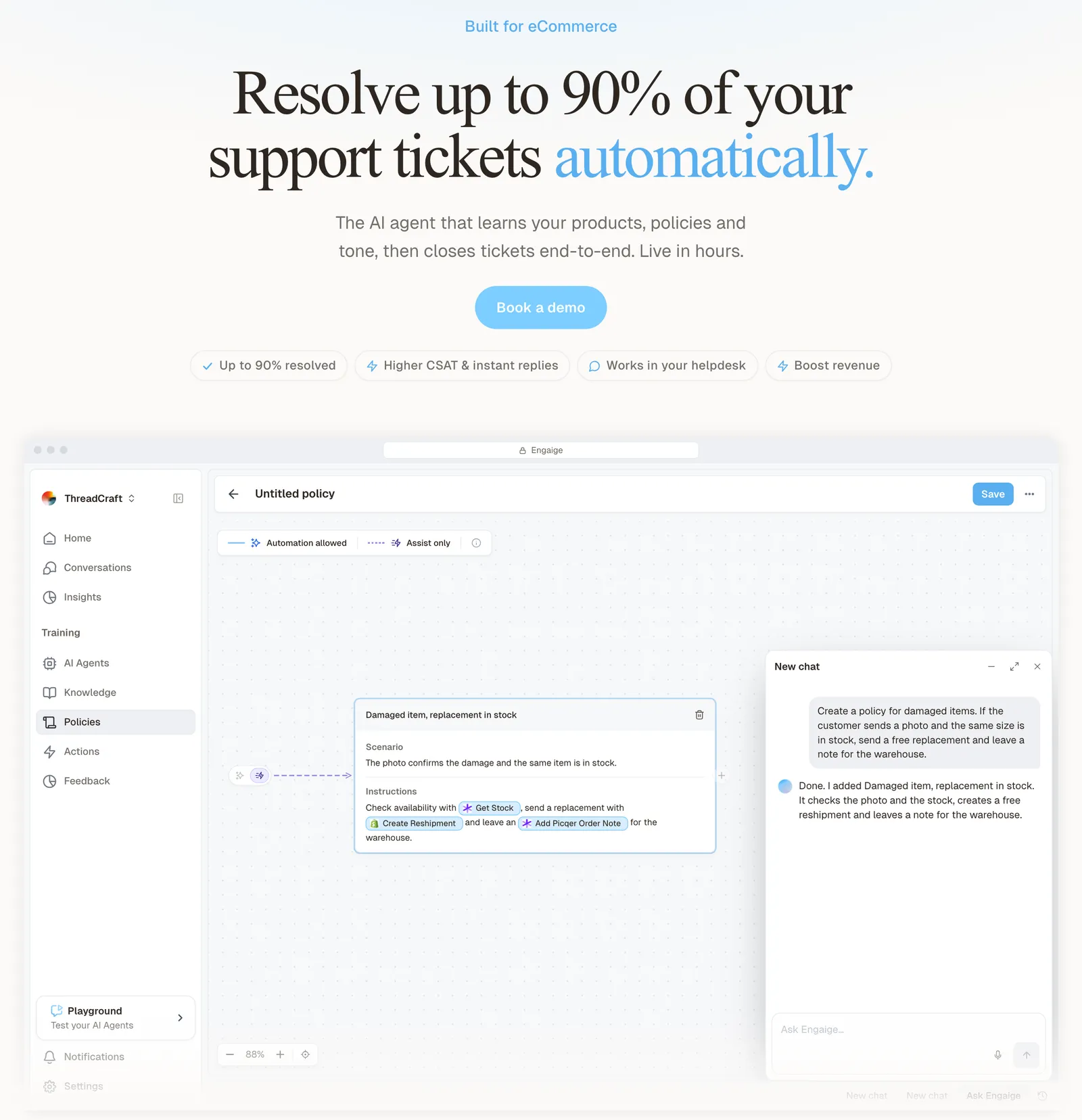
Engaige (that’s us) isn’t a field, a form or a help desk setting: it is the e-commerce-native AI support agent that works inside the Zendesk you already run, and it works alongside your fields. Keep your helpdesk, replace the AI. Engaige AI learns from your conversations and inputs, configures your support agent, and shows which policies it used. Otrium, for example, has 60% of 120,000 annual tickets resolved end to end: see the Otrium case.
Instead of trusting an order number field someone filled in, Engaige reads the live order across your systems before it answers. On Shopify that is live Admin API data: orders, fulfilment state, customers and inventory. It also checks the carrier and the help desk conversation. Every answer shows which systems it checked and why it replied as it did, with the source.
Hi, where is my order? It's been eight days and the tracking hasn't moved.

Shopify
Order 48219 · fulfilled

Picqer
Still processing Contradicts Shopify

DHL
Returned to depot · 3 delivery attempts
Settles it: the parcel is not with the customer
Reasoning…
Not deliverable. Reship to a confirmed address, booked in Picqer.
Suggested reply
Your parcel went back to the depot after three delivery attempts, so it will not arrive. I have booked a reshipment to the address you confirmed, arriving Thursday.
You can go live in Agent Assist in hours, with Engaige drafting replies and suggested actions inside Zendesk, or launch autonomous from day one. Engaige AI learns from the difference between what your team sent and what the agent suggested, and you approve the changes. Ticket types then go autonomous one at a time, most brands in about a week. Engaige automates up to 90% of supported tickets.
With Engaige, we are able to automatically resolve 60% of the 120,000 support tickets that we receive annually.

The action happens in the connected system first, then Engaige replies and closes the ticket; the rest goes to your team.
See how the two compare on our Zendesk comparison page, or read about the Zendesk integration. Apps that extend fields live in the Zendesk Marketplace, and our helpdesk software overview covers the wider product. Fields are one piece of the wider ticketing system a store has to run, whichever helpdesk it picks.
Frequently asked questions
What are custom fields in Zendesk?
They are extra fields an admin adds to tickets, users, organisations or custom objects to capture details such as an order number. Drop-down, multi-select and checkbox fields also create tags that rules can act on.
What is the difference between ticket, user and organisation fields in Zendesk?
Ticket fields describe one request and can be shown to customers. User and organisation fields describe the person or company and are visible to your team only.
How many custom fields can you have in Zendesk?
Zendesk recommends no more than 400 ticket fields per form, or per account if you have no forms. A drop-down takes up to 2,000 values, and lookup fields are capped by plan, at 5 or 10 per object.
Can a custom field be required before a ticket is solved?
Yes, with Required to solve. Triggers, automations and merges can bypass it, so it guarantees a value rather than a correct one.
Which Zendesk plans include conditional fields and multiple ticket forms?
Conditional fields need Suite Growth or above, or Support Enterprise. Multiple ticket forms are listed for Suite Growth, Professional, Enterprise and Enterprise Plus, and Support Enterprise.
What happens to the data when you delete a custom field?
Its data is deleted from existing tickets, closed ones included, unless the field adds a tag. Zendesk’s own example is a text field holding a product ID.
Can a Zendesk custom field show live order status from Shopify?
Not on its own. Zendesk’s custom-field documentation describes no automatic sync from your store or carrier; a field changes when a person, rule, app or API call changes it, and the order itself stays in Shopify. Zendesk’s Shopify sidebar app is separate from fields.
Does Engaige need an order number field to answer order questions?
No. Engaige reads the live order across your store, carrier and help desk before it answers. It works alongside your fields.
Do I have to change my Zendesk fields or forms to use Engaige?
No. Keep your helpdesk and your setup. Engaige works alongside them in the agent workspace, drafting in Agent Assist first or going autonomous per ticket type.