Zendesk omnichannel routing hands new and open tickets, whether they arrive by email, web form, messaging or phone, to agents using one unified status and per-channel capacity. On Growth plans and above it can work through tickets by soonest SLA breach; on Professional and above it also routes by priority and skills and supports custom queues.
What is Zendesk omnichannel routing?
In plain terms, Zendesk omnichannel routing hands each new or open ticket to the agent who is free and has room, whatever channel it came in on: email, web form, messaging or phone. Agents set one status for every channel, and work goes to whoever is available. The source is Zendesk’s description.
For a store, the benefit is simple: tickets are assigned automatically and agents can’t cherry-pick the easy ones. Accounts created on or after 5 December 2024 have routing on by default, and the Agent Workspace must be active. Only tickets with a status of new or open are routed.
Routing decides who gets a ticket. Zendesk is a proven ticketing foundation and routing is one of its strengths. Plans and the wider product are covered in our help desk guide, and the full picture for shops sits in the hub.
Which Zendesk plans get which routing features?
Routing itself runs on every Suite plan, but the controls differ sharply. SLA-based ordering starts on Growth, while priority, skills, custom queues and predictive routing start on Professional. For a store on Growth, the jump that matters is skills and queues. Standalone Support plans follow different gates, noted below the table.
| Feature | Team | Growth | Professional | Enterprise |
|---|---|---|---|---|
| Routes email, messaging and calls | Yes | Yes | Yes | Yes |
| Capacity rules and agent status | Yes | Yes | Yes | Yes |
| Queue order | Oldest first | Oldest or soonest SLA breach | Highest priority then oldest, or soonest SLA breach | Same as Professional |
| Skills-based routing | No | No | Yes | Yes |
| Custom queues | No | No | Yes | Yes |
| Predictive routing (needs custom queues) | No | No | Yes | Yes |
| Custom agent statuses | No | No | Up to 5 | Up to 100 |
| Customisable reassignment time | No | No | No | Yes |
| Subqueues | No | No | No | Yes |
Source: Zendesk help articles on omnichannel routing, skills and custom queues, checked 19 October 2026. On standalone Support plans, skills are Enterprise only and custom queues are Professional or Enterprise. Verify against your own plan before you build.
How does omnichannel routing pick an agent?
Routing follows a fixed order. A ticket is created, your triggers set its group, priority, tags and skills, and then it enters the first custom queue it matches or the standard queue. An eligible agent with spare capacity gets it, and the agent with the most spare capacity usually wins.
In the standard queue, an email ticket must carry a routing tag before it can enter, while messaging and calls enter as soon as they arrive. Triggers only run on new or updated tickets, so see our trigger guide for how they fire.
An agent is eligible when they are in the ticket’s group or queue groups, are a member of the ticket’s brand, hold the right status, have spare capacity and hold every required skill. Email needs an online or away status; messaging and calls need online.
Among eligible agents, Zendesk’s default is the one with the most spare capacity. A tie goes to the agent who has gone longest without a ticket from that channel, and round robin is the alternative. Messaging is offered and must be accepted, and if reassignment is turned on, an ignored offer moves on after 30 seconds by default.
Queue order depends on your plan: oldest first on Team, soonest SLA breach on Growth and above, or priority then oldest on Professional and above. Our SLA guide covers the policies behind it, and ticket statuses explains the ticket side.
How do capacity rules work?
A capacity rule is a per-agent, per-channel ceiling on how much work routing assigns. Each agent sits on exactly one rule, and new agents are placed on the default capacity rule automatically. It is a ceiling for routing, not a hard cap, because agents can assign themselves work above the limit.
Email capacity counts open email tickets, up to a maximum of 500, and tickets that are pending or on hold don’t count. Call capacity is 0 or 1, where 0 means the agent receives no calls. All figures and the default-rule behaviour are from capacity rules.
Zendesk says it is still possible for agents to exceed capacity by manually assigning work or when inactive tickets become active again. By default, inactive messaging tickets don’t count toward the limit, which is why an agent can seem to be over capacity.
Chat and messaging capacity numbers, and how to set chat up, are covered in our live chat guide, so we don’t repeat them here.
Zendesk notes that capacity rules can stop less experienced agents getting too much work while they ramp up. Our view: give new starters a lower email capacity in peak season, so a launch-week sale doesn’t bury someone in their second week.
How does Zendesk skills-based routing work?
Skills-based routing matches a ticket to agents who hold every skill it requires. You group skills into skill types, such as Language (German, French) or Product, with up to 10 skill types and up to 30 skills each. An agent only matches if they have all of a ticket’s required skills.
You add skills to tickets with triggers that run on creation and update, and mark each one required or optional. Tickets with no skills match every agent. Language detection from intelligent triage can supply a language skill, which makes a language per market easy to automate. If no agent speaks the shopper’s language, Zendesk translation is the other route.
The skills timeout is the setting that protects your queue. Defaults are one hour for email, 30 seconds for messaging and 30 seconds for calls, measured in calendar hours rather than business hours, per Zendesk’s routing configuration article. Optional skills drop at the timeout; required skills can’t time out, as Zendesk’s skills guide states.
Without a timeout, messaging, chats and email tickets wait in the queue indefinitely until an agent with all the skills is available. Zendesk notes that skills can hold a ticket back while lower-priority, newer tickets get assigned. Standalone skills-based routing without omnichannel routing can’t be used with voice and messaging tickets.
Custom queues or group-based routing: which does your store need?
Group-based routing uses the ticket’s group; custom queues use conditions you define, with fallback groups. One team on one brand is fine with group-based routing. Several markets or brands, a wholesale desk, or peak-season overflow to a second team is where custom queues pay off.
| Aspect | Group-based (standard queue) | Custom queues |
|---|---|---|
| Plans | All Suite plans | Professional and Enterprise |
| How tickets get in | Ticket group, plus the routing tag on email | Conditions, first matching queue wins |
| Groups | The ticket’s group | Up to 20 primary and 20 secondary (fallback) groups |
| Number | One standard queue | Up to 199 plus the standard queue |
| Priority between queues | Not applicable | 1 to 100, where 1 is highest |
| Subqueues | No | Enterprise, 2 to 5 per queue |
| Predictive routing | No | Yes |
Source: Zendesk help on custom queues, checked 19 October 2026.
One watch-out matters more than the rest. Work routed through custom queues is prioritised over all standard-queue work, regardless of the individual ticket priority. Tickets that match no custom queue fall back to the standard queue, and they still need a group (and the tag, for email).
Predictive routing, announced in 2026, picks the agent predicted to resolve fastest. It arrived for messaging in June and for email in a rollout from 30 September to 5 October 2026, and it needs custom queues.
How do you set up omnichannel routing in Zendesk?
You set it up in Admin Center under Objects and rules, then Omnichannel routing, then Routing configuration. Older accounts may need to turn it on. Do that at a quiet time, because Zendesk sets every agent to offline the moment routing is switched on.
- Open Routing configuration and turn routing on, outside peak hours.
- Enter the routing tag your email triggers will add.
- Build custom queues (Professional and above) or triggers that set the group and tag.
- Add capacity rules and a default rule for new agents.
- Create skill types and skills, then the triggers that add them.
- Set the skills timeout for email, messaging and calls.
- Tell agents to set their status, since offline agents get nothing.
Old tickets don’t route until they are updated, and Zendesk warns that stale tickets won’t be assigned automatically during a lull in new volume. Steps follow Zendesk’s set-up guide. For apps that sit alongside your routing, see the Marketplace guide, and to get routing or queue data out of Zendesk, see the export guide.
What routing recipes work for an online store?
These seven recipes are ours, built on the mechanisms Zendesk documents. Each one pairs a condition that qualifies the ticket with something you set and a fallback so nothing waits forever. Treat them as starting points and check the plan column against your own account.
| Recipe | How a ticket qualifies | What you set | Fallback | Plan | Watch-out |
|---|---|---|---|---|---|
| Language per market | Detected language, or brand or form | Optional Language skill | Email skills timeout | Professional+ | Optional skills drop at timeout |
| VIP repeat customers | Organisation or tag | VIP group or queue, higher priority | Standard queue | Professional+ for queues | Queue work beats standard work |
| Wholesale or B2B | Organisation or form | Wholesale queue | Secondary group | Professional+ | Fallback group needs capacity |
| Order issues vs pre-sale | Ticket form or intent | Two groups or skills | Shared group | Group-based on any plan | Keep the split small |
| Refund approvals | Reason for contact | Required Refunds skill for senior agents | None, by design | Professional+ | No timeout means waiting |
| Peak-sale overflow | Queue conditions | Custom queue with a secondary group | Second team | Professional+ | Overflow team must be online |
| Several storefront brands | Brand | Brand membership per agent | Brand group | Growth and above (multibrand) | Agents need the right brand |
The VIP recipe mirrors the trigger example in Zendesk’s set-up guide, which routes an organisation’s tickets to a VIP group. Brand membership comes from multibrand, which starts on Suite Growth with up to five brands; Team has none. We have not verified that Shopify customer tags flow into Zendesk automatically, so base your condition on organisations or tags you control. For more on triage inputs, see our guides to ticket types and views.
What can’t routing do for a store?
Routing decides who gets a ticket, not what the answer is. A where-is-my-order or refund ticket still lands on a person, who then looks up the order, checks the policy and replies. Good routing makes the human queue fairer; it doesn’t make it shorter.
Zendesk lists the limits: only new or open tickets are routed, and voicemail tickets can’t be routed. The skills-timeout, capacity and custom-queue watch-outs are covered in the sections above.
Tickets handled by a Zendesk AI agent aren’t routed until they are escalated to a human; once escalated they route like any other ticket.
For a shop, the volume is mostly routine. Where-is-my-order and refund cases questions are exactly the work that skills and queues sort but don’t remove.
Where does Engaige fit?
Engaige (that’s us) is the e-commerce-native AI support agent that works on your existing Zendesk tickets, so less work reaches routing at all. It takes the action on routine order tickets in the connected system, replies and closes them. Anything your policies reserve for a person goes to your team, and your Zendesk routing decides who picks it up. Engaige AI configures and improves the agent.
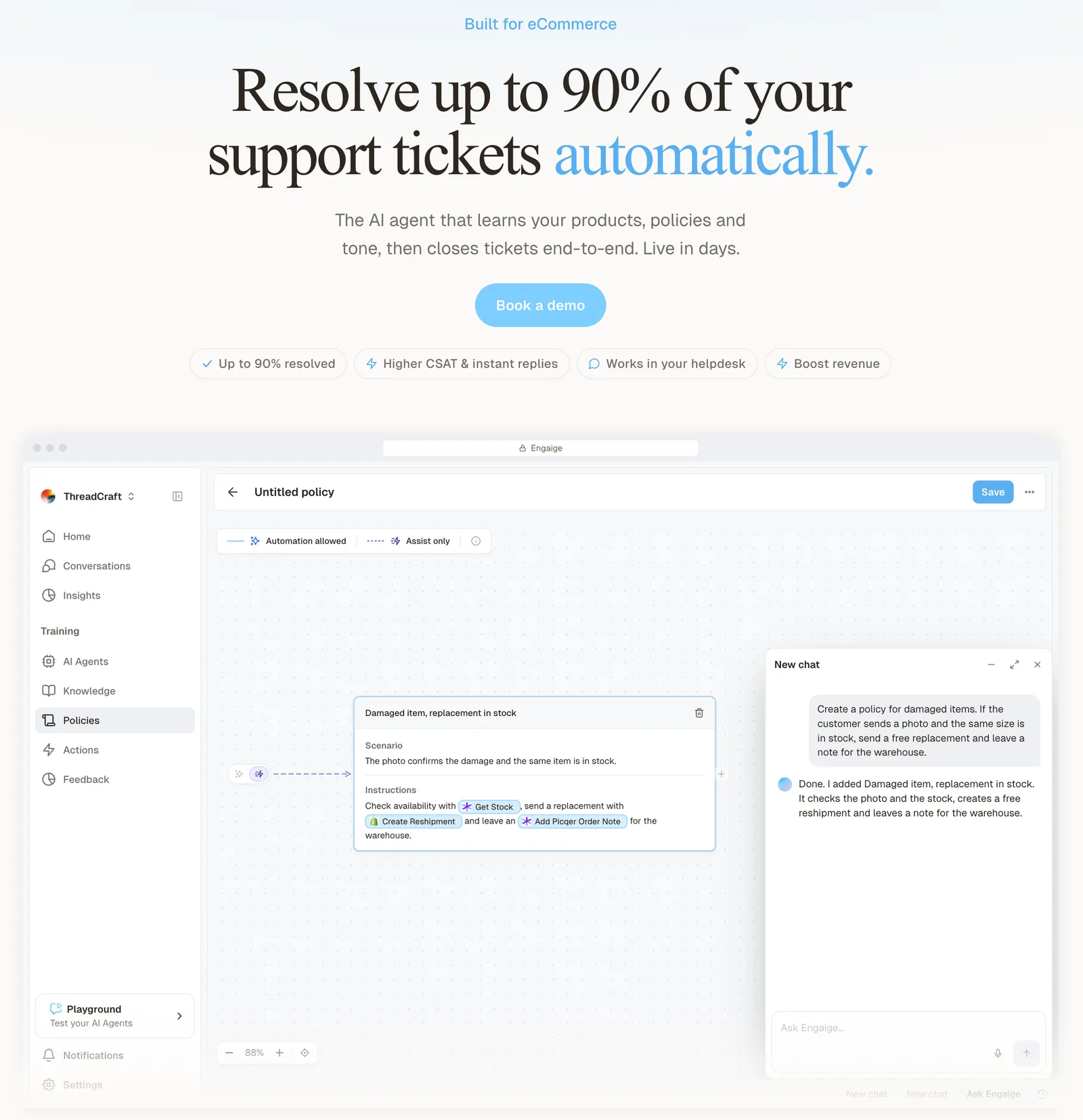
Keep your helpdesk. Replace the AI. Zendesk is a proven help desk and routing is one of its strengths, but Zendesk doesn’t think in orders, returns or subscriptions. It wasn’t built to. Engaige is AI-first rather than a bolt-on, built for resolution rather than overhead, and deepest on Shopify, where it combines live Admin API data, pricing across markets and SKUs, inventory, orders and customers, with the marketing content from your storefront.
The division of labour shows in the hand-over. When Engaige passes a ticket to your team, it leaves a summary of its reasoning as an internal note in the ticket, so whoever your routing picks sees why. Open any conversation in Engaige and you see the full reasoning behind every answer and action.
Hi, where is my order? It's been eight days and the tracking hasn't moved.

Shopify
Order 48219 · fulfilled
Picqer
Still processing Contradicts Shopify

DHL
Returned to depot · 3 delivery attempts
Settles it: the parcel is not with the customer
Reasoning…
Not deliverable. Reship to a confirmed address, booked in Picqer.
Suggested reply
Your parcel went back to the depot after three delivery attempts, so it will not arrive. I have booked a reshipment to the address you confirmed, arriving Thursday.
Within the AI we can see the reasoning, and how it comes to a response. That shows us where information is missing or unclear, and helps us improve our workflow.

MR MARVIS, a Shopify Plus brand with over 120,000 questions a year, has Engaige resolving over 60% of the conversations it’s involved in. Its refund and return cases follow the team’s own policy, which collects everything first and hands the decision to a person: the kind of per-step choice you set yourself. Read the MR MARVIS case.
You go live in Agent Assist in hours, where Engaige drafts and your team sends. Every reply your team sends is compared with what the agent suggested, one signal among several next to your conversations, your inputs, hand-offs and emerging trends, and Engaige AI proposes improvements that you approve. It keeps learning once the agent is autonomous, which most brands reach in about a week, and autonomous from day one is also supported.
Engaige is text-first by design: email, chat, WhatsApp, SMS and social DMs, no voice AI. A live call gives an AI seconds to reason; text gives it time to read the order, check your policy and act. Your calls keep routing in Zendesk as they do today.
Answers are only as good as the content behind them, so see our guide to AI-powered knowledge bases too. To see how the two sit side by side, compare Engaige with Zendesk, or read about the Zendesk integration.
Frequently asked questions
What is omnichannel routing in Zendesk?
It hands each new or open ticket, whether it arrived by email, messaging or phone, to an agent who is available and has room, using one agent status across all channels.
Which Zendesk plan includes skills-based routing?
Suite Professional and above. On standalone Support plans, skills-based routing is Enterprise only.
How many skills can you create in Zendesk?
Up to 10 skill types, each with up to 30 skills. An agent must hold every skill a ticket requires to be a match.
What is the default skills timeout?
One hour for email, 30 seconds for messaging and 30 seconds for calls, measured in calendar hours. Optional skills drop at timeout; required skills can’t time out.
What is the difference between a custom queue and group-based routing?
Group-based routing uses the ticket’s group, plus a routing tag on email. Custom queues use conditions and fallback groups, and start on Professional; work in custom queues always goes ahead of standard-queue work, whatever the individual ticket priority.
Why does an agent get more tickets than their capacity?
Capacity is a ceiling for routing. Agents can assign themselves more, manual assignment exceeds it, and inactive messaging tickets that wake up push agents over.
Does Engaige replace Zendesk omnichannel routing?
No. Keep your Zendesk routing. Engaige is the AI support agent that works on your existing Zendesk tickets, and routing stays as you built it: it resolves routine order tickets and hands the ones your policies reserve for a person to your team with a summary of its reasoning as an internal note.
What does my team see when Engaige hands a ticket over?
A summary of the agent’s reasoning, left as an internal note in the ticket, so the person your routing picks can see why it was handed over.