Zendesk live chat (one option among the tools in our website chat guide) today means Zendesk messaging: a Web Widget conversation your agents answer in Agent Workspace. The older Zendesk Chat is in maintenance mode and closed to new customers. Messaging and live chat come with Suite Team and above (€55 or £45 per agent per month, billed annually), not Support Team.
This guide is the set-up path for an online store. The wider picture of Zendesk for stores lives in our Zendesk hub; here we cover turning chat on, staffing it and routing it. Engaige, our e-commerce-native AI support agent, works on the tickets your chats create: at MR MARVIS it handles over 120,000 questions a year and resolves over 60% of the conversations it’s involved in (MR MARVIS).
What is Zendesk live chat in 2026?
Zendesk live chat is now a messaging conversation that starts in the Web Widget and lands as a ticket in Agent Workspace. Zendesk says Zendesk Chat is a legacy product in maintenance mode, no longer available to new customers. New accounts get messaging by default.
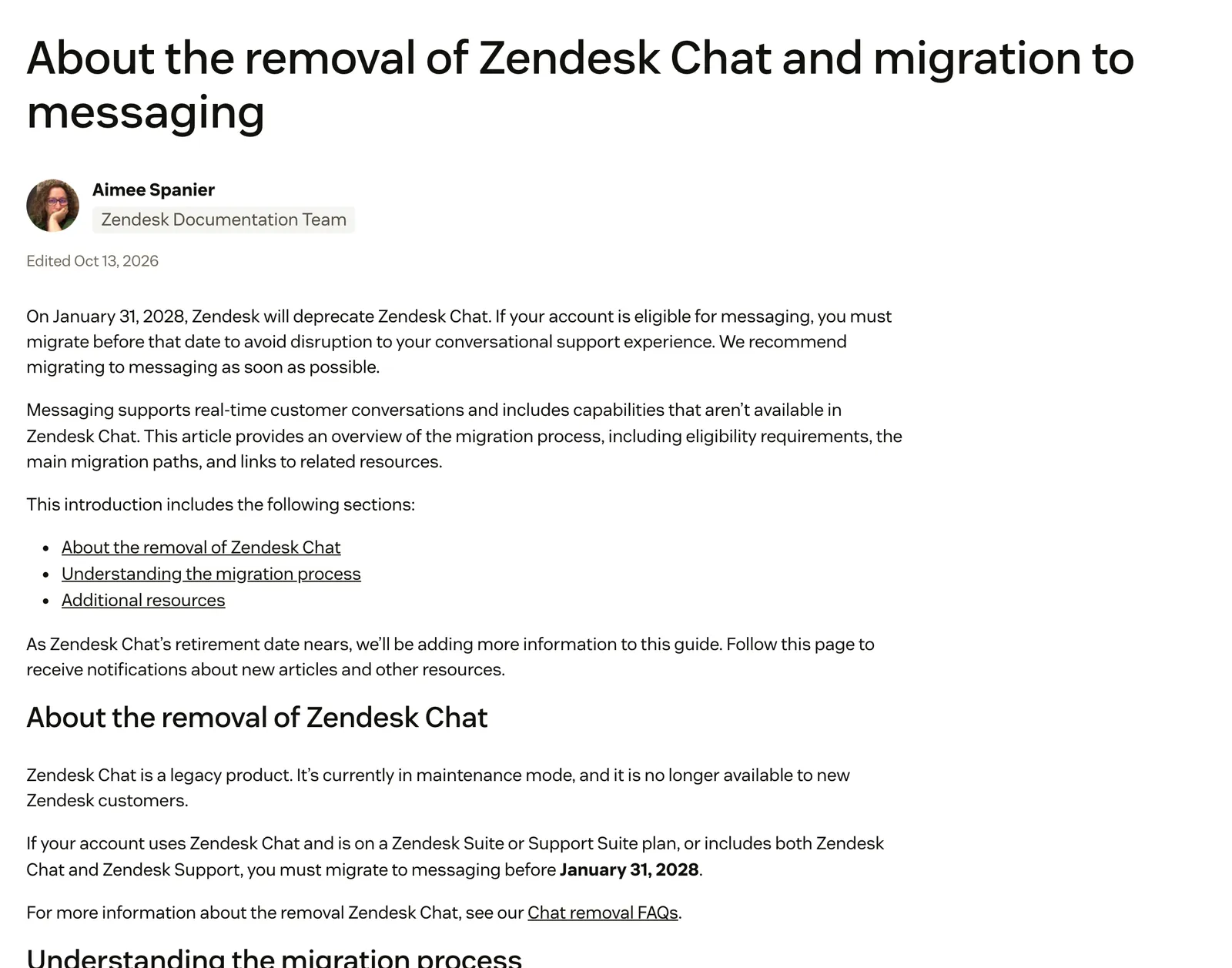
Messaging can still run as a real-time chat. Zendesk’s migration FAQ says you can run live (synchronous) conversations, asynchronous ones or a mix. The real difference is history: legacy chat is session-based, so once a chat ends you cannot return to it, while messaging keeps the conversation.
New accounts have messaging on and cannot switch it off; older accounts that used legacy Chat can request an opt-out review. If you searched “livechat zendesk” and meant the separate LiveChat product, that is a different vendor and not covered here.
What is the difference between messaging and Zendesk Chat?
These rows come from Zendesk’s own capability comparison. The status row draws on Zendesk’s Chat removal FAQ, which says Chat has had no feature enhancements since 2020, and the last row adds where each is configured.
| Capability | Messaging | Zendesk Chat (legacy) |
|---|---|---|
| Status | AI agents and new features supported | Maintenance mode, no feature enhancements since 2020 |
| Available to new customers | Yes | No |
| Real-time sessions | Yes | Yes |
| Persistent conversations | Yes | No |
| AI agents | Yes | No |
| Agent can end the conversation | Yes | No |
| Social channels, including WhatsApp | Yes | No |
| Real-time reporting | Yes | No |
| Skills-based routing | Yes | Yes |
| Where admins configure it | Admin Center, Channels | Chat dashboard |
Which one do you have?
Open Admin Center, then Channels, Messaging and social, Messaging. If you can configure a messaging channel there, you have it. Zendesk notes that a Chat Team plan only has the standard agent interface and legacy live chat; Suite Team or higher can use Agent Workspace with live chat or messaging.
What changes for Zendesk Chat customers before 2028?
If you run legacy Chat, you must move to messaging, and for a live chat set-up that means being on a Suite plan with Agent Workspace, where messaging is the default. Zendesk says it will deprecate Zendesk Chat on 31 January 2028, so check your own account and the notices in Admin Center. Our chat bot guide holds the timeline detail.
Chat operating hours are the setting most teams trip over: in messaging they have no one-to-one replacement, so see the business hours section below. If you run a bot over the Chat Conversations API, see our chat bot guide before migrating.
How do you turn on Zendesk live chat?
You do not switch messaging on, because it is on by default. You check your plan, configure the channel, give agents access and decide who answers first. The steps below follow Zendesk’s getting-started guide and cover “zendesk support chat” and “zendesk chat online” set-up in one pass.
- Check your plan. You need Suite Team or higher with Agent Workspace on. Support Team’s feature list covers email and ticketing, not messaging.
- Open the channel. Go to Admin Center, Channels, Messaging and social, Messaging. Every account has a default Web Widget named Zendesk; use it or add a channel.
- Set the welcome. Configure appearance and the welcome message: first message, customer details and follow-up message.
- Install the widget. Put the snippet on your store. That is one step here; our Web Widget guide covers the snippet, Shopify embedding and fixes.
- Give each agent access. Go to Admin Center, People, Team, Team members, open the profile, then Roles and access. Tick Access beside Chat, set Role to Agent and save. Agents need this before they can work conversations.
- Choose the first responder. Use the default messaging response or an AI agent. Adding an AI agent deactivates the default messaging response and replaces it with the AI agent’s standard responses.
How do you set agent availability and capacity for chat?
Availability comes from agent statuses; capacity comes from capacity rules in omnichannel routing. Zendesk’s unified statuses are Online, Away, Transfer only and Offline, and a messaging chat reaches only agents who are eligible to take it. Together they decide who gets the next chat.
Online covers email, calls and messaging; Away covers email only. Agents set their status by hand. Zendesk sets an agent to Offline when they close Agent Workspace without signing out or lose connection, and admins can add an idle timeout. Operating hours never set an agent’s status.
To create a capacity rule, follow Zendesk’s steps:
- Go to Admin Center, Objects and rules, Omnichannel routing, Capacity rules.
- Click Add capacity rule and name it.
- Choose the assignees.
- Set the Email and Messaging capacity, then save.
The messaging maximum is 20. Where it applies to live chats, an agent can hold up to that number of live chats and that number of messaging conversations at once. Standard routing assigns work to the eligible agent with the most spare capacity. Agents can still exceed capacity through manual assignment or inactive tickets becoming active again.
A messaging ticket becomes inactive after 10 minutes without a customer reply by default, and capacity release settings let you change that and send up to three reminders. Inactive tickets only count towards capacity if you select Count inactive conversations towards an agent’s capacity. Our view: counting them should keep a shift from starting with a pile of idle threads, but Zendesk documents only the setting itself.
Zendesk’s recommended settings are three minutes and Solved for first-contact-resolution teams, and five minutes, Pending and a reminder for teams that need more information. Capacity frees when a ticket goes Pending, On-hold or Solved, or the conversation goes inactive.
Our view: for a store, start low, at two or three live conversations per agent, while you learn real handle times for order questions, then raise it. A limit of 20 is a ceiling, not a target.
How do you set business hours and offline behaviour?
Business hours decide what a shopper sees when nobody is staffing chat. Zendesk’s messaging responses let you attach a schedule to the channel and write a separate outside-hours message. Without a schedule, the shopper gets the same response at 3 a.m. as at 3 p.m.
Plan caveat: business hours for messaging are on every Suite plan except Team; Team plans use out-of-office triggers instead. The steps:
- Go to Admin Center, Channels, Messaging and social, Messaging, and open the channel.
- Open Responses, then Business hours, and select a schedule or choose Manage schedules.
- Set the First message, Customer details and Follow-up message for in-hours conversations.
- Open the Outside business hours tab and set the same three messages for after hours.
- Save.
In messaging, business hours do more than set availability. Zendesk’s migration note says they control whether customers can start a conversation, whether an AI agent can escalate, whether a ticket is created after hours and what customers see. There is no one-to-one replacement for Chat operating hours.
Which after-hours option should you choose?
Zendesk documents four options. The “fits” column is our view, not Zendesk’s, except that Zendesk recommends the first.
| Option | What the shopper sees | When it fits |
|---|---|---|
| AI agent self-service (Zendesk’s recommendation) | An AI agent answers from your help content | You have a help centre and clear self-service answers |
| Hide the widget outside hours | No chat button, set through the Core messaging JavaScript API | No help centre or self-service, and only human-only resolutions |
| Prevent escalation to an agent | Self-service only, no hand-off to a person | You do not want unstaffed escalations piling up |
| Let customers create a ticket | A form or message that becomes a ticket for follow-up | You can answer the next morning |
Zendesk also documents trigger recipes for offline chats. You can route offline conversations to a group, using the conditions Status category is New and Within business hours is No, then add the tag offline_conversations, End session and set the group. You can give offline tickets Low priority, which needs omnichannel routing and messaging activity routing. Or you can re-route them to email follow-up.
How do you route Zendesk chats to the right agents?
Messaging chats route through omnichannel routing, Zendesk’s default routing engine for new accounts. It offers each conversation to an agent, who must accept it, and passes it round-robin to the next agent if nobody does. You can turn on auto-accept for messaging. Routing needs Agent Workspace.
Accounts created on or after 5 December 2024 have omnichannel routing on. Older accounts turn it on at Admin Center, Objects and rules, Omnichannel routing, Routing configuration, per Zendesk’s routing guide. If you still have a Chat subscription, you also need messaging or Sunshine Conversations activated.
Team and Growth plans use group-based routing: every ticket needs a group, which a trigger can set. Professional and Enterprise plans can choose custom queues or group-based routing, and skills-based routing is listed on the Suite Professional tier of Zendesk’s pricing page. When a customer asks for a live agent, a ticket is created and you route it with ticket triggers and chat routing rules, or with omnichannel routing instead.
Two warnings from Zendesk. All agents are set to offline the moment omnichannel routing is turned on, so on accounts created before 5 December 2024 do it off-hours. And routing triggers only run on new or updated tickets.
Our view on what to route by: language skill for each market, a VIP or wholesale group, and a split between order issues and pre-sale product questions, because they need different people and different answers.
How should an online store run Zendesk live chat?
Staff the hours your shoppers are online, not when your office is open: evenings, launches and sale weekends. Capacity rules and agent statuses are the levers you control. Say the expected wait in the first message, because Zendesk notes that in messaging, first reply time and other metrics include inactive (abandoned) conversations, so slow pick-up shows up in your numbers.
Shoppers use chat for order work: where is my order, a return, an address change. Zendesk says its commerce integrations surface order details, shipping and purchase history in chat conversations for agents. Zendesk describes this as order context shown to agents; it documents no step where the integration changes the order itself. For the general Shopify case, see our Shopify chat guide.
| Chat job | Who handles it |
|---|---|
| Where is my order | Agent, with order details shown |
| Return or exchange | Agent in the order group |
| Address change | Agent, quickly, before dispatch |
| Pre-sale product question | Pre-sale group |
What does Zendesk live chat cost?
Messaging and live chat are included from Suite Team upward, priced per agent per month, so the chat bill scales with the agents you staff for chat. These figures were read on 15 October 2026 from Zendesk’s UK and EU pricing pages; check them before you buy.
| Plan | Annual (EUR) | Annual (GBP) | Messaging and live chat | Business hours for messaging |
|---|---|---|---|---|
| Support Team | €19 | £15 | No | No |
| Suite Team | €55 | £45 | Yes | No (out-of-office triggers) |
| Suite Professional | €115 | £89 | Yes | Yes, plus skills-based routing |
| Suite Enterprise | Talk to sales | Talk to sales | Yes | Yes |
Monthly billing is €25, €69 and €149 in euros and £20, £59 and £115 in pounds for the first three plans, in the same order. Chat-only plans are closed to new customers, so older reviews that still quote them are out of date. For AI agent allowances and the Copilot add-on, see our chat bot and Copilot guides.
How can you see a Zendesk chat demo or try it free?
Zendesk’s demo page offers on-demand video demos and a free trial. The trial runs 14 days, needs no credit card and starts with a work email. It defaults to Suite Professional with all features, and Copilot is included by default.
For a store, treat the trial as a rehearsal of this guide:
- Put the widget on a staging theme.
- Create a capacity rule.
- Set business hours.
- Test chats in and out of hours.
- Check the ticket lands in the right group.
Why aren’t Zendesk chats reaching your agents?
Almost every missed chat traces back to one of a handful of documented causes. Work down this list before you open a support ticket with Zendesk, starting with the agent’s access and status, because those are the cheapest to check and the most common.
- No Chat Agent role. The agent lacks the access from step 5 above.
- Not Online. Away receives email only.
- At capacity. Or inactive tickets became active again.
- No group. On Team and Growth, a ticket without a group is skipped by routing.
- After hours with escalation off. Business hours are blocking the hand-off.
- Migrated from Chat. Operating hours did not carry over one-to-one, and Chat availability statuses are not supported once omnichannel routing is on.
If agents are flooded at the start of a shift, our view is that overnight conversations may have gone inactive and then all been routed at once. Zendesk documents the Count inactive conversations setting, and the low-priority and email follow-up triggers above give you somewhere to send offline chats. If the widget does not show at all, our Web Widget guide owns that fix.
Where does Engaige fit?
Engaige (that’s us) isn’t a live chat tool: it’s the e-commerce-native AI support agent that works inside the Zendesk agent workspace on the tickets your chats create, with Engaige AI learning from your conversations and inputs, configuring the agent and showing which policies it used. Keep your helpdesk, replace the AI. No migration.
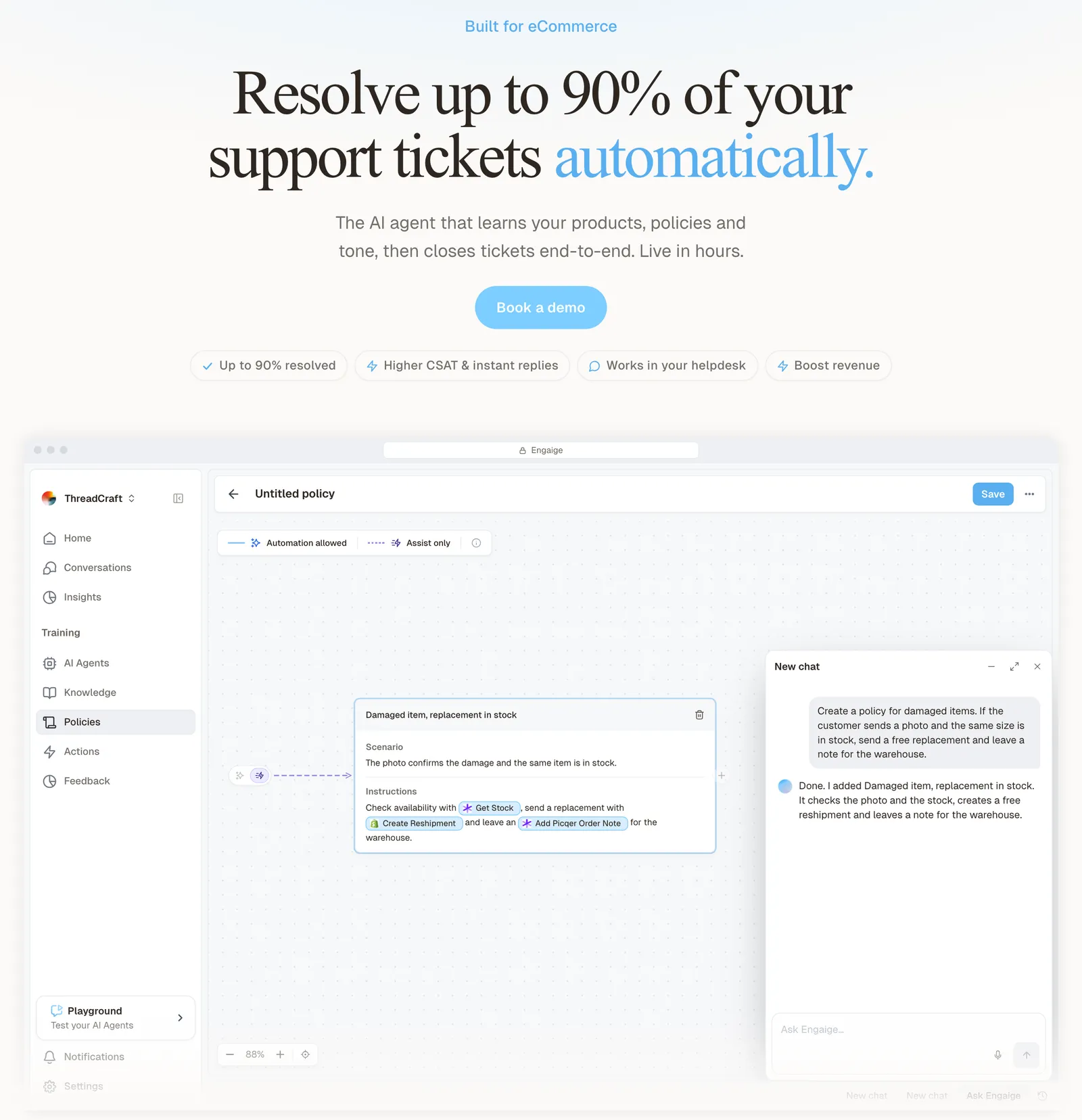
You go live in Agent Assist in hours, or launch autonomous from day one. In Agent Assist, Engaige AI compares what your team sent with what the agent suggested and proposes improvements you approve; you switch ticket types to autonomous one at a time, most brands in about a week, on up to 90% of supported tickets.
Engaige offered control, flexibility, and the ability to really incorporate AI in a more human way.

Engaige is text-first by design: email, chat, WhatsApp, SMS and social DMs, no voice AI. A live call gives an AI seconds to reason; text gives it time to read the order, check your policy and act, so resolution quality is higher. If phone is a big share of your mix, a voice specialist is the honest answer.
That matters for the queue you just set up. Your shoppers still start chats in Zendesk’s widget. On the tickets those chats create, the action happens in the connected system first, such as the order, the return or the address change; then Engaige replies and closes the ticket where your policies allow, and the rest goes to your team. Zendesk doesn’t think in orders, returns or subscriptions. It wasn’t built to.
How Engaige AI learns from your team’s replies is covered in our Zendesk view guide, and the Shopify depth on the Shopify integration page.
For the fuller picture, see the Zendesk integration and our Zendesk comparison. For the AI layer in its place, see AI essentials; for the wider help desk, see Zendesk products. Print teams can read how online printing brands choose AI.
Frequently asked questions
Does Zendesk still have live chat?
Yes, as messaging. Zendesk Chat is a legacy product, and new accounts get messaging by default. Messaging can still run real-time conversations.
What is the difference between Zendesk Chat and Zendesk messaging?
Legacy chat is session-based; messaging keeps persistent conversations. AI agents, social channels such as WhatsApp, real-time reporting and agent-ended conversations are on messaging only, per Zendesk’s capability comparison above.
When does Zendesk Chat stop working?
Zendesk says it will deprecate Zendesk Chat on 31 January 2028. Chat is already in maintenance mode and closed to new customers, so legacy Chat users move to messaging on a Suite plan with Agent Workspace.
Which Zendesk plan includes live chat?
Messaging and live chat start at Suite Team. Support Team does not include them. Business hours for messaging are on every Suite plan except Team.
How many chats can a Zendesk agent handle at once?
Set it in a capacity rule under Omnichannel routing. The messaging maximum is 20 per agent; for a store, start at two or three and raise it as you learn handle times.
How do I set Zendesk chat offline hours?
Attach a business hours schedule to the messaging response and fill in the Outside business hours tab. Zendesk documents four after-hours options: AI agent self-service, hiding the widget, preventing escalation, or letting customers create a ticket.
Can I see a Zendesk chat demo?
Yes. Zendesk’s demo page has on-demand video demos, and the free trial lasts 14 days with no credit card. It defaults to Suite Professional.
Can an AI agent answer Zendesk live chat for an online store?
Zendesk offers its own AI agents on messaging; see our chat bot and AI essentials guides. Engaige is the e-commerce option, working inside your Zendesk agent workspace on the tickets chats create.
Does Engaige replace Zendesk live chat?
No. Your shoppers still start chats in Zendesk’s widget. Engaige works inside your Zendesk agent workspace on the tickets those chats create: it acts in the connected system first, then replies and closes the ticket where your policies allow, and hands the rest to your team. Keep your helpdesk, replace the AI.