The Zendesk Web Widget is the embeddable help button Zendesk puts on your website or help centre. The current messaging Web Widget offers live conversations, help articles and an AI agent; the older Web Widget (Classic) offers help centre search, a contact form and live chat. You set it up in Admin Center, then paste one snippet before </body>.
If your store runs on Zendesk, this is the door shoppers use to reach you. The wider picture of Zendesk for online stores lives in our Zendesk hub; this page covers only the widget.
What is the Zendesk Web Widget?
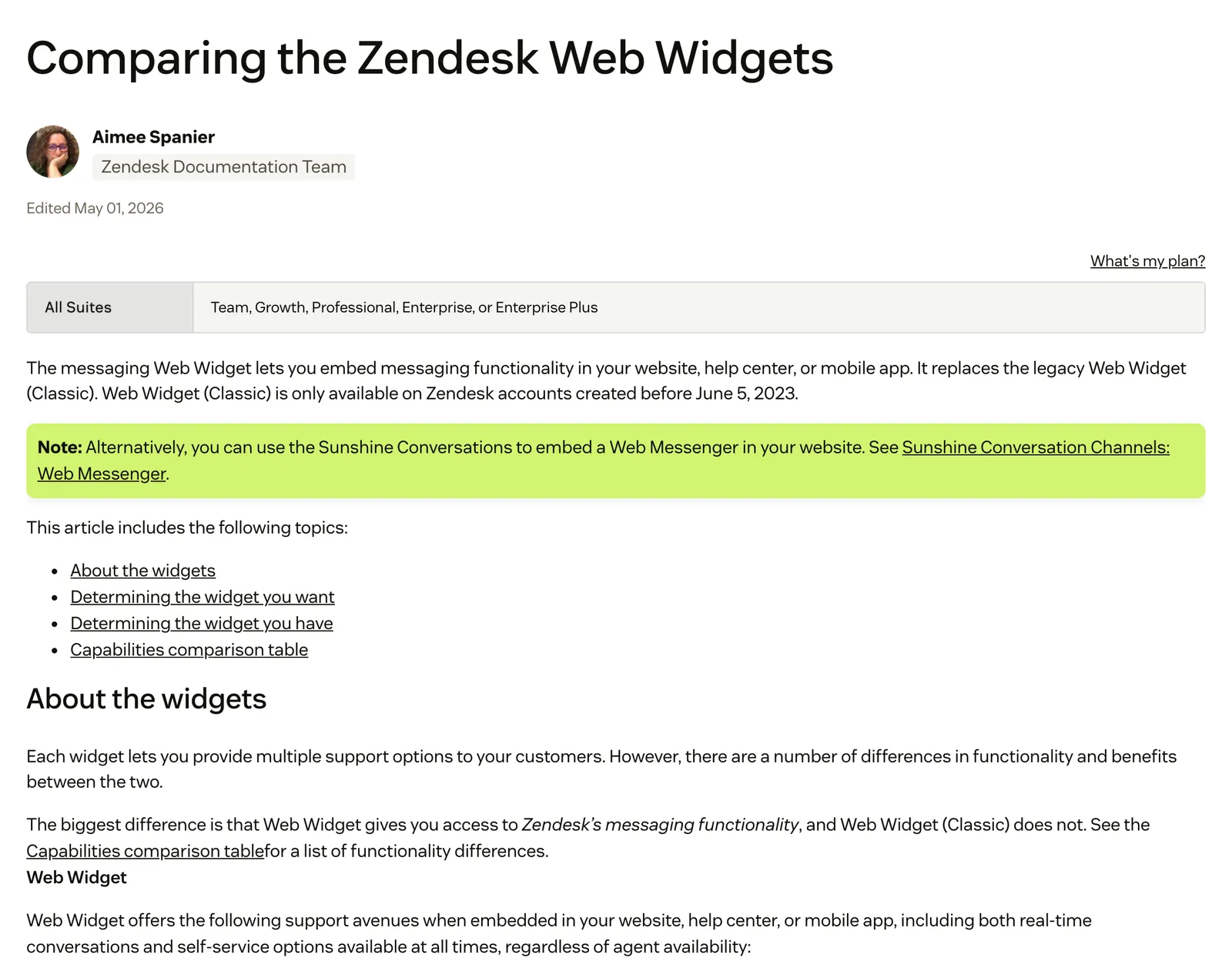
The Web Widget is the piece of Zendesk that sits on your pages. Zendesk says the messaging version embeds messaging in a website, help centre or mobile app, and that it replaces the legacy Web Widget (Classic), which is only available on accounts created before 5 June 2023.
You will see the same product called the Zendesk support widget, the Zendesk widget or Zendesk embeddables. Zendesk files its product page under an embeddables address, and its developer docs group the widget with the Android, iOS and Unity SDKs. They all mean this product family.
What is the difference between messaging and Classic?
The biggest difference, in Zendesk’s words, is that the messaging widget gives access to Zendesk messaging and Classic does not. Messaging offers persistent conversations and social channel switching. Classic keeps the contact form, contextual help and proactive chat. These rows come from Zendesk’s own comparison.
| Capability | Messaging Web Widget | Web Widget (Classic) |
|---|---|---|
| Help centre articles | Yes | Yes (search and suggested articles) |
| Contact form | No (simple data capture available) | Yes |
| Live conversations | Yes | Yes, through Zendesk Chat |
| AI agent | Yes | Yes (limited functionality) |
| Proactive chat | No | Yes |
| Request a callback | No | Yes |
| Conversation persistence | Yes | No |
| Social channel switching | Yes | No |
| Authentication | Yes | Yes |
| Contextual help | No | Yes |
| Multiple brands | Yes (one widget per brand) | Yes (one widget per brand) |
Which widget do you have?
Go to Admin Center, then Channels, Messaging and social, Messaging, and open Manage settings. A green Enabled label means you have the messaging widget. Accounts created before 2 November 2021 start on Classic and must opt in to messaging.
Our view: for a store starting today the choice is made for you. Zendesk deprecates Zendesk Chat, which powers Classic live chat, on 31 January 2028. Our chat bot guide covers Zendesk’s AI agent. If you are leaving Classic and want your history, export data covers getting it out of Zendesk.
How do you set up the Zendesk Web Widget?
Every account comes with a default widget called Zendesk. You style it, set its responses, copy the snippet from Installation and paste it before </body> on every page. The widget settings are admin only. These steps are for the messaging widget, as Zendesk documents them.
- Open Admin Center, then Channels, Messaging and social, Messaging.
- Click the widget you want to edit. The default is named Zendesk.
- Under Basics, set the name and the privacy notice.
- Under Style, set colours, position and launcher (next section).
- Under Responses, write the greeting, set business hours and, optionally, add an AI agent at the bottom. Our chat bot guide covers that agent.
- Expand Installation and click the Copy icon, or use Email code to send it to a developer.
- Paste the snippet before the closing
</body>tag on every page where the widget should appear. - Optional: tick Automatically embed Web Widget in your Help Center. This needs an activated help centre, as in our self-service portal guide.
- Optional: add an allowlist of domains that may display the widget.
- Check your firewall allows the widget, then test in a private window.
The snippet is one script tag. Use your own key from Installation, never a copied one:
<script id="ze-snippet" src="https://static.zdassets.com/ekr/snippet.js?key=YOUR_WIDGET_KEY"></script>Sites with a strict Content Security Policy add a server-generated nonce attribute to that tag, as Zendesk’s developer docs show.
Classic is configured elsewhere: Admin Center, Channels, Classic, Web Widget, with each component toggled on the Customization tab. Allow about 10 minutes for Classic changes to appear. Messaging and Classic share the same snippet, and turning on messaging migrates position, theme colour and button text, but call options are lost and old Classic API code may not work.
How do you add the Zendesk widget to a Shopify store?
There are two routes: the app embed from Zendesk’s Shopify integration, which needs no code, or pasting the snippet into theme.liquid. Zendesk’s Shopify set-up says messaging is on by default, and Classic is installed if messaging is off.
Route A, the app embed:
- Admin Center, Apps and integrations, Integrations, Integrations, then Shopify.
- Click Configure on the storefront card, then Web Widget.
- Click Enable Web Widget, then Go to Shopify Theme Apps Editor.
- Under App embeds, toggle on Web Widget and save.
- Preview the storefront on the theme you will publish.
Route B, theme.liquid:
- Duplicate your theme first; Shopify advises a backup copy.
- Go to Online Store, then Edit code, and open
layout/theme.liquid. - Paste the snippet just above
</body>. - Save and reload the storefront.
Zendesk’s own manual Shopify steps are written for its older Chat widget, but the placement is the same. A condition on template.name, a Liquid object that returns values such as cart, product and collection, lets you skip a page type:
{% if template.name != 'cart' %}
  <!-- paste the Zendesk snippet here -->
{% endif %}| Route | Brands | Code | Best for |
|---|---|---|---|
| App embed | Default brand only | None | Single-brand stores |
| theme.liquid | Any brand’s snippet | Light | Multi-brand stores, or control such as skipping the cart page |
For the wider choice of Shopify chat, see our Shopify chat comparison.
How do you set brand colour, position and launcher?
All of it sits in the widget’s Style section, with no code. The settings come from Zendesk’s appearance guide.
- Position: bottom left or bottom right, with an offset (default 16px).
- Border radius: 0 to 20px.
- Colours: three hex values: a primary one for the launcher and header, one for messages and one for actions.
- Branding: a JPG or PNG logo, a Title and an optional Description.
- Attachments: on by default. Show Zendesk logo is available for Suite Enterprise accounts, per Zendesk.
- Launcher: bottom right or left; Square, Circle or Custom launcher; optional launcher text.
Custom launcher removes the button so you can build your own with the open, close and unread messages APIs.
Our view for a store: match the Primary colour to your storefront’s button colour, and pick the side your cookie banner, cart drawer or back-to-top button does not use.
How do you customise and control the widget with the JavaScript API?
The messaging widget uses zE('messenger', ...); Classic uses zE('webWidget', ...), a different namespace, so old Classic code may not carry over. The core API is small enough to cover in outline.
| Command | What it does |
|---|---|
zE('messenger', 'hide') and 'show' | Hides or shows all parts of the widget |
zE('messenger', 'open') and 'close' | Opens or closes the conversation |
zE('messenger:set', 'locale', 'es') | Sets the language |
zE('messenger:set', 'zIndex', n) | Changes the stacking order (default 999999) |
zE('messenger:set', 'cookies', 'none') | Hides the widget and clears local and session storage |
conversationFields | Sets custom ticket fields, such as an order total |
Embedded mode places the widget inside an HTML container of your choice instead of a floating overlay.
How does end-user authentication work?
Zendesk authenticates shoppers with signed JWTs, so a logged-in shopper’s conversations stay tied to one profile across devices, as Zendesk’s authentication guide explains. Our ticket requester guide covers how identity resolves.
How do you hide the widget on certain pages?
There are three ways. Paste the snippet only where you want it. Call zE('messenger', 'hide') on the pages that should not show it. On Shopify, wrap the snippet in a Liquid condition on template.name. For whole domains, use the allowlist. Zendesk documents no per-page toggle in Admin Center.
Why is the Zendesk Web Widget not showing, and how do you fix it?
Usually the snippet is missing, in the wrong place, or blocked by an allowlist, firewall or cookie setting. Work through the table from the top; the first match is normally the cause.
| Symptom | Likely cause | Fix |
|---|---|---|
| No launcher anywhere | Snippet missing, not before </body>, or the app embed is not saved on the published theme | Recheck placement; save the embed on the live theme |
| Works on one domain, not another | The allowlist blocks unlisted domains, even where already embedded | Add the domain, using *.yourdomain.com for subdomains |
| Blank in some browsers | Firewall, Firefox Enhanced Tracking Protection (Classic), or a Content Security Policy that needs a nonce | Allow the widget; add the nonce attribute |
| Vanishes after a cookie choice | Cookies set to none hides the widget | Set all or functional after consent |
| Classic hidden when agents are offline | No contact form or offline form | Set up a contact form |
| Classic missing outside the help centre | Require sign in with Contextual Help | Change the setting |
| Wrong brand’s widget on the store | The Shopify integration adds only the default brand | Paste the right brand’s snippet in theme.liquid |
| Hidden behind a cart drawer or another app | Stacking order clash | Change zIndex or move the position |
The Classic causes come from Zendesk’s Classic troubleshooting article.
What if another chat app is already on your store?
Zendesk does not recommend more than one Web Widget on the same page, because of storage and authentication issues. Our view: two chat doors on one storefront confuse shoppers. Pick one launcher per page, or hide one with the API.
Does the widget slow your store down?
Zendesk’s Classic performance FAQ puts the core at about 475 KB on first load, Brotli-compressed, loaded asynchronously and then cached. The Zendesk pages on this topic, as read on 15 October 2026, give a size figure for Classic only, so measure messaging on your own pages with Lighthouse before and after installing.
Where does Engaige fit?
Engaige (that’s us) is not a widget and isn’t part of Zendesk’s Web Widget: it is the e-commerce-native AI support agent that plugs into the Zendesk you already run, with Engaige AI learning from your team and improving the agent under your approval. The widget stays your door to Zendesk: keep your helpdesk, replace the AI.
Zendesk’s widget is where shoppers reach you, and the agent that answers a product question decides whether they buy. Zendesk doesn’t think in orders, returns or subscriptions. It wasn’t built to.
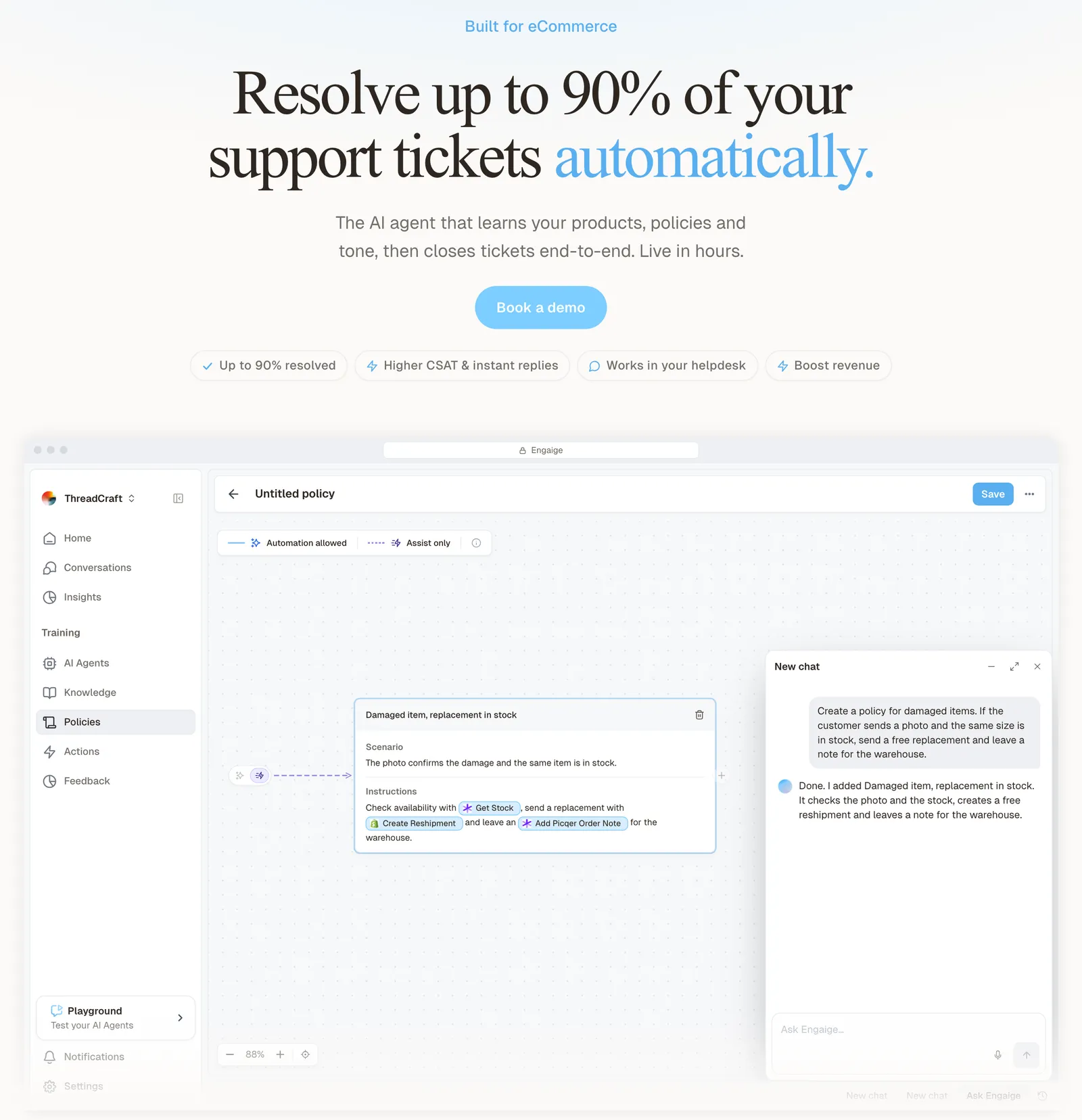
Engaige resolves support tickets inside Zendesk, and the same agent also advises shoppers before they buy. Its AI shopping assistant works alongside your Zendesk and advises shoppers in a storefront chat widget, recommending across your whole collection in your brand’s tone. It works from live Shopify Admin API data (catalogue, SKUs, pricing across markets, stock) plus your storefront content.
MR MARVIS, on Shopify Plus, gives personal product advice 24/7 and handles over 120,000 questions a year, resolving over 60% of the conversations it’s involved in.
One thing that impresses me every day is the quality of the product recommendations.

You can go live in Agent Assist inside Zendesk in hours, or launch autonomous from day one. In Agent Assist, Engaige AI learns from what your team sends, you approve the changes, and you then switch ticket types to autonomous one at a time, most brands in about a week. Every answer and action shows why, with the source, and your policies set what it may do alone.
For how Zendesk sorts tickets once they arrive, see intelligent triage. Read the full MR MARVIS story, the Zendesk integration and our Zendesk comparison.
Frequently asked questions
Which Zendesk plans include the Web Widget?
All Zendesk Suite plans (Team to Enterprise Plus) list it, per Zendesk’s install guide; removing the Zendesk logo needs Suite Enterprise.
What is the difference between the Zendesk Web Widget and Web Widget (Classic)?
Messaging is the current widget; Classic only exists on accounts created before 5 June 2023. Messaging has persistent conversations; Classic has the contact form and proactive chat.
Where do I find the Zendesk Web Widget code?
In Admin Center, go to Channels, Messaging and social, Messaging, open the widget, expand Installation and click Copy.
How do I add the Zendesk widget to Shopify?
Use the Zendesk Shopify integration’s app embed for the default brand, or paste the snippet above </body> in theme.liquid. Duplicate the theme first.
Can I hide the Zendesk widget on some pages?
Yes. Leave the snippet off those pages, call zE('messenger', 'hide'), or wrap the snippet in a Liquid condition. An allowlist controls which domains may show it.
Why is my Zendesk Web Widget not showing?
Check for a missing or misplaced snippet, an allowlist, a firewall, the cookie setting, or an app embed that is not saved on the published theme.
Can I use the Zendesk widget alongside another chat app?
Zendesk does not recommend more than one Web Widget per page, and we agree: one chat door per page. Engaige is the AI agent, not another chat door: it works inside your Zendesk on the tickets the widget creates.
Can the Zendesk Web Widget give product advice?
Zendesk lets you add its AI agent to the widget. Engaige’s AI shopping assistant advises from live catalogue data in a storefront chat widget, as at MR MARVIS, with personal product advice 24/7.