The Zendesk self-service portal is your Zendesk help centre: a knowledge base, a request form, a Requests page where signed-in customers track their tickets, and an optional community. The account owner enables it under Knowledge, and it stays in setup mode until an admin activates it. Every Suite plan includes it, and Zendesk lists the Requests page for Suite Growth and higher.
This guide is for an online store already on Zendesk. It covers what the portal is, which plans include it, how to set it up, how customers sign in and what they see. It also covers the question a shopper actually asks, “where is my order?”, which the portal does not answer. For the wider picture, start with our Zendesk guide.
What is the Zendesk self-service portal?
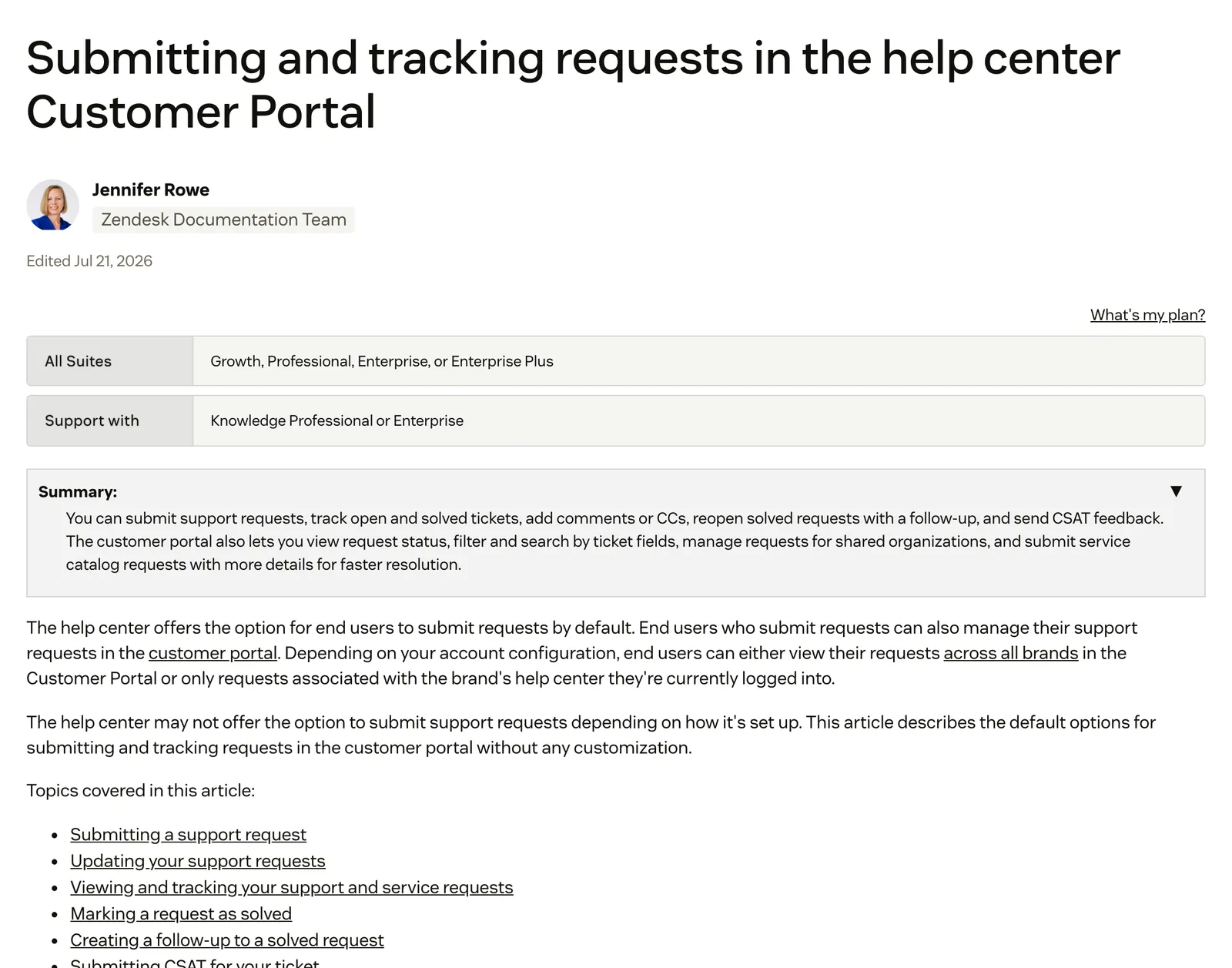
The Zendesk self-service portal is the help centre. Within it, the customer portal is the Requests page, where signed-in customers submit and track tickets. Zendesk names four elements in a self-service channel: a knowledge base, article comments, the customer request portal and a community. Zendesk’s enabling steps call the product Knowledge, under the Products icon.
“Help centre”, “customer portal” and “self-service portal” are what people search for. They mean the same thing. For a store, the useful question is what each element does for your shoppers.
| Element | What the customer does | What it means for an online store |
|---|---|---|
| Knowledge base | Reads delivery, returns, sizing and care policy | The part that earns its keep; it deflects the policy layer |
| Comments | Asks questions under an article | Switch these off unless someone watches them (our view) |
| Request portal | Submits and tracks tickets | The form feeds your queue; tracking needs a plan that includes it |
| Community | Posts and answers in forums | Rare for DTC brands, so skip it unless you have an active user base |
For a store, the portal deflects the policy layer. The order layer is a different job, which we come back to below.
Which Zendesk plans include the self-service portal and its Requests page?
The help centre comes with every Suite plan, Team to Enterprise Plus. Zendesk’s pricing page gives Suite Team one help centre and Suite Professional up to five, and a store on a Support plan without Suite should check its own plan page. The Customer Portal’s Requests page, where signed-in customers track tickets, is listed for Suite Growth and higher.
Here is what Zendesk lists on the pricing page, fetched on 12 October 2026 and re-checked on 13 October 2026. A dash on the page means Zendesk does not list the feature for that plan.
| Feature | Support Team | Suite Team | Suite Professional |
|---|---|---|---|
| Multiple help centres | Not listed | 1 | Up to 5 |
| Multilingual content | Not listed | 1 default language | More than 40 languages |
The plan detail matters for multi-brand and multi-market stores. One help centre below Professional means one set of articles, so a store with several brands or languages needs to plan around that limit. The pricing page does not show Suite Growth, so confirm its help centre count with Zendesk. For the customer portal, the Requests-page article is the source: Suite Growth and higher.
How do you set up a Zendesk help centre?
You enable the help centre as the account owner, build content while it is hidden, then activate it. It opens in setup mode, visible only to admins and agents, so you can write and test before any shopper sees it. There are seven steps.
- Enable it. The account owner clicks the Products icon, selects Knowledge and clicks Get started. Zendesk documents that setup mode hides the help centre from end users.
- Plan categories around the jobs a store gets asked about. Orders and delivery, returns and exchanges, sizing and product care, payments and account are a sensible start.
- Write the articles. Zendesk’s Getting started with self-service series covers the craft, and our guide to the AI knowledge base covers writing with AI. One step is enough here.
- Choose end-user access. Zendesk offers open (everyone can see the help centre and submit requests), closed, or restricted.
- Choose the sign-in method. Zendesk authentication, a social account (Google, Microsoft or Facebook), JWT SSO or SAML SSO. End users and agents can use different methods.
- Add messaging. Installing the Web Widget on your help centre is its own setup step, not automatic.
- Activate it. In the Knowledge admin, open Settings, then Activate in the Help Center settings.
One detail changes how much effort step 3 deserves. Generative search is available by default, needs two or more words in the query and derives its answers from the top search results. Article quality is the whole game.
How do customers sign in to the Zendesk help centre?
Customers sign in with a Zendesk email and password, a Google, Microsoft or Facebook account, or your own SSO through JWT or SAML. Signing in is what lets a customer see their tickets on the Requests page. Registration itself is optional.
Without it, an anonymous submission can create a suspended ticket plus a verification email, as Zendesk notes. The verified-email caveat in the next section explains why a shopper who did sign in can still see no requests.
“Require sign in” shows anonymous visitors only the sign-in page, and Zendesk documents that restricting visibility to a user segment is not available on Suite Team. Our view for stores: rarely turn it on. Nobody creates an account to read a returns policy.
September 2026Yes, we continue to tell our users to ensure they are signed in when navigating between brands but we continue to receive complaints about not being able to access content because they forgot to sign in. · Zendesk CommunityAgents with sign-in trouble have their own route at yoursubdomain.zendesk.com/access/normal.
What can customers see in the Zendesk customer portal?
The Requests page lists the customer’s tickets with Subject, ID, Created date, Updated date, Status and Requester. Customers can comment, add CCs, mark a request solved (only once an agent is assigned), open a follow-up and rate the interaction if CSAT is on. It shows tickets, nothing else.
July 2026Recently, several key accounts raised complaints because they had to manually filter out dozens of closed tickets just to find one open issue. · Zendesk CommunityThree caveats from Zendesk’s own article explain most “I can’t see my request” messages:
- Verified email: “All of your email addresses must be verified in order to display the Requests page.”
- AI agent replies: AI-generated replies from AI agents on email, API and web form channels are not visible to the customer when they check requests in the help centre.
- Multibrand accounts: the Requests page shows either all brands’ requests or only the current brand’s.
When a shopper says they cannot find a request, check four things in order: signed in, every email verified, the right brand, and whether the reply was an AI agent response on email.
Can customers check their order status in the Zendesk customer portal?
No. The Requests page tracks tickets, not orders. None of its default columns is an order, a tracking link or a return. Zendesk’s Shopify page puts order details, refunds and cancellations in the agent’s sidebar app, and has bots answer general questions such as return policies from the knowledge base.
| What a shopper asks | What the portal gives | What the question needs |
|---|---|---|
| Where is my order? | A ticket status | Live order and carrier status |
| Can I return this? | A policy article | Eligibility of this order |
| Change my address | A ticket | An edit before it ships |
| Did you get my message? | Yes, a status | Nothing more |
Shopify customer accounts already let signed-in shoppers view and manage orders (Shopify Help) and take actions such as self-serve returns. So the portal’s job is policy, and the order job sits with the store account or with an agent that reads the order. If a returns or tracking page is what you need, see our guides to returns software and order tracking. For the ticket type itself, see WISMO.
The numbers explain why this matters. In a 2024 Gartner study reported by DestinationCRM, customers fully resolved only 14% of service issues in self-service, and in 43% of cases they could not find relevant content.
Our view: the questions that fill an e-commerce inbox are about one specific order, and the portal shows a ticket, not the order. After launch, policy tickets should fall. WISMO, return-eligibility and cancellation tickets will not, and that is not a content problem. The Zendesk chatbot on the messaging widget is a separate question.
How do you measure whether the self-service portal is working?
Zendesk defines the self-service score as the total user sessions of your help centres divided by the total users in tickets. You calculate it yourself. Higher is better: a score of 40:1 means 40 help centre sessions for each user who raised a ticket. Pair it with the search metrics Zendesk reports.
| Metric | Where in Zendesk | What it tells a store |
|---|---|---|
| Self-service score | Calculated yourself (Zendesk’s formula; Explore recipe for the ticket-user count) | Whether visitors solve it themselves or open a ticket |
| Searches with no result | Search activity dashboard (Explore) | Missing articles |
| Searches with no clicks | Search activity dashboard (Explore) | Article titles that do not match how shoppers ask |
| Searches that led to a ticket | Search activity dashboard (Explore) | Articles that did not answer the question |
| Tickets split by type | Your ticket reporting | WISMO and returns that do not fall are order questions, not content gaps |
The last row is the one that separates a content problem from an order problem. Test any change in a Zendesk sandbox first. For the cost side, see our guide to support ROI.
Where does Engaige fit?
Engaige (that’s us) isn’t a help centre or a customer portal, and it doesn’t replace yours. It’s the e-commerce AI support agent that works inside your Zendesk on the tickets the portal’s request form, email and chat send in. Keep your helpdesk and help centre; replace the AI. Behind it is Engaige AI, which learns from your conversations and inputs, configures your support agent and shows which policies it used.
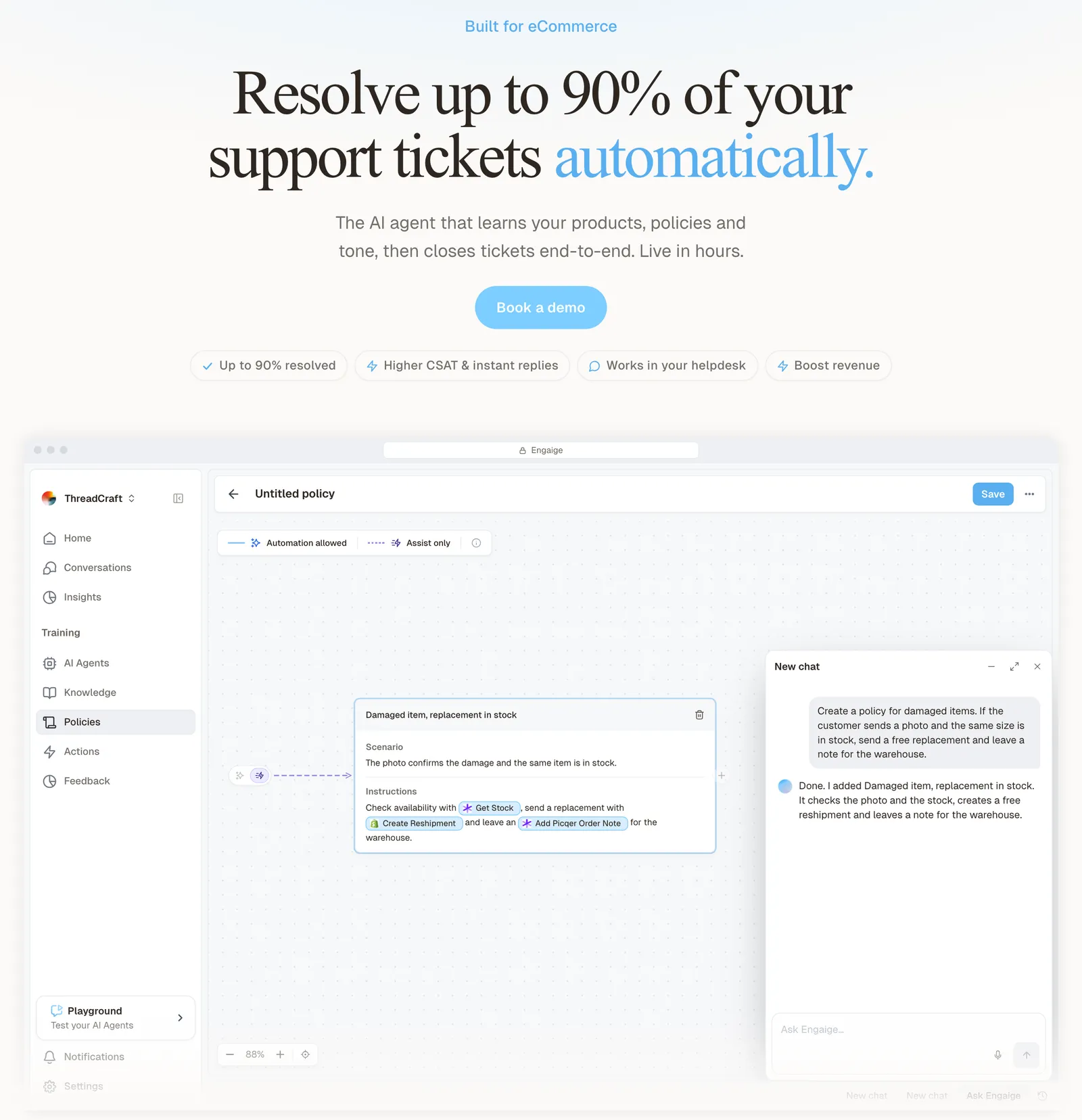
The portal deflects policy questions. The order questions that reach the queue (WISMO, refunds and returns, cancellations and address changes) get resolved end to end. The action happens in the connected system first, then Engaige replies and closes the ticket in Zendesk. On Shopify it combines live Admin API data on orders, customers, inventory and pricing across markets and SKUs with your storefront content, deeper than tools that only scrape.
Otrium: 60% of 120,000 annual tickets resolved end to end. See the Otrium story for the detail. Our AI agent guide explains how that differs from a human-run queue.
With Engaige, we are able to automatically resolve 60% of the 120,000 support tickets that we receive annually.

The loop is how it gets there. You go live in Agent Assist in hours. Engaige AI compares what your team said with what the agent suggested and learns from the difference, and you approve the changes. Ticket types then switch to autonomous one at a time, most brands in about a week, up to 90% of supported tickets.

Hello Potential New Client
What would you like to get done today?
Could you analyse this week's conversations and show me some automation opportunities?
Ask Engaige…
Searched and found 4 contact reasons · 2.4s
Your agent resolved 426 of 512 conversations. 86 were handed over, and one contact reason accounts for most of them.
Searched and found 1 policy · 1.6s
Delivery status hands over whenever tracking is older than 24 hours, which is 40 of those 46.
Editing Delivery status · 1.9s
Done. It now handles stale tracking itself. Those 40 a week stay with your agent.
What were the reasons for handover, and how can we improve?
Fix it.
Reply…
Engaige is text-first by design, across email, live chat, WhatsApp, SMS and social DMs. See the Zendesk integration or Engaige comparison.
Frequently asked questions
Is the Zendesk self-service portal included in my plan?
The help centre comes with every Suite plan. Zendesk lists the Requests page, where customers track tickets, for Suite Growth and higher, and its pricing page gives Suite Team one help centre and Suite Professional up to five.
What is the difference between the Zendesk help centre, Knowledge and the customer portal?
They describe the same thing from different angles. Knowledge is what the admin UI calls the product, the help centre is the customer-facing site, and the customer portal is the part where signed-in customers submit and track tickets.
How do customers sign in to a Zendesk help centre?
With a Zendesk email and password, a Google, Microsoft or Facebook account, or your own SSO through JWT or SAML. Registration is optional, but a verified email is needed to see tickets on the Requests page.
Why can’t a customer see their request in the Zendesk help centre?
Check four things: they are signed in, every email address on the account is verified, they are looking at the right brand, and the reply was not an AI agent response on email or a web form, which the Requests page does not show.
How do you measure self-service in Zendesk?
Use the self-service score, total help centre sessions divided by total users in tickets, plus searches with no result, no clicks and searches that led to a ticket. Split tickets by type to see which order questions the portal never deflects.
Can customers check their order status in the Zendesk customer portal?
No, the Requests page tracks tickets, not orders. An AI agent that reads the order, such as Engaige, resolves WISMO tickets in your Zendesk queue end to end.
Does Engaige replace the Zendesk help centre?
No. Keep your help centre and your Zendesk. Engaige is the AI agent that resolves the tickets the portal sends on, taking the action in the connected system first, then replying and closing the ticket in Zendesk.