A Zendesk view is a saved list of tickets that match conditions you set, such as status, group or tags. Zendesk ships standard views, admins build shared views for everyone or chosen groups, and agents build personal ones. The limits cover how many views the list shows. A view sorts the work; it never changes a ticket.
What is a Zendesk view?
A Zendesk view is a saved list of tickets that match conditions you set, such as status, group or tags, and it works as a filter rather than a folder. Zendesk’s own examples are unsolved tickets assigned to you, new tickets to triage and pending tickets awaiting a response, per Zendesk’s guide.
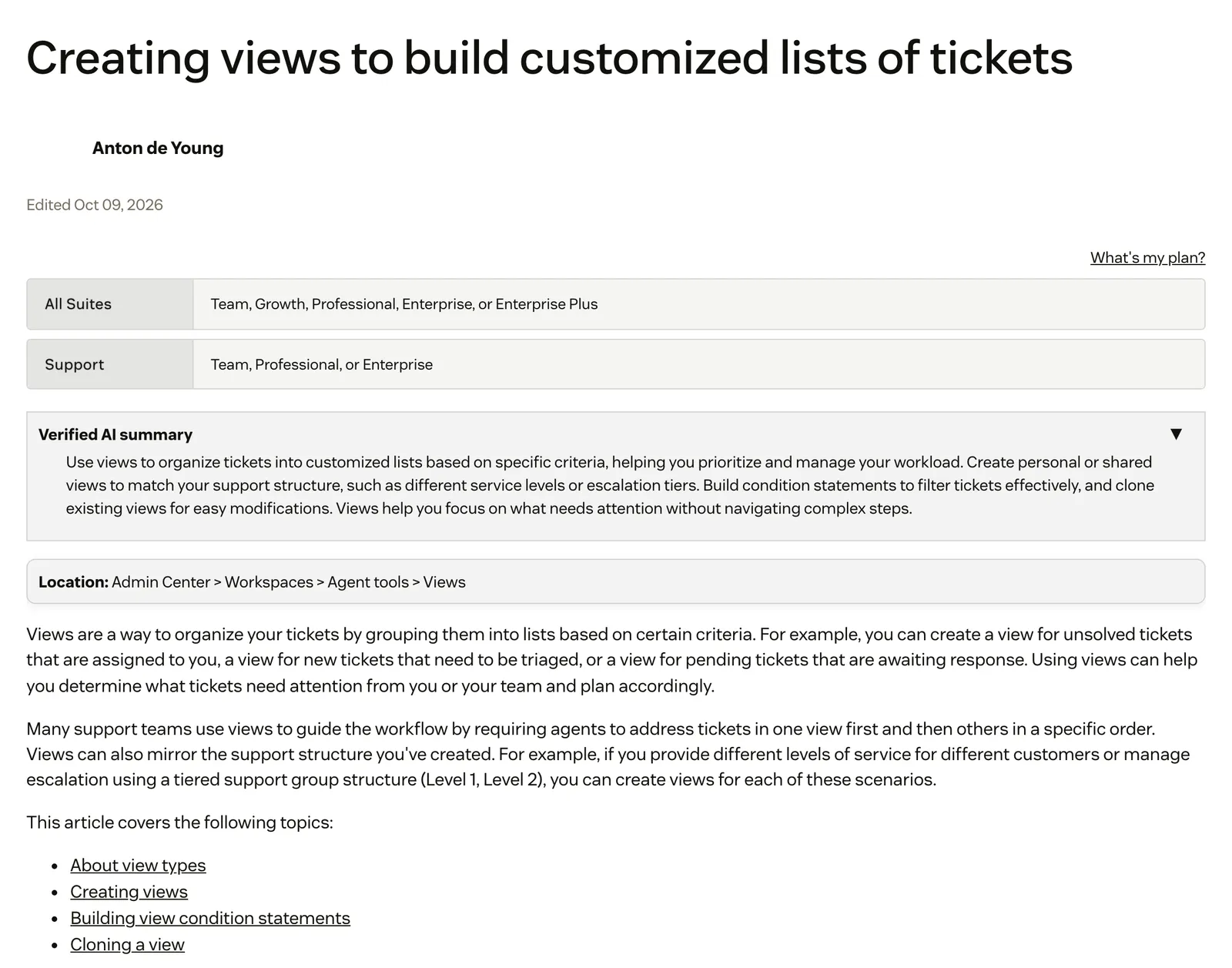
Views are available on every Suite plan and on Support Team, Professional and Enterprise, per the same guide.
Zendesk’s routing overview calls views “containers”, and views sit alongside omnichannel routing, which decides who gets a ticket in the first place. One ticket can sit in several views or in none, because a view is a filter: it shows only the tickets that match its conditions.
Our view: a view decides what your team looks at next, and nothing else. Triggers and automations act on tickets, and macros are applied by an agent. Our Zendesk hub has the full overview of the product.
What are the default views in Zendesk?
There are three kinds. Standard views ship with the account, shared views are built by admins for all agents or for chosen groups, and personal views belong to one agent. The table after the standard views shows who creates each type, who sees it and how it counts towards the list, per Zendesk.
Zendesk lists the eight standard views by name only, per its views guide. The middle column below is our plain reading of each name, not a Zendesk definition.
| Standard view | What it shows (our reading) | A store use |
|---|---|---|
| Your unsolved tickets | Open work assigned to you | Your own daily queue |
| Unassigned tickets | Tickets nobody owns yet | Morning triage |
| All unsolved tickets | Every ticket not yet solved | Spotting a backlog |
| Recently updated tickets | Tickets with recent activity | Catching customer replies |
| Unsolved tickets in your groups | Open work across your groups | A returns team’s shared queue |
| New tickets in your groups | Fresh tickets for your groups | Checking what arrived overnight |
| Pending tickets | Tickets waiting on the customer | Chasing missing order details |
| Recently solved tickets | Tickets solved lately | Checking a reopened complaint |
Two more standard views, for pending approvals, switch on when approval requests are turned on. The Suspended tickets and Deleted tickets views sit at the bottom of the list and can’t be edited or removed.
| View type | Who creates it | Who sees it | How many show in the list |
|---|---|---|---|
| Standard | Ships with the account; admins can edit most | Everyone | Active ones count towards the shared limit |
| Shared | Admins, and custom roles with permission | Any agent, or agents in chosen groups | Up to the shared limit |
| Personal | Any agent, for themselves | Only that agent | Up to the personal limit |
How do you create a view in Zendesk?
To create a Zendesk view, open Admin Center, select Workspaces, then Agent tools > Views, and choose Create view. The eight steps below set access, conditions, columns and sorting, and the view lands at the end of the list unless you pick a position, per Zendesk’s guide.
- Open Admin Center > Workspaces > Agent tools > Views and select Create view.
- Add a title and description. A
::in the title builds view folders up to three levels deep, such as “Returns::Awaiting refund”. - Choose who has access: any agent, agents in specific groups, or only you.
- Add conditions. All means every condition must match; Any means at least one. The All section must include one of Status, Status category, Type, Group, Assignee, Requester or Support type.
- Select Preview to check which tickets match before you save.
- Add up to 15 columns, per the create-view guide. Multi-select fields are not supported as columns.
- Choose grouping and sorting. Grouping by a custom field orders tickets by the field’s tag, not its name, and the created date is the tiebreak.
- Save.
Zendesk’s own advice on conditions is to look for what is there rather than what is not. Tags and statuses are cheap to match; NOT statements, null checks and text searches are not. Hours-since conditions are not available when a view uses Any. And “Assignee is (current user)” gives each agent their own list from one shared view.
Per Zendesk’s view management guide, a shared link to a view still respects the view’s availability setting, so copying the URL does not widen who can see it.
Who can see and edit Zendesk views?
Per Zendesk’s roles guide, admins create and edit all business rules, views included, while standard agents create and edit their own views only. Light agents can see and filter views but cannot create or edit them. Customers do not get agent views: Zendesk’s roles guide describes the end-user side as the help centre, including a view of their own tickets. On Enterprise, custom roles change what an agent may do.
| Role (per Zendesk’s guides) | Can see | Can create or edit |
|---|---|---|
| Admin | All views | All views |
| Agent (standard role) | Standard views, shared views they have access to, and their own | Their own personal views |
| Custom role (Enterprise) | Depends on the level set | Five levels, from “Play views only” to “Add and edit personal, group, and global views”, plus a CSV Export toggle |
| Light agent | Views, and can filter them | Nothing |
| End user | No agent views; their own requests in the help centre | Nothing |
An agent in a custom role without permission gets an error when cloning or editing a view. If an agent hits the personal limit, Zendesk suggests asking an admin for shared views instead. Role details are in custom roles and light agents.
Which Zendesk views should an online store set up?
Most stores need four: refunds awaiting action, where-is-my-order questions, VIP customers and tickets pending with the carrier. Each one needs a tag or field the ticket already carries, because a view only reads the ticket.
These are our suggestions, built from documented conditions. They are examples, not tested settings, and the tags are placeholders you create yourself.
| View | Conditions (All) | Columns and sort | Why |
|---|---|---|---|
| Refunds awaiting action | Status less than Solved; tags contain “refund”; group is Returns | Requester, Order issue, Requested, Assignee; order by Requested, oldest first | Oldest refund first |
| WISMO | Status less than Solved; tags contain “wismo” | Channel, Requested, Assignee; group by Channel | Where questions tend to pile up after a shipping delay |
| VIP customers | Status less than Solved; tags contain “vip” | Priority, Requester, Updated; order by Priority, highest first | Your best customers never wait at the back |
| Pending with carrier | Status category is On-hold; tags contain “carrier_claim”; hours since on-hold greater than 48 | Assignee, Updated | Chase the carrier before the customer chases you |
Three setup notes. “Status is less than Solved” returns New, Open and Pending tickets. The refund tag can come from an “Order issue” drop-down; see our guide to custom fields for how those work. VIP needs user and organisation tagging switched on, after which Zendesk adds a user’s user tags to their tickets. And On-hold is an optional status, so activate it first.
Every one of these views depends on someone tagging or classifying the ticket correctly, and none of them knows the order. Zendesk documents no view condition that reads order, payment or carrier status. The view tells you a refund is waiting, not whether it was already issued in Shopify. For the questions behind these queues, see how WISMO and returns tickets work. If your store also serves customers in other languages, our guide to Zendesk translation covers how those tickets are handled.
What are the limits of Zendesk views?
Zendesk caps how much a views list can show. The list holds up to 100 active standard and shared views and 10 personal views, per Zendesk, and archived tickets never appear. Each view takes up to 15 columns, per the create-view guide, and views refresh every five minutes, per the Play mode guide.
Many guides still quote 12 shared views. That was the previous default. On Enterprise, an admin can still cap a custom role at 12 shared and 8 personal views, per Zendesk, but otherwise agents get 100 and 10.
| Limit | What Zendesk documents |
|---|---|
| Views in the list | 100 shared, 10 personal |
| Enterprise cap option | 12 shared, 8 personal for a custom role |
| Columns | 15, no multi-select fields |
| Archived tickets | Never shown; most tickets are archived 120 days after Closed |
| Refresh | Every five minutes |
| Counts | Cached for 60 to 90 minutes on views with thousands of tickets, per the API reference |
If a ticket is missing from a view, it most likely fails a condition, sits in another group or has been archived. View counts and search counts for the same parameters can also differ, per Zendesk. For trends and history Zendesk points to reports, and for hundreds of thousands of tickets to an export; our guide to ticket reporting covers the first.
The Play button walks an agent through a view one ticket at a time, and Zendesk calls play mode an outdated way to serve tickets to agents.
You can export a single view as CSV from the Actions menu; for exports beyond one view, see our Zendesk export guide.
Where does Engaige fit?
Engaige (that’s us) isn’t a view, a queue or a help desk setting: Engaige is the e-commerce-native AI support agent that works inside the Zendesk you already run, on the tickets your team opens. Keep your helpdesk, replace the AI. Engaige AI learns from your conversations and inputs, configures your support agent, and shows which policies it used. MR MARVIS, a Shopify Plus brand, has its agent resolving over 60% of the conversations it’s involved in.
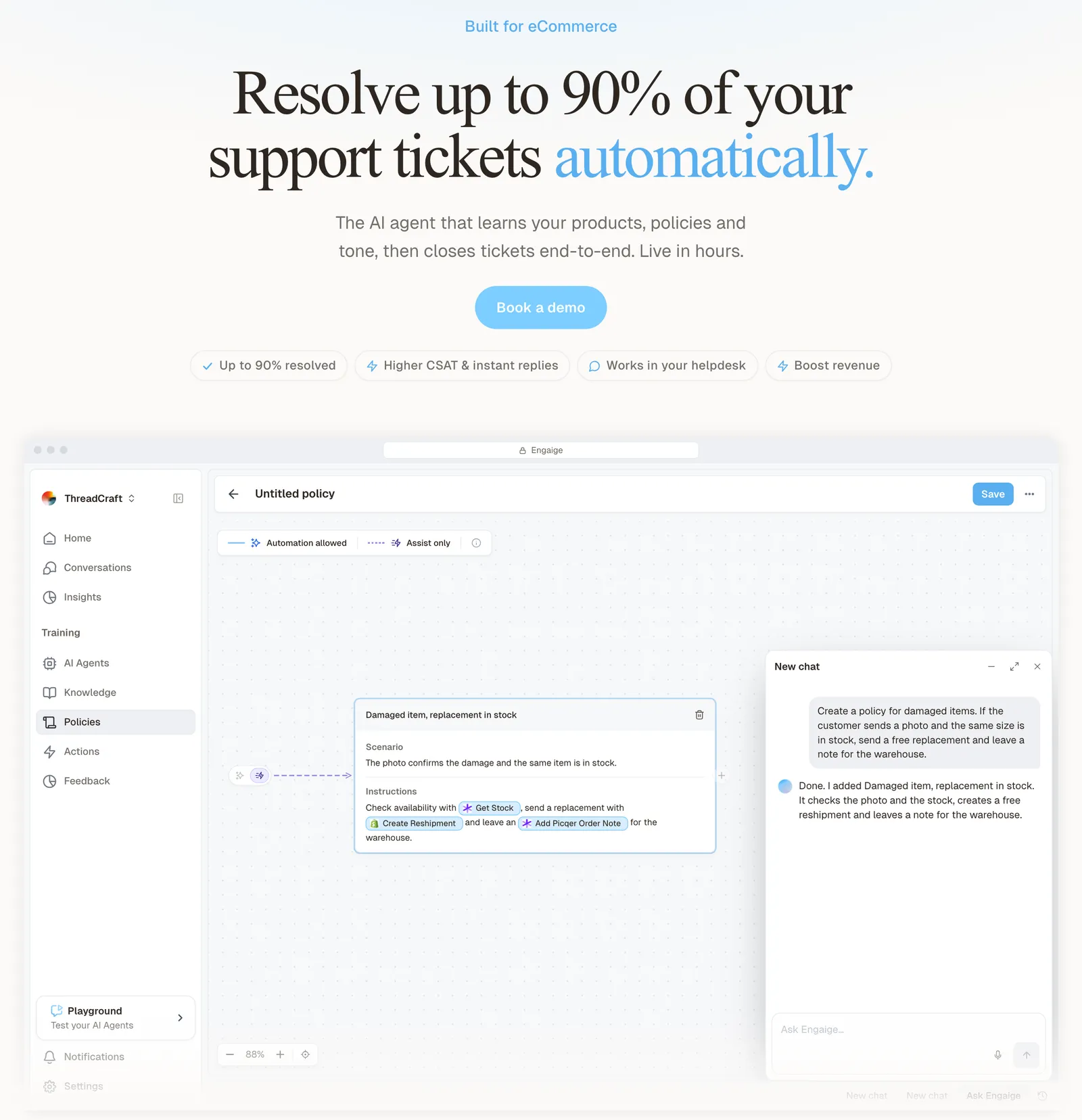
You go live in Agent Assist in hours. Your team keeps working its own views in its usual order; on the tickets they open, Engaige drafts the reply and suggests the action, and your agent decides what to send.
Engaige AI learns from the replies your team sends. It compares what your team sent with what it suggested, learns from the difference, and proposes policy changes with its reasoning. You approve what goes live, so nothing changes behind your back.

Hello Potential New Client
What would you like to get done today?
Could you analyse this week's conversations and show me some automation opportunities?
Ask Engaige…
Searched and found 4 contact reasons · 2.4s
Your agent resolved 426 of 512 conversations. 86 were handed over, and one contact reason accounts for most of them.
Searched and found 1 policy · 1.6s
Delivery status hands over whenever tracking is older than 24 hours, which is 40 of those 46.
Editing Delivery status · 1.9s
Done. It now handles stale tracking itself. Those 40 a week stay with your agent.
What were the reasons for handover, and how can we improve?
Fix it.
Reply…
As the drafts match your team on a ticket type, you switch that type to autonomous, one at a time, or start autonomous from day one. The action happens in the connected system first, then Engaige replies and closes the ticket; the rest goes to your team. Most brands go autonomous in about a week, and Engaige automates up to 90% of supported tickets.
Engaige proved to be invaluable. Their hands-on support during the implementation phase resulted in significant improvements to our automated resolution rate and CSAT.

A view can only tell you a refund ticket is waiting. On Shopify, Engaige reads the live order in the connected system before it drafts. See how the two compare on our Zendesk comparison page, or read about the Zendesk integration.
Frequently asked questions
What is a view in Zendesk?
A saved list of tickets that match conditions you set, such as status, group or tags. It works as a filter, so a ticket can appear in several views or in none.
What are the default views in Zendesk?
Eight standard views ship with the account, including Your unsolved tickets, Unassigned tickets and Pending tickets. Two more switch on with approval requests, and Suspended and Deleted views sit at the bottom.
What is the difference between a shared and a personal view in Zendesk?
A shared view is built by an admin for all agents or chosen groups. A personal view is built by an agent and only that agent sees it.
How many views can you have in Zendesk?
The list shows up to 100 shared and 10 personal views; see the limits above. The older 12 and 8 cap applies only if an Enterprise admin chooses it for a custom role.
Who can create views in Zendesk?
Agents create personal views only. Admins and custom roles with permission create shared views. Light agents can see and filter views but not create or edit them.
Why is a ticket missing from my Zendesk view?
It most likely fails a view condition, sits in another group or has been archived. Archived tickets never show in views, though search still finds them.
Can a Zendesk view change or update tickets?
No. A view only lists tickets. Triggers and automations act on them, and macros are applied by an agent.
How do I export a Zendesk view to CSV?
Use the Actions menu on an unfiltered view; Zendesk emails a link. For wider exports, see our Zendesk export guide.
Does an AI agent need its own view in Zendesk?
Not with Engaige. Your team keeps its views and works in its usual order, and Engaige drafts on the tickets they open. It then works autonomously on the ticket types you switch on, and Engaige AI learns from the gap between its draft and what your team sent.
Do I have to replace Zendesk to add an AI agent?
No. Keep your helpdesk, replace the AI. Engaige works inside your agent workspace, with no migration and no change to the workflows your team already knows.