Zendesk statuses are the stages a ticket moves through: New, Open, Pending, On-hold, Solved and Closed. Each one says who acts next: your agent (Open), the customer (Pending) or someone else, such as a carrier or warehouse (On-hold). Agents set most of them, only the system sets Closed, and admins can add custom statuses inside each category.
A status records where the ticket stands, not where the order stands. This guide is part of our Zendesk e-commerce series for online stores.
What are Zendesk statuses?
Zendesk statuses are the six standard values of a ticket’s status field. Zendesk documents six standard statuses, or status categories once custom statuses are on, each with a colour: New (orange), Open (red), Pending (blue), On-hold (dark grey), Solved and Closed (light grey). They apply across the Suite plans and Support Team, Professional and Enterprise.
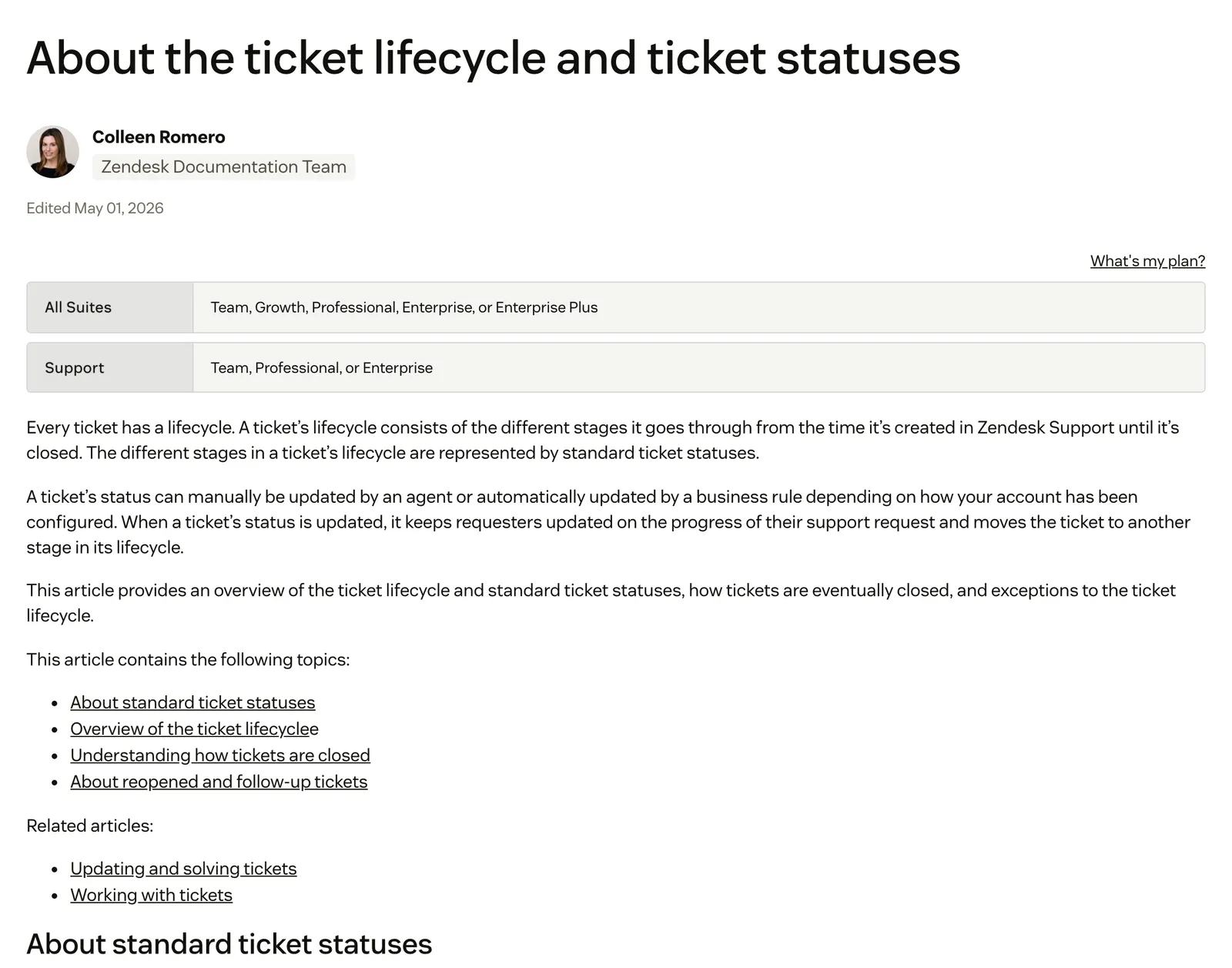
A status tells you who acts next on the ticket. Priority tells you how soon, and the ticket type tells you the shape of the work. For the generic ticket view, see our support ticket guide, and for how a ticket moves from arrival to close, see the ticketing system.
One line of disambiguation: “Zendesk status” can also mean status.zendesk.com, Zendesk’s service-status page for outages and incidents. This page is about ticket statuses.
What does each Zendesk ticket status mean?
There are six standard statuses. On-hold is optional and off by default, and Closed is set only by the system. Accounts created on or after 13 February 2024 may also show In Progress, which Zendesk lists as an example custom status inside the Open category, not as a seventh standard status.
The store examples below are our illustrations, not customer data.
| Status | Who sets it | What it means | What the customer sees | Typical store example |
|---|---|---|---|---|
| New | The system, on arrival | No action taken yet; it can never be set back to New | Open | A “Where is my order?” email that has just come in |
| Open | Automatically on assignment, or on a customer reply | Assigned to an agent, waiting on the agent | Open | An agent checking the order in the shop admin |
| Pending | The agent | Waiting for more information from the customer | Awaiting your reply | The agent asked for a photo of the damaged item |
| On-hold | The agent, once an admin enables it | Waiting on someone other than the customer | Open | Waiting on the carrier’s investigation or the warehouse |
| Solved | The agent; needs an assignee | The agent has submitted a solution | Solved | The refund is issued and confirmed |
| Closed | The system only | Locked; the customer can no longer reopen it | Solved | Four days after Solved by default; a reply creates a follow-up ticket. No one sets it by hand, and the timing is covered in Zendesk automations |
The sources are Zendesk’s lifecycle article, its ticket rules and its customer view of what customers see. Two rules from them matter for stores. A customer comment on a Pending, Solved or On-hold ticket sets it to Open. And a ticket can’t be set to Solved without an assignee.
On-hold is off by default. An admin enables it in Admin Center under Objects and rules, Tickets, Fields, on the Status field. Zendesk’s own example for it is waiting on partners and suppliers.
What is the difference between Pending and On-hold?
Pending means you are waiting on the customer. On-hold means you are waiting on someone else: a carrier, warehouse, supplier or payment provider. A customer reply moves either one back to Open. The difference reaches the customer, the clock and your reports.
Three consequences a store feels:
- The customer sees different words. Pending shows as “Awaiting your reply” in the help centre; On-hold shows as Open.
- The SLA clock treats them differently. Per Zendesk’s SLA policy, requester wait time pauses at Pending but keeps counting through On-hold, while agent work time pauses in both. Our Zendesk SLA guide covers the timers.
- On-hold time can be reported. Zendesk documents On-hold tickets and On-hold time metrics in Explore on Support Professional and Enterprise.
Our view: a carrier investigation is On-hold, never Pending. Pending tells the customer it is their move and stops the clock on a wait they did not cause.
Zendesk also documents a snooze recipe: a macro sets On-hold, the agent adds a due date and an automation sets the ticket back to Open.
What are custom ticket statuses in Zendesk?
Custom ticket statuses are statuses you add inside a category, so agents and customers see a reason such as “Awaiting carrier” while Zendesk still treats the ticket as On-hold. The category decides the behaviour: SLA pauses, reopen rules and what triggers see. You can’t add statuses to New or Closed, and you can’t move a status to another category after saving.
These are our suggestions for a store, not Zendesk defaults:
| Custom status | Category | Customer sees (end-user name) | Why that category |
|---|---|---|---|
| Awaiting carrier | On-hold | ”We’re checking with the carrier” | A third party holds it, and the clock keeps running honestly |
| Awaiting return parcel | Pending | ”Waiting for your return” | The customer must ship it |
| Return received, checking | On-hold | ”Being processed” | The warehouse is inspecting it |
| Refund processed | Solved | Solved | Zendesk’s own example; the ticket keeps this status after it closes |
| Escalated to returns team | Open | Open | It is still your team’s move |
Zendesk’s setup guide gives the steps:
- In Admin Center, go to Objects and rules, then Tickets, then Ticket statuses, and choose Create ticket status.
- Choose the category. On-hold appears only if the On-hold status is active.
- Enter an agent name of up to 48 characters; Zendesk truncates names of 35 or more in some places.
- Add an optional end-user name and description, so customers see wording that suits them.
- Set it to active, then add it to all ticket forms or selected ones. Linking statuses to forms needs Suite Growth or Support Enterprise and above.
Accounts created before 17 January 2023 may need to activate custom statuses first. Once they are on, the standard statuses become categories, and existing triggers, automations, macros and views switch to “Ticket: Status category” using each category’s default. Zendesk recommends reviewing them. Zendesk documents no custom statuses on its AI agent tickets.
How do statuses work with SLAs, triggers and the Requests page?
Statuses feed three other parts of Zendesk, one line each:
- SLAs: resolution metrics run on status; see Zendesk SLA.
- Triggers and automations: conditions read the status or status category, and the standard triggers use each category’s default status; see Zendesk automations for the hourly rules and the close timing.
- Requests page: customers see Open, Awaiting your reply or Solved, plus your custom end-user names; see the self-service portal.
One more line on Zendesk AI agent tickets: per Zendesk, they stay Open during the bot conversation and reset to New when escalated to a human, and SLAs start only then (see Zendesk SLA).
Which status mistakes do online stores make?
Six mistakes come up, each with a documented consequence:
- Using Pending for carrier or warehouse waits. The customer is told “Awaiting your reply” and requester wait time pauses.
- Solving before the refund or replacement has happened. A customer reply reopens it to the same agent, and after the close it becomes a follow-up ticket.
- Solving without a record of what fixed it. Solved says the ticket is done; nothing says how.
- Deleting a custom status your rules use. Per Zendesk’s status guide, business rules that use a deleted custom status will not run.
- Too many active statuses. The same guide says the picker shows the first 10 active statuses and agents scroll for the rest, that an account can have up to 100 statuses, and recommends limiting active ones.
- Expecting to set Closed by hand, or to keep a solved ticket open indefinitely. Per Zendesk’s ticket lifecycle guide, tickets can’t be set to Closed manually, and Zendesk confirms you can’t prevent a ticket closing after 28 days in Solved. A customer reply to a Solved ticket reopens it; once it is Closed, a reply creates a follow-up ticket.
Our view: statuses track the ticket, so the status is only as true as the action behind it. A ticket marked Solved says nothing about whether the parcel moved or the refund landed. That is the gap on WISMO and returns tickets.
Where does Engaige fit?
Engaige (that’s us) isn’t a status field, and it doesn’t replace your helpdesk. It is the e-commerce-native AI support agent that plugs into the Zendesk you already run: keep your helpdesk, replace the AI. It works alongside your statuses. The action happens in the connected system first, then Engaige replies and resolves the ticket; everything else goes back to your team.
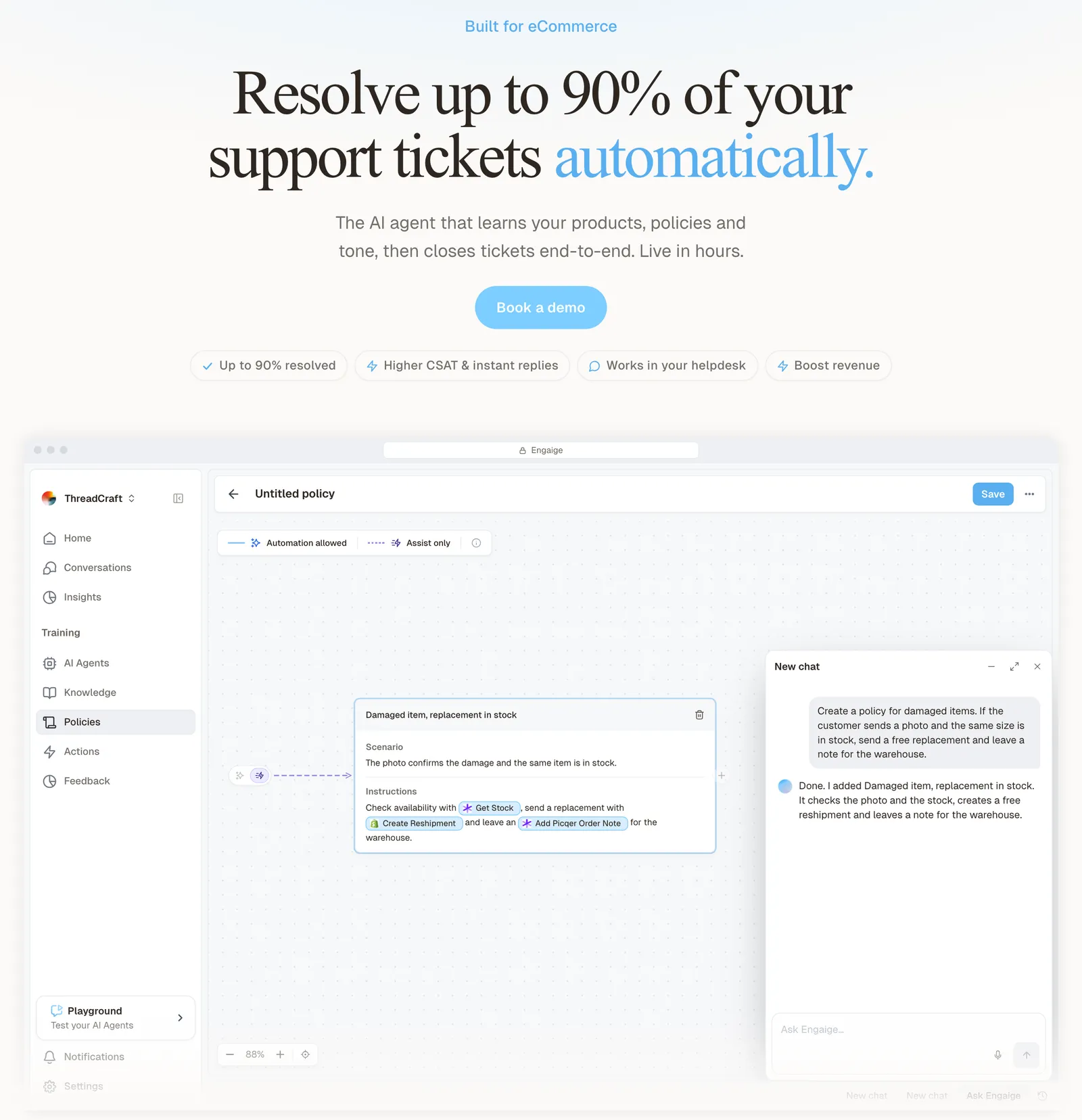
Behind it is Engaige AI, which learns from your conversations and inputs, configures your support agent and shows which policies it used. MR MARVIS handles over 120,000 questions a year, resolving over 60% of the conversations it’s involved in.
Within the AI we can see the reasoning, and how it comes to a response. That shows us where information is missing or unclear, and helps us improve our workflow.

You decide where automation stops and a person takes over. Tickets outside your policies go back to your team. Once Engaige is autonomous, Engaige AI surfaces emerging trends and the tickets it handed back, proposes the policy change that would have resolved them, and you approve it. In Agent Assist the same loop learns from the gap between what your team sent and what the agent suggested.

Hello Potential New Client
What would you like to get done today?
Could you analyse this week's conversations and show me some automation opportunities?
Ask Engaige…
Searched and found 4 contact reasons · 2.4s
Your agent resolved 426 of 512 conversations. 86 were handed over, and one contact reason accounts for most of them.
Searched and found 1 policy · 1.6s
Delivery status hands over whenever tracking is older than 24 hours, which is 40 of those 46.
Editing Delivery status · 1.9s
Done. It now handles stale tracking itself. Those 40 a week stay with your agent.
What were the reasons for handover, and how can we improve?
Fix it.
Reply…
Engaige is live in Agent Assist in hours, most brands go autonomous in about a week (day one if you’re ready). Engaige automates up to 90% of supported tickets. Statuses stay where they are; Engaige does the work behind the ticket. See how it works on our Zendesk integration page, or compare it with Zendesk’s own AI on our Zendesk comparison.
Frequently asked questions
What are the ticket statuses in Zendesk?
New, Open, Pending, On-hold, Solved and Closed. On-hold is optional and off by default, and Closed is set only by the system. The system sets New and Closed; Open follows assignment or a customer reply, and agents set Pending, On-hold and Solved.
What is the difference between Pending and On-hold in Zendesk?
Pending waits on the customer and On-hold on a third party such as a carrier. Customers see Pending as “Awaiting your reply” and On-hold as Open, and requester wait time pauses only at Pending.
Can you close a Zendesk ticket manually?
No. Zendesk documents Closed as set by the system only; agents set Solved. The close timing is in our Zendesk automations guide.
How do I add a custom ticket status in Zendesk?
In Admin Center, go to Objects and rules, Tickets, Ticket statuses and choose Create ticket status. Pick a category, name it, add an optional end-user name, set it active and add it to your ticket forms. The category can’t change after saving.
What does the customer see when a ticket is On-hold?
Open. On-hold is internal, so the customer sees Open unless you give a custom On-hold status a different end-user name.
Is “Zendesk status” the same as the Zendesk Status page?
No. The Zendesk Status page at status.zendesk.com shows service incidents for your subdomain. Ticket statuses are the stages a ticket moves through, which this guide covers.
Does an AI agent change ticket statuses in Zendesk?
Zendesk’s own AI agent tickets stay Open during the bot conversation and reset to New when escalated to a human. Engaige replies and resolves tickets after the action has happened in the connected system, and hands the rest back to your team with your statuses and workflow unchanged. Engaige AI then learns from those hand-backs under your supervision.
Do I have to replace Zendesk to use a different AI agent?
No. Engaige works inside your Zendesk on your existing tickets, so your statuses, views and team workflow stay as they are.