A Zendesk ticket type is the value of the system Type field: Question, Incident, Problem or Task. It labels the shape of the work, not what the shopper wants. The field is optional, takes no extra values, and lets you link many Incident tickets to one Problem, so solving the Problem solves them all.
What is a Zendesk ticket type?
A Zendesk ticket type is a standard ticket field with exactly four values, the ones named above. Zendesk says setting it helps categorise tickets for use in your workflow, for example views by type. It is not required, so it can stay blank.
One caveat sits in the same article: the field can be blank through any number of updates, but once someone sets a type, it can’t be changed back to blank. Zendesk also confirms the field isn’t required.
Our view: Type describes the shape of the work. It is a one-off question, one report of a shared fault, the fault itself or an internal to-do. It does not describe what the shopper wants, and that distinction matters later. For the full anatomy of a ticket, see our ticketing system guide.
What do the four Zendesk ticket types mean?
Question is a plain query, Incident is one report of a shared fault, Problem is the fault itself, and Task is a to-do for one agent. Zendesk defines all four in its ticket fields article. The store examples in the table below are our illustrations, not Zendesk’s.
| Type | What Zendesk means | Online-store example | What it unlocks |
|---|---|---|---|
| Question | The requester’s issue is a question, not a problem to solve | ”Do you ship to Norway?” | Views and rules, nothing special |
| Incident | A single occurrence of a larger problem affecting multiple users | One shopper’s “my parcel hasn’t moved in five days” during a carrier delay | A link to a Problem ticket |
| Problem | An issue with your product or service affecting multiple users | One internal ticket for the carrier delay, or a discount code that fails for everyone | Solving it solves every linked Incident |
| Task | A ticket assigned as a task to a specific agent | Chase the supplier for a restock date on a sold-out size | An optional due date |
After you pick Task, you can set a Task Due Date. Zendesk defines the due date as 12pm on the chosen date in the user’s browser’s local timezone. Due-date conditions in automations apply only to Task tickets. A reminder is something you build: Zendesk documents an email automation for the assignee before the due date.
Task is not the same as a task list. A Task is a ticket type. A task list is a separate checklist inside a ticket. Zendesk allows 100 task lists in total and 20 tasks per list, on Customer Service Suite Professional, Enterprise and Enterprise Plus.
How do problem and incident tickets work in Zendesk?
You create one ticket for the shared fault and set it to Problem. Every other ticket reporting it becomes an Incident linked to that Problem. Solving the Problem sets every linked Incident to Solved and copies the solving comment to each Incident that isn’t already solved, per Zendesk’s guide.
The steps:
- Create your own ticket describing the fault and set its type to Problem.
- On each matching ticket, set the type to Incident. A second menu appears; pick the problem and submit.
- Review the linked tickets from the problem ticket’s Incidents tab.
- Write the solving comment. Placeholders personalise it.
- Solve the problem and confirm you want to solve all open linked incidents.
Never solve incidents one by one. Zendesk says to refrain from solving any of the incident tickets directly, because solving one leaves the others unsolved. The feature is on all Suite plans and on Support Team, Professional and Enterprise.
A store example, as an illustration: a carrier strike delays 300 orders. One Problem ticket carries the cause, the where-is-my-order emails are linked as Incidents, and one solving comment with the new delivery estimate reaches every shopper whose ticket is still open.
Zendesk’s page also holds caveats that are easy to miss:
- Customers who wrote in through messaging are not notified on that channel when the problem is solved.
- AI agent tickets can’t be linked to problem and incident tickets.
- Reopening a solved problem does not update its incidents, which stay solved. Our advice: to send another update, bulk-reopen them from the Incidents tab first.
- Empty required fields on linked incidents are ignored when the problem is solved.
One more caution: Zendesk says to use caution when applying macros with placeholders to problem and incident tickets. Our view: check the placeholders in the solving comment before you solve, because a wrong value reaches every linked shopper.
Zendesk’s own trigger workflow lists linking as a manual step, so agents link incidents by hand. Our view: in a carrier wave, the linking itself becomes the work.
Can you add more ticket types in Zendesk?
No. Zendesk states that the default type field can’t be modified because it is a system field. The four values are fixed. The documented workaround is to deactivate Type and build a custom drop-down with your own values, but that comes at a cost, explained below.
The route is Admin Center, Objects and rules, Tickets, Fields. The catch: Zendesk says that if you deactivate the system Type field, all tickets default to the Incident type. The problem and incident workflow also needs the Type field on your ticket form, so deactivating Type removes the linking too.
Our recommendation for a store: keep the system Type field for problem and incident work, and add a separate reason-for-contact drop-down next to it for where-is-my-order, returns and cancellations. Our guide to custom fields covers how to build it. If you want AI to predict what a ticket is about, see intelligent triage.
How do you use ticket type in views, triggers and reports?
Type is one of the properties you can build rules and lists on. Zendesk’s view conditions must include at least one property from a short list that contains Type, so it anchors a view. It is both a condition and an action in a trigger, and an Explore recipe ranks problem tickets by unsolved incidents (Suite Professional or higher).
How is a Zendesk ticket type different from a store’s types of request?
Zendesk’s Type says how the work is shaped. A store’s types of request say what the shopper wants: where is my order, a return, a cancellation, an address change, a damaged item. One where-is-my-order email can be a Question on a quiet day and an Incident during a carrier delay.
| Dimension | Zendesk Type field | Types of request in an online store |
|---|---|---|
| What it describes | The shape of the work | What the shopper wants |
| Values | Four, fixed | As many as your store needs |
| Who sets it | An agent, trigger or macro | A custom field, triage or an AI agent |
| What it changes | Views, rules, linking, Task due dates | The answer, the order action, the policy that applies |
| Example | Incident linked to the carrier-delay Problem | Where is my order, parcel stuck with the carrier, order number attached |
On this page, “type of request” always means the right-hand column, and “ticket type” or “Type field” means Zendesk’s field.
Where does the Type field stop for an online store?
Zendesk is a proven ticketing foundation that big teams trust, and Type does its job: it labels and groups work. It does not answer the shopper, look up the order or change anything in Shopify. Someone still has to write the update and reach messaging shoppers another way.
- No order context: the field says nothing about the order, the carrier or the policy.
- No store values: none of the four is a where-is-my-order or a return.
- Linking in the form: in Zendesk, agents link each Incident to its Problem in the ticket form (as of October 2026).
The useful unit for automation is the type of request, because that is what decides the answer and the order action. For the wider picture of how tickets are handled, see our ticketing system guide.
Where does Engaige fit?
Engaige (that’s us) is the e-commerce-native AI support agent that works inside the Zendesk you already run, organised around what the shopper wants rather than the Type field. Keep your helpdesk. Replace the AI. Engaige AI configures and improves your support agent. In Agent Assist it also learns from the replies your team sends, next to the conversations themselves and your inputs.
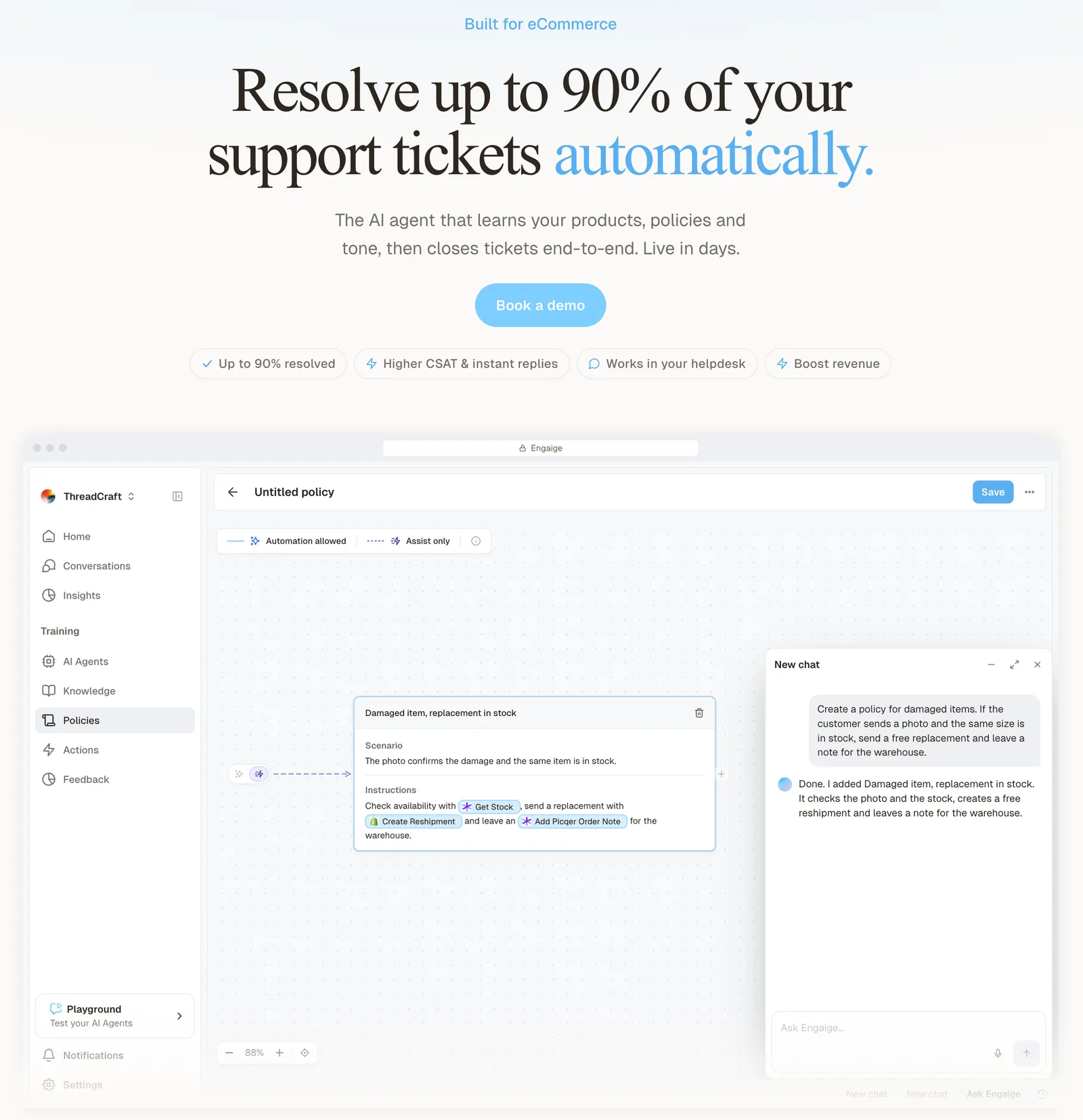
It proposes the changes with its reasoning and you approve them, and it keeps learning once the agent is autonomous. Otrium has 60% of 120,000 annual tickets resolved end to end: see the Otrium case.
For a Zendesk team, Engaige plugs in with no re-platforming and is built for e-commerce: it reasons in the order lifecycle, reads several live systems in one answer and ships native Shopify actions (refunds, cancellations, address changes, discounts), deepest on Shopify with the Admin API plus your storefront.
Engaige is organised by type of request, not by Zendesk’s Type. You switch one type of request to autonomous at a time, for example where-is-my-order first, and Engaige then resolves it end to end: it takes the action in the connected system, replies to the shopper and closes the ticket. Agent Assist, where Engaige drafts and your team sends, is the supervised path, and either launch path is supported.
You decide per step whether the agent acts on its own or drafts for your team, and you can set thresholds, such as sending refunds above a certain amount to a person first.
Scenario
The customer asks about a delivery address.
Instructions
Read the order with Get order , then take the branch that matches.
 Get order
 Scenario
The order has not been picked yet.
Instructions
Move it with Change picqer shipping address .
 Change picqer shipping address
 Scenario
The parcel has already left the warehouse.
Instructions
Say it cannot be redirected, then offer Process refund .
Engaige offered control, flexibility, and the ability to really incorporate AI in a more human way.

Engaige works alongside the Type field. Your team keeps using Type for its problem and incident work. The full overview is in our Zendesk hub, and our guide to omnichannel routing covers how work reaches your team. To see how the two compare, read the Zendesk comparison. For what each ticket status means, see Zendesk statuses; for the requester field, see ticket requester.
Frequently asked questions
What are the four Zendesk ticket types?
Question, Incident, Problem and Task. They are the four fixed values of the system Type field.
Is the Type field required in Zendesk?
No. It can stay blank, but once you set a type you can’t change it back to blank.
Can I add more ticket types in Zendesk?
Not to the system field. Zendesk’s workaround is to deactivate Type and build a custom drop-down, but then every ticket defaults to Incident and you lose problem and incident linking. Most stores are better off keeping Type and adding a separate reason-for-contact drop-down.
What happens to incidents when I solve a problem ticket?
Every linked incident is set to Solved and gets the solving comment if it wasn’t already solved. Shoppers who wrote in through messaging are not notified there.
What is the difference between a Task ticket and a Zendesk task list?
A Task is a ticket type with an optional due date. A task list is a separate checklist feature inside a ticket, on Customer Service Suite Professional, Enterprise and Enterprise Plus.
Can AI agent tickets be linked to a problem ticket?
No. Zendesk documents that AI agent tickets can’t be linked to problem and incident tickets.
Does Engaige replace the Zendesk Type field?
No. Type stays as it is for your problem and incident work. Engaige is organised by type of request, such as where-is-my-order or returns, and works on the tickets in the Zendesk you already run.
How do you decide which requests Engaige handles on its own?
Request by request. Start with one, such as where-is-my-order, choose per step whether the agent acts or drafts for your team, and add thresholds, for example refunds above a set amount going to a person first.