A Zendesk trigger is a business rule that runs the moment a ticket is created or updated. When the ticket meets its conditions, the trigger fires its actions, such as setting a group, adding a tag or emailing someone. Ticket triggers run in list order, the cycle restarts after each update, and no trigger fires twice in one cycle.
This guide covers how triggers work, the run order, store recipes and the limits. Our Zendesk hub has the wider overview. We build Engaige, the e-commerce-native AI support agent, with Engaige AI to configure and improve it under your policies.
What is a trigger in Zendesk?
A Zendesk trigger is an event-based business rule made of conditions (the “if”) and actions (the “then”). Zendesk defines triggers as rules that run immediately after a record, such as a ticket, is created or updated. “Fires” simply means the trigger applies its actions.
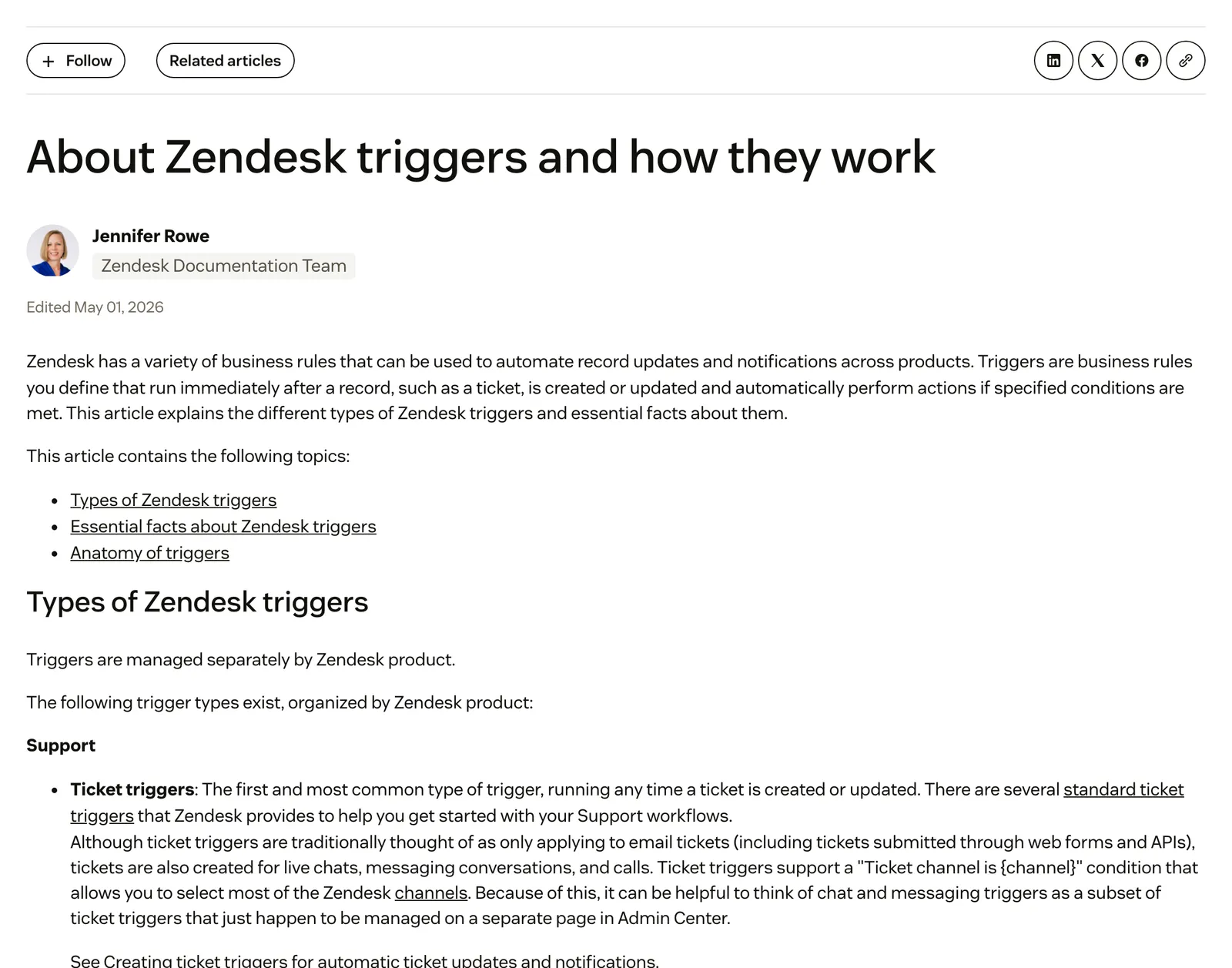
Our view: a trigger is an if-then switch on a ticket. It reacts to what changed on the ticket, never to what the customer needs or what the order says.
You find them in Admin Center > Objects and rules > Business rules > Triggers. They are on every Suite plan and on Support Team, Professional and Enterprise. Admins can create them, and so can agents in custom roles with permission to manage business rules.
Zendesk has four trigger types:
| Type | Runs when | Conditions | Where you manage it |
|---|---|---|---|
| Ticket | Every ticket create or update | All and Any combined | Admin Center > Objects and rules > Business rules > Triggers |
| Object | A custom object record is created or updated | All and Any combined | Admin Center > Objects and rules > Business rules > Triggers (needs a custom object) |
| Chat | One event you choose | All or Any, not both | Chat dashboard > Chat triggers |
| Messaging | One event you choose, like chat | All or Any, not both | Messaging triggers (some accounts) or the Chat dashboard |
Ticket triggers can match most channels with a “Ticket channel is” condition, so most stores live in ticket triggers. The rest of this guide is about those.
Three neighbours get their own guides. Automations run on elapsed time, hourly. Macros run when an agent clicks them. The instant reply on a new ticket has its own auto-reply guide.
How does a trigger work: conditions, actions and placeholders?
A trigger is conditions plus actions. Conditions are the “if”: a field, an operator and a value. Actions are the “then”. Placeholders put ticket data, such as the requester’s name, into any email the trigger sends.
All and Any. Every All condition must be true, and at least one Any condition must be true. A ticket trigger can mix both, so a ticket must match all of the All conditions plus one of the Any conditions. Chat and messaging triggers must pick one. Zendesk warns against several IS NOT conditions under Any.
Created or updated. “Ticket | Is | Created” or “Updated” narrows a trigger to one of the two. Without it, the trigger runs on every create and every update. Created is typically for routing, Updated for notifications.
Comment text. This condition reads only the new comment (the first comment on a new ticket), never earlier ones, and is not case sensitive. It matches words: “refund” catches “refund”, not “I want my money back”.
Actions. You can set the group, assignee, priority, type or status, and email the requester, a user or a group. You can also notify an active webhook. Mind the tags: Add tags keeps the existing ones, while Set tags deletes every tag on the ticket and replaces them.
Placeholders. Placeholders sit in double curly brackets, are case sensitive and render blank when the field is empty. Zendesk’s placeholder reference lists them all. System rules can suppress some in ticket triggers to stop spam. A few examples:
| Placeholder | Gives you |
|---|---|
{{ticket.id}} | The ticket ID |
{{ticket.requester.first_name}} | The requester’s first name |
{{ticket.title}} | The ticket subject |
{{ticket.latest_comment}} | The newest comment |
{{ticket.ticket_field_<id>}} | A custom field’s value |
In what order do Zendesk triggers run?
Ticket triggers run top to bottom in the order listed. When one fires and updates the ticket, the cycle starts again from the top, skipping triggers that already fired. So a trigger can be checked several times, but never fires twice in one cycle.
Why order matters. One trigger’s update can make another trigger’s conditions true. If two triggers set the same field, say assignment by channel and by tag, the last one to fire wins. Zendesk notes that it is not always easy to predict the order in which triggers fire for a given ticket. Its advice: avoid conflicting triggers, and use nullifying conditions, such as a tag the trigger adds and then excludes.
Categories. You can group ticket triggers into categories. The category order is the run order: every trigger in an earlier category runs before any trigger in a later one. Reorder with Edit order. If Zendesk answers “Trigger order wasn’t updated”, a trigger may reference invalid fields or values, or come from an app.
Our recommended order for a store, as our own view:
- Set defaults and tag.
- Route to a group.
- Notify.
Tag first so routing has context. Notify last so the customer’s email reflects the final group and status.
New triggers land at the end of the list, so place them on purpose. Chat, messaging and object triggers run side by side without this looping behaviour.
How do you create a trigger in Zendesk?
Go to Admin Center > Objects and rules > Business rules > Triggers > Ticket tab > Create trigger. You name it, pick a category, add conditions and actions, then save. New triggers are active and go to the end of the list.
- Open Triggers and select the Ticket tab.
- Select Create trigger, or clone an existing one.
- Name it with a consistent convention, and add an optional description.
- Pick a trigger category.
- Add All and Any conditions.
- Add actions.
- Select Create trigger, or choose Inactive from the arrow to stage it switched off.
Two rules before you start. Zendesk’s standard trigger guide says to clone a standard trigger rather than edit it, then deactivate the original. And never amend or deactivate the standard “Notify requester” triggers, because customer email relies on them. Keep trigger statements simple: complicated ones are harder to troubleshoot.
The standard set covers notifying the requester and CCs of a received request and of comment updates, notifying the assignee of assignment, comment updates and reopened tickets, notifying the group of assignment, and notifying all agents of a received request. It also includes auto-assigning to the first email-responding agent (inactive at signup) and setting tickets with no priority to normal. Zendesk suggests considering deactivating “Notify all agents of received request”.
Which Zendesk triggers should an online store set up?
Four ticket triggers cover most of a store’s routing and notification jobs: route refund and return requests, prioritise VIP customers, tag by channel, and stop auto-responder loops. The table shows example configurations, not tested results.
| Job | Conditions | Actions | Place it |
|---|---|---|---|
| Route refund requests | ALL: Ticket Is Created. ANY: Comment text contains at least one of “refund return exchange” | Group: Returns. Add tags: refund_request | After tagging, before notifications |
| VIP customers | ALL: Ticket Is Created; Tags contains at least one of “vip” | Priority: High. Group: VIP. Add tags: vip_routed | Before routing triggers |
| Tag by channel | ALL: Ticket Is Created. ANY: Channel is WhatsApp, Web Widget or Email | Add tags: channel_whatsapp, channel_web, channel_email | First, so later rules can use the tag |
| Stop auto-responder loops | ALL: Comment text contains the string from the auto-responder’s template | Add tags: automated_response. Status: Solved | Near the top; notification triggers get “Tags contains none of automated_response” |
The VIP row relies on a tag you set on the customer’s user or organisation profile. Zendesk copies those tags. The loop row follows Zendesk’s own recipe for stopping an email loop. The Web Widget row only helps if you run the Web Widget.
Now the honest caveat. Triggers see ticket, user, organisation and custom-field data. They see nothing about an order unless something writes it onto the ticket as a field or tag. So “notify on VIP orders” means VIP customers in practice, unless order value lands in a field. Our guides on custom fields and the Shopify integration cover how that data gets there.
Keyword matching has a limit too. “Refund” in the first comment routes; “where’s my money” does not. Both are everyday store jobs: see our refund handling and order tracking pages.
What are the limits and pitfalls of Zendesk triggers?
The hard limits are 7,000 active ticket triggers (source), standard and custom together, and 65 KB per business rule (source). The real pitfalls are loops, conditions that can never be true, too many overlapping triggers, and changes nobody tested.
| Pitfall | What happens | Fix |
|---|---|---|
| Loop or repeat firing | A trigger updates the ticket and re-satisfies itself or another rule | Add a tag in actions and exclude it in conditions |
| Impossible conditions | Several statuses under Meet ALL: a ticket has one status, so the trigger never runs | Move them under ANY |
| Conflicting triggers | Two set the same field; the last to fire wins | Keep one owner per field |
| Set tags | Deletes every tag on the ticket | Use Add tags |
| Webhook updating the same ticket | A race condition at an indeterminate point in the cycle; Zendesk does not recommend it | Zendesk suggests considering Action Builder |
| Closed tickets | Triggers do not run on a ticket after it is closed | Act before closing |
Too many triggers. The 7,000 cap counts standard and custom triggers, and categories help you manage large numbers.
Zendesk AI agents. Ticket triggers do not work on Zendesk AI agent tickets, so trigger-based routing and an AI layer need to be planned together.
Testing safely:
- Stage new triggers as Inactive, then activate them on purpose.
- Create a test ticket after every change.
- Add /events to the ticket URL and search for “trigger”, as Zendesk’s troubleshooting guide describes.
- List the tickets a trigger acted on at yoursubdomain.zendesk.com/rules/trigger_id/tickets, per Zendesk’s how-to.
A reactivated trigger does not run retroactively on past tickets, deleting is permanent (deactivate first), and revision history is Enterprise only. For a full test copy, see our sandbox guide.
Where do triggers stop for an online store?
Triggers move tickets; they do not resolve them. A trigger reads what changed on the ticket and runs a fixed if-then. It is built for conditions on ticket, user and organisation data, and for actions on the ticket itself: set a group, priority or status, add tags, email someone or notify a webhook.
Every policy change is a rule someone edits by hand, and each exception (“refund, unless the order shipped, unless VIP”) adds another trigger that can break. Zendesk itself recommends keeping trigger statements simple. Triggers that notify a team channel are covered in Zendesk and Slack, and tickets that arrive from WhatsApp in Zendesk WhatsApp.
Zendesk is a proven ticketing foundation trusted by big teams. You don’t need to switch help desks to get better AI: keep your helpdesk, replace the AI. If you are weighing a switch anyway, see the Zendesk alternatives guide.
Where does Engaige fit?
Engaige (that’s us) isn’t a trigger, a rules engine or a Zendesk feature. It is the e-commerce-native AI support agent that works inside the Zendesk you already run, on your existing tickets. Keep your helpdesk and your triggers for routing and notifications; replace the AI. Behind the agent is Engaige AI, which learns from your conversations and inputs and configures your support agent. Otrium has 60% of 120,000 annual tickets resolved end to end.
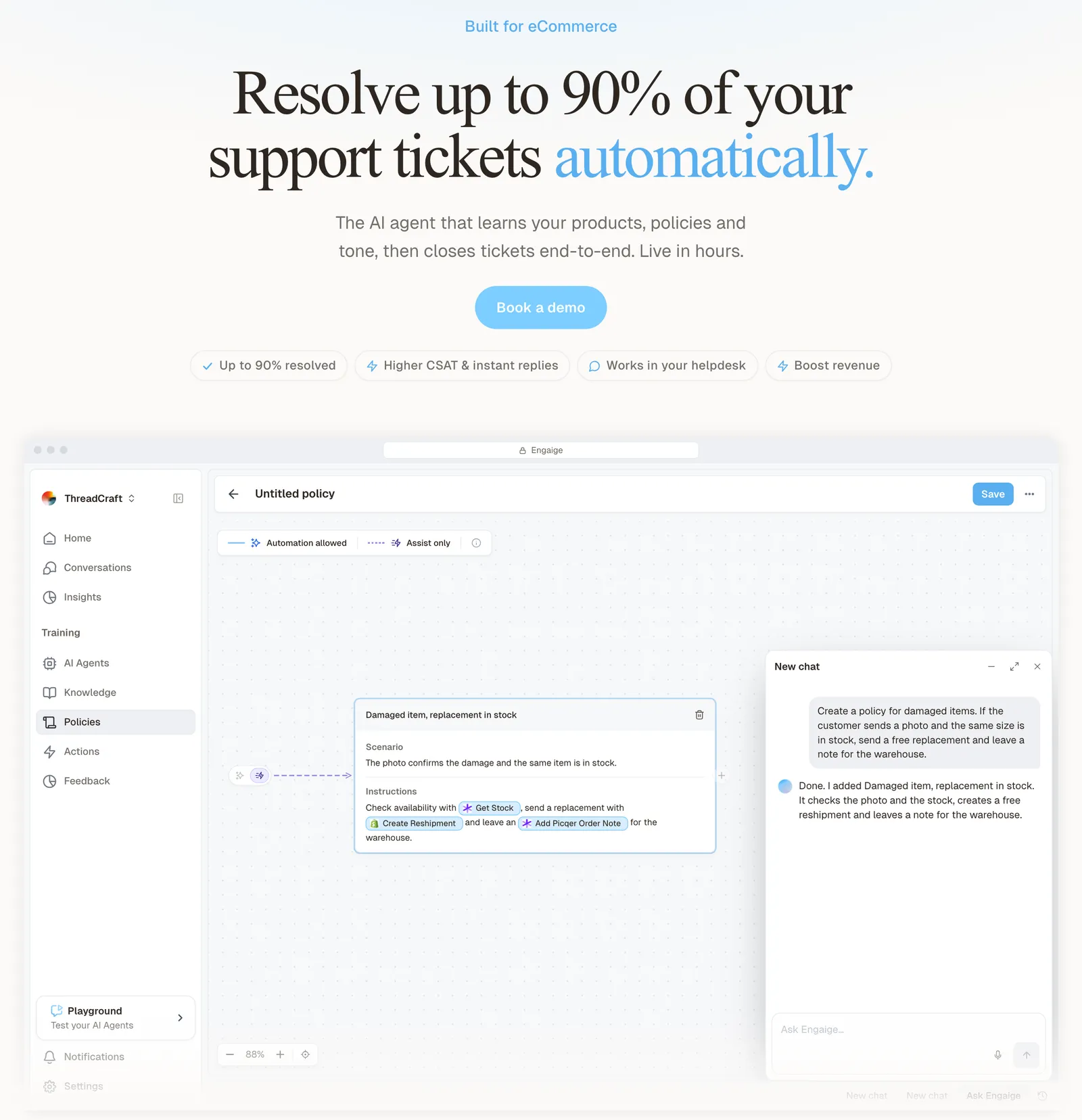
The difference is policies, not if-then rules. A policy sets how the agent reasons, which process it follows and when it may act. You write or change it in plain language with Engaige AI, like briefing a colleague: no decision trees, no prompt engineers. Engaige AI lets you test every policy before launch.
Engaige offered control, flexibility, and the ability to really incorporate AI in a more human way.

A trigger routes “refund” to a group. A refund policy has the agent read the order, check the return window and either issue the refund or hand the ticket to your team, and it shows which policy it applied.
You also decide what the agent may do alone and where a person checks first, per step or ticket type.
Scenario
The customer asks about a delivery address.
Instructions
Read the order with Get order , then take the branch that matches.
 Get order
 Scenario
The order has not been picked yet.
Instructions
Move it with Change picqer shipping address .
 Change picqer shipping address
 Scenario
The parcel has already left the warehouse.
Instructions
Say it cannot be redirected, then offer Process refund .
You go live in Agent Assist in hours.
Engaige AI compares what your team sent with what the agent suggested, learns from the difference and proposes changes to your policies, which you approve. You flip ticket types to autonomous one at a time; brands that move quickly reach autonomy in about a week. Autonomous from day one is also supported. Engaige automates up to 90% of supported tickets.
See how it compares on our Zendesk comparison page, or read about the Zendesk integration.
Frequently asked questions
What is a trigger in Zendesk?
A business rule that runs when a ticket is created or updated. If the ticket meets its conditions, the trigger fires its actions, such as setting a group, adding a tag or emailing someone.
What is the difference between Add tags and Set tags in a Zendesk trigger?
Add tags keeps the tags already on the ticket and adds yours. Set tags deletes every tag on the ticket and replaces them, so use Add tags unless you mean to clear the existing tags.
In what order do Zendesk triggers run?
Top to bottom in list order, with category order first. If a trigger updates the ticket, the cycle restarts, skipping triggers that already fired, so none fires twice in one cycle.
How many triggers can you have in Zendesk?
Zendesk allows up to 7,000 active ticket triggers, counting standard and custom ones. Each business rule must also be smaller than 65 KB, per Zendesk’s trigger overview.
Why is my Zendesk trigger not firing?
Common causes are conditions that can never be true (several statuses under Meet ALL), a wrong position in the list, or an earlier trigger changing the ticket. Check the ticket’s events and create a test ticket.
How do I stop a Zendesk trigger from looping?
Add a tag in the trigger’s actions and exclude that tag in its conditions, so the trigger cannot satisfy itself again. For auto-responder loops, use Zendesk’s automated_response tag recipe.
Can a Zendesk trigger read Shopify order data?
Not on its own. Triggers see ticket, user, organisation and custom-field data, so order details need to be written onto the ticket as a field or tag first.
Do I still need triggers if I use an AI agent?
Yes, for routing and notifications. Keep your triggers for that; Engaige replaces the AI layer, not your triggers, and resolves tickets under policies you control.
How is an Engaige policy different from a Zendesk trigger?
A trigger is a fixed if-then on ticket fields and words. An Engaige policy sets how the agent reasons, which process it follows and when it may act, written in plain language and tested before launch.