The WhatsApp Zendesk integration is Zendesk’s own social messaging channel. You connect a WhatsApp Business number through Meta in Admin Center, and customer conversations reach the Agent Workspace and become tickets your team answers in the same thread.
This guide is for an online store already on Zendesk. It covers the prerequisites, the set-up, the Message Us button, number migration, the 24-hour window and what a store can realistically run on it. For the wider picture, start with our guide to Zendesk e-commerce.
What is the WhatsApp Zendesk integration?
It is a channel built into Zendesk, not a Marketplace app. You find it in Admin Center under Channels, then Messaging and social, then Messaging. Zendesk makes it available on all Suites, and without a Suite you need Support and Chat with the Social Messaging add-on (set-up article). Zendesk also notes that WhatsApp usage-based charges may apply.
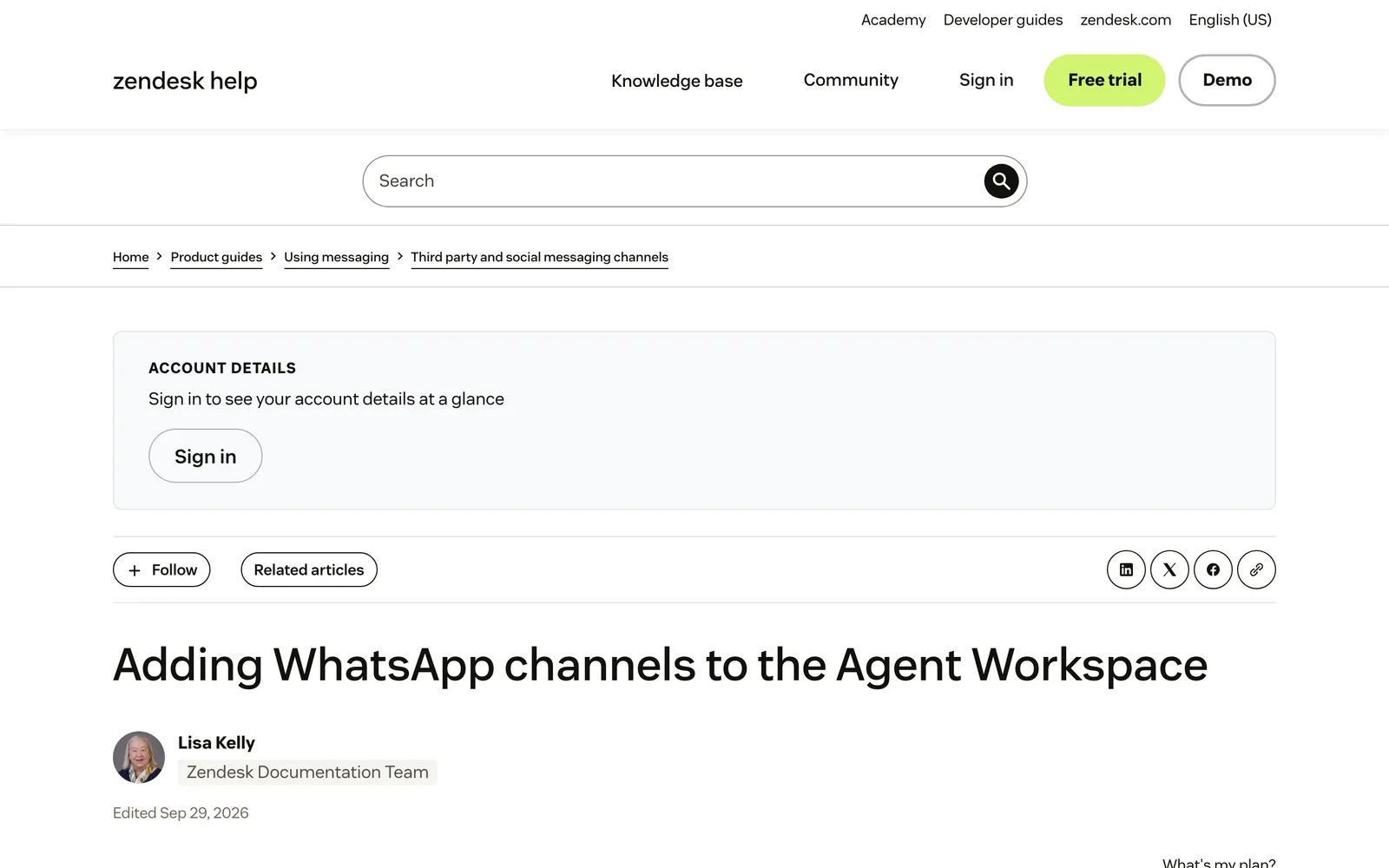
When an administrator has activated it, social messages can become tickets in the Agent Workspace. Zendesk documents the trigger on messaging channels as the customer requesting a live agent, at which point a ticket is created and agents are notified (ticket creation). The agent accepts it, sees the customer’s WhatsApp phone number on the user card and replies in the same thread. Zendesk documents no switching to another social channel inside that conversation.
Two details matter for a store. WhatsApp runs on Zendesk messaging, not legacy chat, which that guide explains in full. And if a Zendesk AI agent sits on the channel, the customer’s first message must be text: Zendesk says audio, image or video messages are added only once a text message has created the ticket (AI agent media). More on AI agents is in our chatbot guide.
What do you need before you connect WhatsApp to Zendesk?
You need your own Meta Business Manager, a Meta admin to connect the number, a number that can receive international calls or SMS and is not live in the WhatsApp Business app, a display name that matches your brand, and Zendesk admin rights. Plan on Meta approval taking approximately one to two weeks.
| Requirement | What Zendesk documents | Why it matters for a store (our view) |
|---|---|---|
| Meta Business Manager | It must belong to your own business | Set it up under your own business before day one |
| Meta admin | The person connecting the number must be an Admin there | Book the right colleague before the day |
| Reachable number | It must receive international calls or SMS; a Zendesk number needs IVR and voicemail off | Check the number takes international calls or SMS before you start |
| Not on the app | A number cannot be on the WhatsApp Business app and the API at once | Remove it from the app first |
| Display name | It must match your business name or branding, or WhatsApp rejects it | Use the name shoppers already know |
| Number limit | 20 numbers per WhatsApp Business Account by default; connect several accounts for more | Enough for most stores and markets |
| Approval | About 1 to 2 weeks, subject to WhatsApp’s Commerce Policy | Start before the campaign date, not after |
All rows come from the Zendesk set-up article.
What happens before Meta verifies you?
Until your WhatsApp business account is approved, Zendesk says you can add one channel, restricted to messaging a maximum of 10 users. Without Business Verification you get unlimited customer-initiated conversations, notifications to 250 unique customers in a rolling 24 hours and up to two numbers. Verify before you announce WhatsApp on your site.
Two effects are worth knowing in advance. Once the number is added for messaging you can no longer use it to receive calls in WhatsApp, and customers see the standard status message that reads Hey there, I am using WhatsApp.
How do you set up the Zendesk WhatsApp integration?
Open Messaging in Admin Center, add a WhatsApp channel and finish Meta’s flow, which takes you through Facebook login, the business profile and number verification. Then pick the number and name the channel. Zendesk says adding it may take up to 5 minutes. The steps below follow the article Zendesk last edited on 29 September 2026.
- In Admin Center, click Channels in the sidebar, then select Messaging and social > Messaging.
- Click Add channel and select WhatsApp.
- Click Continue with WhatsApp and complete Meta’s flow: log in with Facebook, give permission to share the WhatsApp Business Account and number, choose or create the Business Manager and WhatsApp Business Account, fill in the business profile, then add and verify the number.
- Click Done.
- Select the number and click Next. A number that is dimmed and marked (pending) is waiting for Meta verification and display name approval; restart the flow once they are done.
- Name the channel and click Add channel. Wait for “Channel added”.
- Remember that you own and monitor the account in Meta’s WhatsApp Manager.
What goes in the WhatsApp business profile?
Zendesk’s profile fields are the channel name, brand, profile picture, description, address, email, industry and websites. The brand field is for accounts with several brands, and it ties the number to one of them. How that plays out with one number per storefront is covered in our multi-brand guide.
How do you route WhatsApp tickets per number?
Use a trigger with the condition Ticket Is Created plus Channel name Is your WhatsApp channel, and an action that assigns a group. On multi-brand accounts you assign each number to a brand and route on brand. Zendesk adds that messaging triggers apply to all social messaging channels (messaging triggers). Our triggers guide covers the mechanics. Who can see which help-centre content is a separate question, covered in our guide to user segments.
How do you put your Zendesk AI agent on WhatsApp?
Connect the messaging channel first. Then, in the AI agent, open Brand and channels, then Messaging, select WhatsApp and publish (AI agent set-up).
How do you add a Message Us button or move an existing WhatsApp number?
The Message Us button is a snippet you configure on the channel and paste into your site, app or help centre. An existing number moves by asking the old provider to switch off its two-factor PIN, then running the same self-service flow with the same Meta Business Manager ID and display name.
How do you add the Message Us button?
Open the channel and go to the Message Us button tab. Choose the colour (dark grey or white), size (compact or regular), corner radius from 0 to 20 and a label, and set a width of up to 400 pixels. Paste the snippet before the closing tag of every page, or in the help centre via Knowledge admin, Customize design, then Edit code (Message Us guide). Our tip: put it on the order-status page. It is separate from the web widget.
How do you migrate a WhatsApp number from another provider?
You need access to the number for a six-digit PIN by SMS or call, a number that receives international calls or SMS with no IVR, and admin rights in Zendesk and Meta Business Manager. Step one is asking your current provider to deactivate the two-factor PIN: Zendesk says “You can’t fully migrate a number until this step is complete.” Step two is adding the channel with the same Meta Business Manager ID and display name, because a different one errors (migration guide).
Migration carries over the display name, quality rating, messaging limit, official business account status and any high-quality templates already approved. Zendesk documents nothing about chat history either way, so ask your current provider what you can export.
What if the number is in the WhatsApp Business app today?
Remove it from the app through Meta’s process first, because one number cannot be on the app and the API at once. Be careful with verification codes. Requesting the code several times in a short period might restrict the number, so Zendesk recommends three attempts and then waiting approximately 8 hours. Zendesk cannot unblock a number Meta has banned, though it can raise an appeal to Meta on your behalf.
How does the WhatsApp 24-hour window work in Zendesk?
You can write freely for 24 hours after the customer’s last WhatsApp message. After that the composer is blocked and only Meta-approved templates can be sent, until the customer writes again. The window starts when the message reaches the WhatsApp channel, not when Zendesk creates the ticket (24-hour window).
Zendesk’s WhatsApp re-engagement rollout, dated 7 to 21 September 2026, changed how this feels for agents. It added a live countdown in the ticket, a banner when the window closes, a composer that disables itself, a searchable template picker with variables from ticket and user fields, and an Admin Center page where admins control which templates agents may use (release notes).
Guides that tell you to send templates with shorthand-syntax macros predate that rollout. Shorthand still works for customers who already opened a ticket, but template content then shows to the agent only as shorthand. Zendesk also says messages sent automatically through the auto-responder meet WhatsApp’s 24-hour response criteria (24-hour window).
Can you message customers first on WhatsApp?
Only with an opt-in and an approved template. Zendesk says shorthand cannot reach people who never wrote to you: that needs the Sunshine Conversations Notification API. For proactive SMS or WhatsApp campaigns it points to the Relay app. It also warns that ignoring WhatsApp policy, including explicit opt-in, risks a flagged or restricted number (opt-in rules).
How do online stores use the Zendesk WhatsApp integration?
Mostly for the questions customers ask on their phone after buying: where is my order, how do I return this, the parcel says delivered but it is not here, can I change my address. Photos help with damage claims. The hard part is that each of these needs order data, and the 24-hour window keeps running.
| Store question | How it runs in Zendesk | Watch out for |
|---|---|---|
| Order status (WISMO) | The Shopify integration matches the requester’s email or phone number to the order, so a WhatsApp ticket can show orders when the phone in Shopify matches | Zendesk documents it for saved tickets |
| Returns and damaged items | Customers send photos; social messages support attachments | With an AI agent on the channel, a photo-only first message creates no ticket |
| Delivery questions | A trigger routes the ticket to the right group by number or brand | One trigger per number, unless you use a messaging trigger |
| Out-of-hours messages | A messaging trigger can tell customers a group is offline and give your business hours | The 24-hour window keeps counting |
| Follow-up after a day | An approved template from the composer | Needs an open ticket and an approved template |
| Several stores or markets | One number per brand, routed on brand | 20 numbers per account by default |
The order lookup comes from Zendesk’s Shopify integration documentation, which says it retrieves Shopify data by matching “the ticket requester’s email address or phone number” (integration docs). The offline message recipe is documented here.
Our view: WhatsApp customers expect a fast answer, and anything that waits for the morning shift eats into the window. That is a staffing question as much as a channel one.
What are the limits of WhatsApp in Zendesk?
Zendesk documents no WhatsApp group messages, no WhatsApp calls on the connected number and a fixed status text. You cannot switch from WhatsApp to another social channel inside one conversation, and Zendesk cannot unban a number Meta has blocked. These are the limits to plan around before launch.
| Limit | What Zendesk documents |
|---|---|
| Group messages | Not supported by the WhatsApp channel |
| Calls | The connected number can no longer receive WhatsApp calls |
| Status text | Fixed to the standard WhatsApp message |
| Switching channels | No switching between social channels in one conversation |
| Number count | 20 numbers per WhatsApp Business Account by default |
| Template content | Appears only as shorthand to the agent after a shorthand macro sends it |
| Banned numbers | Zendesk cannot unblock them, though it can appeal to Meta |
| Legacy AI agents | Options on WhatsApp are limited to 20 characters each |
Where does Engaige fit?
Engaige (that’s us) is the AI support agent that works inside the Zendesk your WhatsApp tickets land in. Keep your helpdesk, replace the AI: the WhatsApp channel carries the conversation, and Engaige takes the action in the connected system, replies in the same ticket and closes it. Otrium has 60% of 120,000 annual tickets resolved end to end.
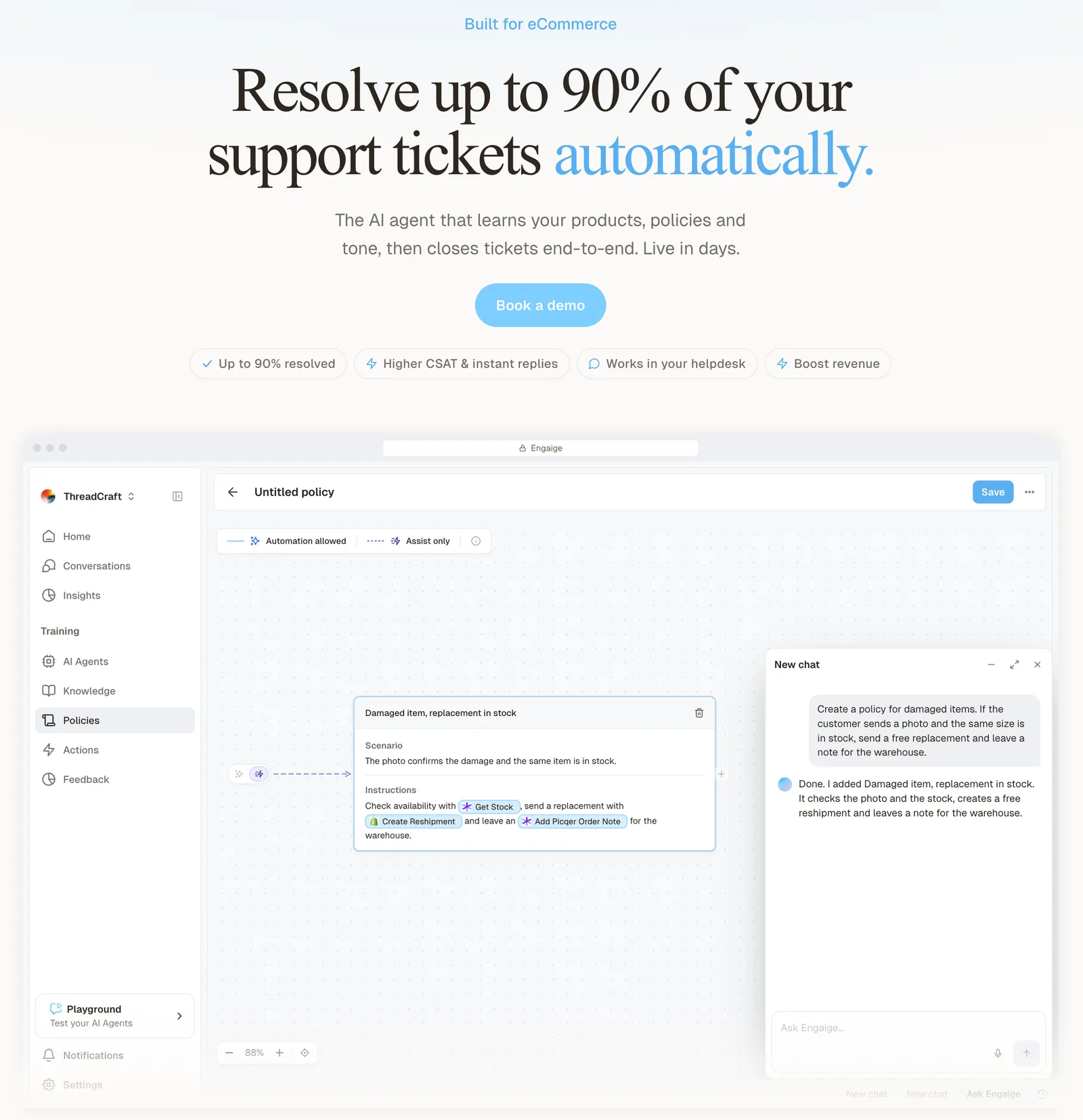
Each agent has its own schedule: 24/7, or your office hours, so a ticket that arrives at 23:00 is not waiting for the morning shift. You decide per step whether the agent acts on its own or drafts for your team, and you can set thresholds, such as sending refunds above a certain amount to a person first.
Scenario
The customer asks about a delivery address.
Instructions
Read the order with Get order , then take the branch that matches.
 Get order
 Scenario
The order has not been picked yet.
Instructions
Move it with Change picqer shipping address .
 Change picqer shipping address
 Scenario
The parcel has already left the warehouse.
Instructions
Say it cannot be redirected, then offer Process refund .
Engaige offered control, flexibility, and the ability to really incorporate AI in a more human way.

Behind the agent is Engaige AI, which learns from your conversations and inputs, configures your support agent and shows which policies it used. In Agent Assist, every reply your team sends is compared with what the agent suggested; that is one of the signals Engaige AI learns from, next to your conversations, your inputs, hand-offs and emerging trends. It proposes improvements with its reasoning, you approve them, and it keeps learning once the agent is autonomous.
You can go live in Agent Assist in hours, with the agent drafting replies in your help desk. Most brands reach autonomous in about a week, with Engaige resolving up to 90% of supported tickets, and you can also launch autonomous from day one.
Open any conversation in Engaige and you see the full reasoning behind every answer and action. Where your policy says a person should decide, the agent hands the ticket to your team and leaves a summary of its reasoning as an internal note in the ticket. Zendesk’s AI-agent logs also show a plan, reasoning and sources (as of October 2026). The difference is e-commerce depth: Zendesk doesn’t think in orders, returns or subscriptions. It wasn’t built to.
On Shopify, Engaige combines live Admin API data, pricing across markets and SKUs, inventory, orders and customers, with the marketing content from your storefront. Engaige is built for resolution, not enterprise overhead, and it is text-first by design: email, chat, WhatsApp, SMS and social DMs, no voice AI.
Chatarmin started in WhatsApp marketing and is strong on campaigns, and it does support too. Its Zendesk integration lets marketing and support share one number (as of October 2026). They are different jobs, and many brands run both: Engaige resolves the support tickets inside your Zendesk and takes the action in your connected systems. For the wider field, see our WhatsApp chatbots comparison.
Zendesk remains a proven ticketing foundation trusted by big teams, and its AI agents can run action flows. See the Zendesk comparison or the Zendesk integration page. To alert your team in Slack when an urgent WhatsApp ticket comes in, read our Slack integration guide.
Frequently asked questions
Does Zendesk have a WhatsApp integration?
Yes. It is Zendesk’s own social messaging channel, set up in Admin Center under Messaging, and WhatsApp conversations become tickets in the Agent Workspace. It is available on all Suites, or on Support plus Chat with the Social Messaging add-on, and you need your own Meta Business Manager.
How long does it take to connect WhatsApp to Zendesk?
The Zendesk flow itself takes minutes. The wait is Meta’s approval of your WhatsApp business account, which Zendesk puts at approximately 1 to 2 weeks.
Can I use my existing WhatsApp number with Zendesk?
Yes, with conditions. A number in the WhatsApp Business app must come off the app first. A number at another provider migrates once that provider deactivates the two-factor PIN, using the same Meta Business Manager ID and display name. Display name, quality rating and approved templates carry over.
How many WhatsApp numbers can I connect to Zendesk?
Zendesk says a WhatsApp Business Account is limited to 20 numbers by default. To connect more, you can connect several WhatsApp Business Accounts to a single Zendesk account. Without Business Verification you can register up to two numbers.
What happens after 24 hours on a WhatsApp ticket?
The composer is blocked and you can only send a Meta-approved template until the customer writes again. Since Zendesk’s September 2026 rollout, agents see a countdown, a closed-window banner and a template picker in the ticket, and admins control which templates agents may use.
Can a Zendesk AI agent answer on WhatsApp?
Yes. Connect the messaging channel first, then select WhatsApp under Brand and channels, Messaging, in the AI agent and publish. The customer’s first message must be text to create a ticket. Engaige is the alternative AI layer inside the same Zendesk.
Can an AI agent work WhatsApp tickets in Zendesk at night without losing control?
Yes. Engaige works the ticket inside Zendesk, and each agent has its own schedule, 24/7 or your office hours. You decide per step whether it acts alone or drafts for your team, with thresholds such as refunds above an amount going to a person first.
Do I have to leave Zendesk to automate WhatsApp support?
No. Keep your helpdesk, replace the AI. Engaige works on your existing Zendesk tickets, including the WhatsApp ones, resolves in the connected system and then replies and closes the ticket in Zendesk. Tickets your policies route to a person arrive with the agent’s reasoning as an internal note.