Zendesk multi-brand lets one Zendesk account run several customer-facing brands, each with its own subdomain, support address, help centre and Web Widget, while your team works one shared queue. Brand is a value on every ticket, so triggers, views and macros can treat each label differently.
This guide is for an online store already on Zendesk. For the wider picture, start with our guide to Zendesk e-commerce: Zendesk is a proven ticketing foundation trusted by big teams, so keep it.
What is Zendesk multi-brand?
Zendesk multi-brand (Zendesk spells it Multibrand) is a feature that gives one account several customer-facing identities. Zendesk defines a brand as a collection of contact points: email support addresses, a help centre, voice, the messaging Web Widget, X and Facebook.
Every plan starts with one brand. Only administrators can add and manage more. Brand is also a ticket value: agents can change it by hand and search by it, and you can use it in macros, views, triggers, automations and Explore reporting.
Two terms are worth knowing. The default brand is tied to your default help centre and applies whenever no other brand is indicated. The agent brand is where agents land when they sign in, and it is the brand kept if you downgrade to a single-brand plan.
When does a store need a multibrand Zendesk set-up?
A store needs a second brand when customers should see a different name, address or help centre: several labels, separate country stores, a wholesale desk next to the consumer shop, or an outlet. One store with several teams needs groups, not brands. That is our view, and the table shows how we would choose.
| Situation | Brand, group or both | Why |
|---|---|---|
| Two or more labels with their own sites | A brand per label | Own name, address and help centre per label |
| Country stores with their own domain | A brand per market | Own help centre and sender address per market |
| Wholesale (B2B) next to consumer | A brand per audience | Separate desk, but customers stay shared (see limits) |
| One store with a returns team and an order team | Groups only | Customers see one name, so routing is internal |
| One store in several languages | One brand | One brand with a multilingual help centre |
The trap is customer data. Zendesk states that end users and organisations have no brand value and that you cannot segment them by brand. A wholesale buyer who also shops retail is one user record, whichever desk they write to.
How do you set up a multi-brand Zendesk account?
In Admin Center, open Account, then Brand management, then Brands, and click Create brand. Only an administrator can do this. You give the brand a name and a subdomain, optionally a logo, signature and host mapping, then add team members and at least one channel so customers can reach it.
- Name the brand. The name is required, must be unique and is customer-facing.
- Choose the subdomain. It becomes the help centre URL and the default support address,
support@yoursubdomain.zendesk.com. Letters, numbers and dashes only. - Add a logo (optional). Zendesk asks for 2 MB or less in PNG, JPG, JPEG or GIF, and square works best.
- Add a brand signature (optional). It is appended to the agent’s own signature when they represent that brand.
- Map your own domain (optional). Host mapping, for example
support.yourstore.com/hc, needs a SAN SSL certificate, which you regenerate each time you add host-mapped brands. - Save, then Manage brand membership. Team members cannot view, search or open the new brand’s tickets until you add them. Admins are always included.
Customers cannot see the brand until it has a help centre or another channel. By default, account emails such as welcome and password reset list all active branded help centres; you can switch that off under People, Configuration, End users.
How do you give each brand its own email address and help centre?
Each brand gets a support address automatically, such as support@brand.zendesk.com, and you can add more per brand under Channels, Talk and email, Email. For a separate help centre, open the brand, choose Actions, then Turn on Knowledge. Add one messaging Web Widget per brand for chat on its site.
Some details from Zendesk’s email guide catch teams out:
- A Zendesk support address cannot move to another brand. You delete it and recreate it.
- An email sent to several of your addresses still creates one ticket.
- Tickets an agent creates go out from the default address of the ticket’s brand.
You get one email template per account. Zendesk’s advice is to keep the template brand-neutral and clone the notify-requester trigger per brand, with a Brand condition. A brand without a help centre needs its own trigger without the {{ticket.url}} placeholder, or the ticket links in its notifications break.
For the help centre, you can generate one with up to 40 articles from ticket data, or start from scratch. Customers who visit a brand’s help centre only see that brand’s tickets by default. A Requests setting under Brands, Manage settings can show all brands instead. Branded ticket forms need Apply to all brands deselected. Sign-in rules live in our self-service portal guide.
Messaging has its own page: see our Web Widget guide. Zendesk announced brand filtering on 4 August 2026, so shoppers see only the current brand’s conversations. It needs multi-conversations and covers the 100 most recent conversations. For WhatsApp per brand, see the WhatsApp channel guide, and for Slack alerts see our Slack integration guide.
How do you restrict agents to specific brands?
There are two routes. Department spaces restrict agents by brand membership and are available on Customer Service Suite Enterprise or Enterprise Plus, Employee Service Suite Professional or above, or Support Enterprise. Groups plus triggers work on any multibrand plan. By default Zendesk lets every agent work every brand’s tickets, so nothing changes until you choose a route.
| Route | Plan | How | Watch out for |
|---|---|---|---|
| Department spaces | Customer Service Suite Enterprise or Enterprise Plus, Employee Service Suite Professional, Enterprise or Enterprise Plus, Support Enterprise | Under People, Team, Team members, use Manage brand membership | Removing every brand removes all ticket access; triggers can still assign to agents without access; not with legacy Chat or legacy Talk |
| Groups plus triggers | Custom roles on Enterprise; agent profile on Growth and Professional | A group per brand (or per brand and job), agents limited to their groups, a trigger with a Brand condition assigns new tickets | Existing tickets need bulk reassignment; agents can edit a ticket’s brand, so add a trigger for that |
Source: Zendesk help centre articles on department spaces and restricting agents, fetched 19 October 2026. Omnichannel routing respects brand membership. Admins always stay in every brand.
Zendesk also recommends requiring a brand before a ticket can be saved, so no ticket ends up without one. If you use brand-specific views and group restrictions together, handing a ticket across groups gets harder.
How do brand conditions work in triggers and views?
There is one set of triggers and views for the whole account, and you scope each one by adding a Brand condition. Zendesk’s guide to business rules gives three patterns. The basics of each rule type are in our guides to triggers and views.
- Exclude a brand: Brand is not, in the all-conditions section.
- One brand only: Brand is, in the all-conditions section.
- A set of brands: several Brand is conditions in the any-conditions section.
For views, Zendesk offers two designs. The simplest is one shared set of views with Brand added as a column, which works when every agent can answer every brand. The alternative is a set per brand, with brand conditions and group permissions: more focused, but it needs more upkeep.
Here is how that looks for a store. These are our suggestions, not Zendesk’s:
| Store use | Rule pattern |
|---|---|
| Branded order-update notification per label | A cloned notify trigger per brand, Brand is |
| Wholesale tickets to the B2B group | Trigger with Brand is wholesale, then assign group |
| Market tickets to the team that speaks the language | Trigger with Brand is the market brand, then assign group |
| One shared queue for a small team | One view with a Brand column |
Macros follow the same logic, and our macros guide covers them. One warning from Zendesk: a macro that references a deleted brand errors, and the ticket update is not saved.
What are the limits of Zendesk Multibrand?
Brand counts depend on your plan, and several things are shared across all brands: customers, organisations, user segments and the email template. Zendesk lists up to five brands on Suite Growth, Professional and Support Enterprise, and up to 300 on Suite Enterprise and Enterprise Plus. Confirm your plan with Zendesk before you plan around a number.
| Shared across brands, or capped | What it means for a store |
|---|---|
| Brand counts | Five on Suite Growth, Professional and Support Enterprise; 300 on Suite Enterprise and Enterprise Plus |
| Help centre counts | Support Enterprise with Knowledge Professional has five brands but one help centre |
| One email template | Shared by every brand (see above) |
| 200 user segments | Shared across all brands (see user segments) |
| Customers and organisations | They belong to the account, not a brand |
| Help centres open to all | You cannot restrict a customer to one help centre; sign-in is shared |
| Zendesk addresses | Cannot change brand after creation |
Sources: brand set-up and help centre articles, fetched 19 October 2026.
Deleting a brand is permanent. Unclosed tickets move to the default brand, macros that reference it fail, the support addresses in its domain are deleted, and nobody can visit its help centre. Deactivating is the safer move: customers lose the help centre and new tickets, and emails to its address create tickets for the default brand.
Where does Engaige fit?
Engaige (that’s us) is the AI support agent that works inside the Zendesk your brands’ tickets land in, while Zendesk keeps the brands, addresses, help centres and widgets. Keep your helpdesk. Replace the AI. Engaige takes the action, replies and closes the ticket, and Otrium has 60% of 120,000 annual tickets resolved end to end.
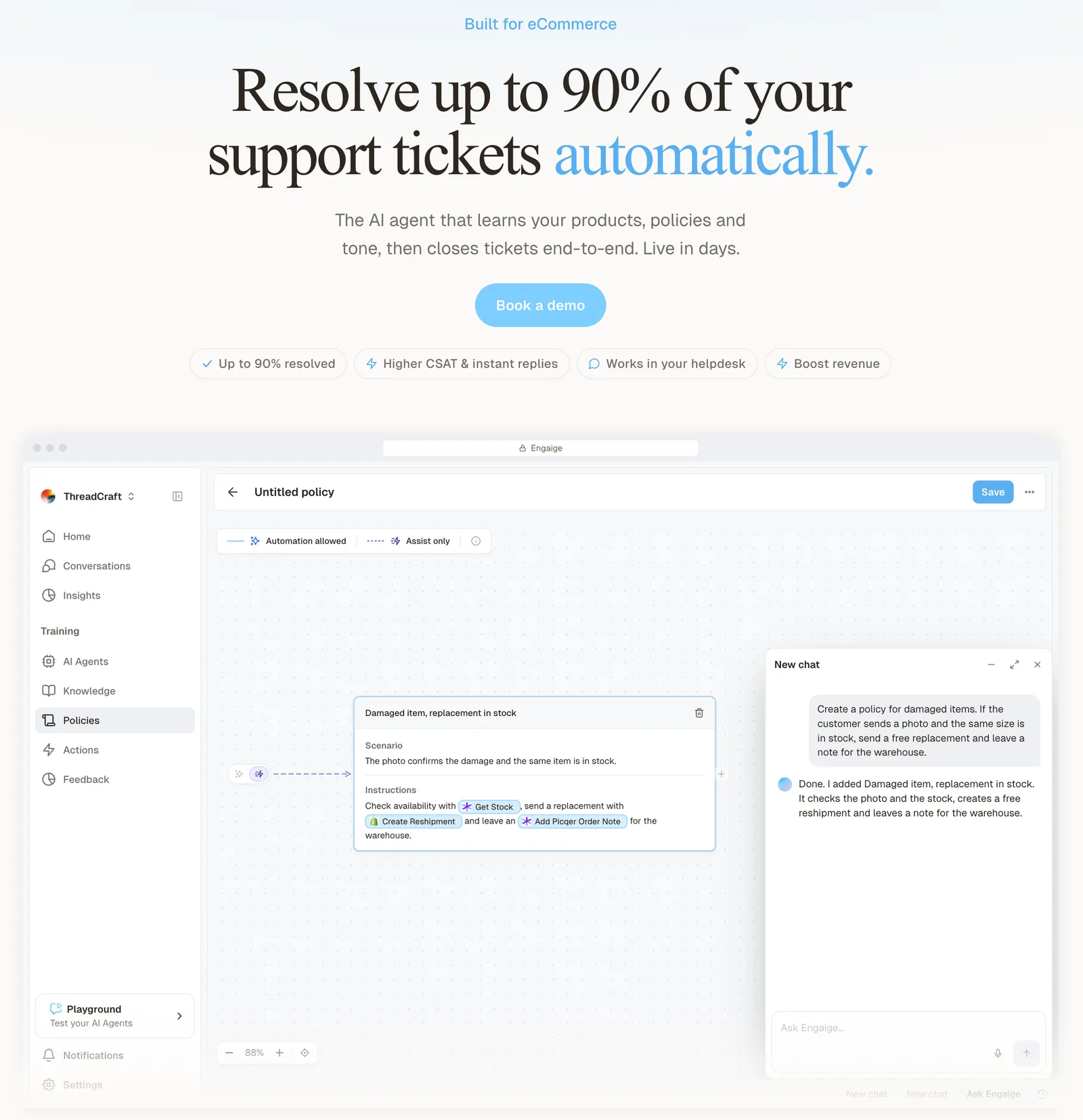
Engaige runs multiple storefronts, markets and languages on one setup, with a separate agent per region if the rules differ. Say one market has 30-day returns and another 14: each gets its own rule. On Shopify, Engaige combines live Admin API data, pricing across markets and SKUs, inventory, orders and customers, with the marketing content from your storefront.
You change those rules by talking to Engaige AI in plain language, for example telling it the outlet label has a shorter return window. It proposes the policy change with its reasoning, you approve it, and nothing changes behind your back. The same approval applies to what it learns from your team’s normal work in Agent Assist.

Hello Potential New Client
What would you like to get done today?
Could you analyse this week's conversations and show me some automation opportunities?
Ask Engaige…
Searched and found 4 contact reasons · 2.4s
Your agent resolved 426 of 512 conversations. 86 were handed over, and one contact reason accounts for most of them.
Searched and found 1 policy · 1.6s
Delivery status hands over whenever tracking is older than 24 hours, which is 40 of those 46.
Editing Delivery status · 1.9s
Done. It now handles stale tracking itself. Those 40 a week stay with your agent.
What were the reasons for handover, and how can we improve?
Fix it.
Reply…
Zendesk’s AI agent can be scoped to a brand through the Brand condition on its email trigger (as of October 2026). Engaige adds e-commerce depth: it reasons in the order lifecycle, reads several live systems in one answer and ships native Shopify actions (refunds, cancellations, address changes, discounts).
Control and hand-overs work as on any channel: you decide per step whether the agent acts or drafts, and tickets your policies reserve for a person reach your team with its reasoning as an internal note. You can be live in Agent Assist in hours and autonomous in about a week, and the payoff is resolution at scale, as Otrium’s team puts it.
With Engaige, we are able to automatically resolve 60% of the 120,000 support tickets that we receive annually.

Engaige is built for resolution, not enterprise overhead. See the Zendesk comparison or the Zendesk integration page. If your Shopify data already feeds Zendesk, our Shopify integration guide covers that side. Each brand still runs inside one ticketing system, so it helps to know how that fits together.
Frequently asked questions
How many brands can you have in Zendesk?
Every plan starts with one brand. The maximum depends on your plan: five brands on Suite Growth, Professional and Support Enterprise, and up to 300 on Suite Enterprise and Enterprise Plus. Confirm yours with Zendesk.
Which Zendesk plans include multi-brand?
Zendesk lists Multibrand for Suites Growth, Professional, Enterprise and Enterprise Plus, and for Support Enterprise. It does not list Suite Team or Support Team.
Can agents only see tickets for their own brand?
Yes, but not by default. Every agent works every brand until you act. Department spaces (Customer Service Suite Enterprise or Enterprise Plus, Employee Service Suite Professional or above, or Support Enterprise) restrict by brand membership, and groups plus triggers work on any multibrand plan.
Can each brand have its own email template?
No. Zendesk gives you one email template per account, so brand the notifications with triggers that carry a Brand condition.
Are customers and user segments shared across brands?
Yes. End users, organisations and the 200 user segments belong to the account, not a brand.
What happens when you delete a brand in Zendesk?
It is permanent. Unclosed tickets move to the default brand, macros that reference it error, its support addresses are deleted and its help centre closes, so deactivate instead if you are unsure.
Can Zendesk’s AI agent answer differently per brand?
Yes: Zendesk’s AI agent can be scoped to a brand through the Brand condition on its email trigger.
Can an AI agent apply different return rules per storefront or market?
Yes, with Engaige. Each storefront or market can carry its own return rules, and a region whose rules differ gets its own agent. To change a rule, you brief Engaige AI and approve what it proposes.
Do you need to change your Zendesk brands to use Engaige?
No. Keep your helpdesk, replace the AI. Your brands stay in Zendesk, and Engaige works on your existing tickets, resolves in the connected system and replies and closes the ticket inside Zendesk.