A Zendesk user segment is a group of signed-in users or staff, built from tags, organisations, groups or named individuals, that decides who can view or manage help centre content. Zendesk AI agents respect them, so anonymous visitors only get public articles.
This guide is for an online store already on Zendesk. It covers the set-up, how to apply segments, which ones a store needs and the limits. For the wider picture, start with our guide to Zendesk e-commerce.
What are user segments in Zendesk?
User segments are collections of end users and agents, defined by attributes, that determine access to help centre content. Zendesk calls them the building blocks for both viewing and management permissions (Zendesk documentation). They control who may open an article, not what happens to an order.
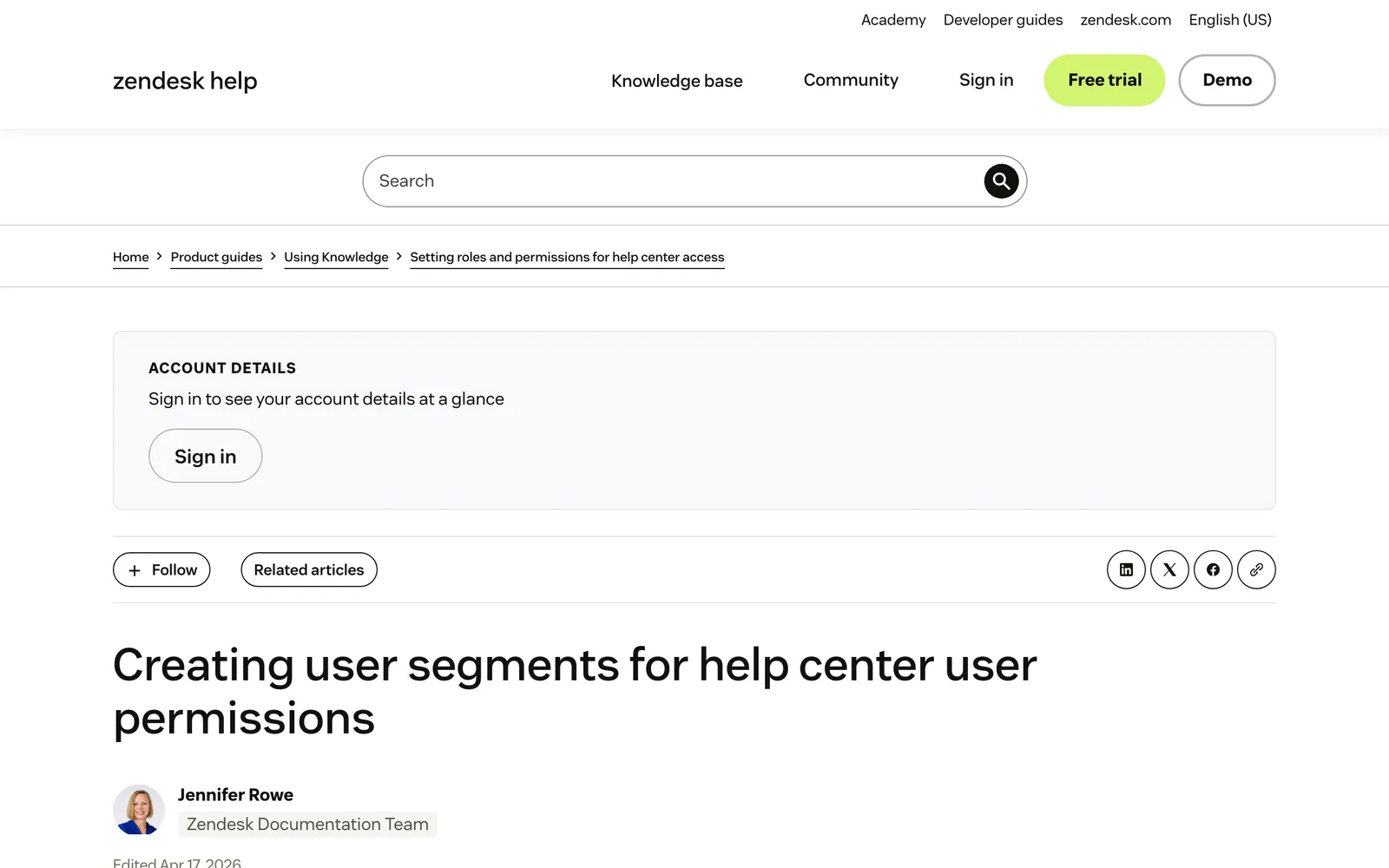
Two segments exist by default: Signed-in users, and Agents and admins, which includes light agents. Every custom segment starts from a base type, signed-in users or staff, and Zendesk documents no way to change the base type afterwards (managing segments). The base type decides which filters you can use.
| Filter | Signed-in users | Staff (agents and admins) |
|---|---|---|
| Tags, ALL | Yes | Yes |
| Tags, ANY | Yes | Yes |
| Organisations | Yes (ignored for agents) | No |
| Groups | No | Yes |
| Individual users | Yes | Yes |
Our view: segments are a reading-permission system for your help centre. They are useful, but they answer one question only, which is who may read what.
How do you create a user segment in Zendesk?
In Knowledge admin, open User permissions, click Add new, name the segment, pick the user type, filter by tags, organisations or groups, add individuals if you need exceptions, and click Create segment. You need the Knowledge admin role and, for tag-based segments, tagging on users enabled.
Before you start, check three things:
- Plan: Zendesk lists Suite Growth, Professional, Enterprise or Enterprise Plus, or Support with Knowledge Professional or Enterprise. Its limits page says the functionality is not available on Suite Team.
- Role: only a Knowledge admin can create segments.
- Tags: enable them in Admin Center under People, Configuration, End users, Tags on users and organisations (adding tags).
Then follow Zendesk’s steps:
- In Knowledge admin, click User permissions in the sidebar.
- On the User Segments page, click Add new. An error here means you have reached the 200-segment maximum.
- Enter a Name.
- Select a User type: signed-in users or staff.
- Click Filter by tag and add tags to the ALL list, the ANY list or both, up to 50 in each. Tags can sit on the user or on an organisation they belong to.
- Optionally filter by organisations (signed-in users) or groups (staff), up to 50.
- Optionally add individual users, up to 50. They are included regardless of the filters, so they suit exceptions.
- Check the list of matching users. Agents are not listed, and above 30 matches you get a View all matching users link.
- Click Create segment.
Zendesk documents four ways tags reach a profile: manual entry, bulk import, the Zendesk API and enterprise single sign-on with JWT or SAML. It documents no Shopify tag sync (as of October 2026), so plan how tags will get there.
How do you apply user segments to articles and permissions?
Open the article, go to Article settings, expand Placement, choose Only visible to selected user segments under Viewing permissions, pick the segments and click Update settings. You set this per article, not per section or category, and you can pick up to 10 segments if you are on Enterprise.
On Suite Team, article permissions are limited to everyone or signed-in users, with no agents-only or custom segments (view permissions). To restrict a whole section, filter an article list by section and bulk update. A section disappears for end users when every article in it is restricted, and one visible article keeps it visible.
Segments also drive management permissions, which decide who may edit and publish. They are built from staff segments, with up to 200 custom permissions. On Suite Growth and Professional, editing and publishing are assigned together. On Enterprise they are separate (management permissions). A store could let a returns team edit returns articles without the right to publish them, on Enterprise.
Community topics take one segment each. To audit a segment, filter Manage articles by View permission, or open the segment and click the link that lists the articles visible only to it (audit list).
Which user segments should an online store create?
Most stores need three at most: a loyalty or VIP segment, a wholesale or B2B segment and staff-only content. Tag names such as vip and wholesale below are illustrative examples, not Zendesk defaults, and each row depends on the tag or organisation reaching the user’s profile.
| Use | Base type | Filter | What it restricts | Catch |
|---|---|---|---|---|
| VIP or loyalty customers | Signed-in users | A tag such as vip on the user | Perks and priority-service articles | The tag must arrive by API, import or SSO, and the customer must be signed in |
| Wholesale or B2B buyers | Signed-in users | One organisation per trade account, or a wholesale tag | Trade terms, minimum order and invoicing articles | Organisation tags also flow onto their tickets |
| Staff-only articles | Built-in Agents and admins, or a staff segment by group | A group such as the returns team | Internal refund and escalation procedures | Light agents are included in Agents and admins |
| Editors by team | Staff | A group | Who may edit or publish (management permissions) | The edit and publish split needs Enterprise |
Our view: keep the count low. Every segment is one more thing you must remember to apply and audit, and 200 is a ceiling, not a target. If a rule fits one article for two customers, an individual user may do, but a tag scales better.
Do Zendesk AI agents respect user segments?
Yes. Zendesk says AI agents respect a user’s help centre access permissions every time, and base replies and article recommendations on the viewer’s segment. Anonymous messaging users get no segment and only publicly available articles (Zendesk help).
For restricted content on messaging, the user must already exist in Zendesk, be authenticated with a messaging JWT, and have the JWT external ID mapped to the Zendesk user (restricted content). On email or a web form, the user must sit in a segment with view permission. The test widget cannot test restricted answers, so Zendesk suggests a test user in the segment instead. You also cannot create help centre content that only an AI agent can read.
The store reading: a returning customer who is not signed in, or not JWT-authenticated in messaging, gets the public answer, even if they are your best wholesale buyer. Zendesk AI agents can also run action flows, rolled out to Suite and Support plans between 11 May and 12 June 2026. For the wider picture of AI agents, see our Zendesk chatbot guide.
One name clash is worth knowing. Zendesk also has Segments in the AI agents workspace, and they are a different feature.
| Help centre user segments | AI agent segments | |
|---|---|---|
| Where | Knowledge admin, User permissions | AI agents workspace, Content, Segments |
| Built from | Tags, organisations, groups, individual users | Session parameters such as locale, language, customer type, with ALL, ANY or NONE |
| Controls | Who can view or manage articles and topics | Which use cases, search rules and procedure branches apply |
| Plans | Suite Growth and above, or Knowledge Professional or Enterprise | All Suites Team and above, Support Team and above |
What are the limits of user segments in Zendesk?
Zendesk allows 200 segments per account, 50 tags in each of the ALL and ANY lists, 50 organisations or groups and 50 individual users per segment. An article takes up to 10 segments on Enterprise and a community topic one. Segments are not available on Suite Team.
The trap is deletion. Deleting a segment that is applied to an article sets that article’s visibility to Everyone, so wholesale terms or an internal refund procedure can go public. A segment applied to a help centre restricts it to Admins instead (managing segments). List the segment’s articles before you delete it.
Other rules:
- Shared across brands: segments are shared across all brands, so one cannot be private to a single brand’s help centre. See Zendesk multi-brand for how brands are set up.
- Base type fixed: you can edit tags, groups, organisations and individuals later, but not the user type, and the built-in segments cannot be edited.
- Knowledge admins: they see all content regardless of segments.
- Whole help centre: restricting everything behind a login is a separate setting, covered in our self-service portal guide.
Where does Engaige fit?
Engaige (that’s us) is not a help-centre permission system. It is the AI support agent that works on your existing Zendesk tickets and answers from the customer’s own order and record, while Zendesk keeps owning who may read which article. Keep your helpdesk, replace the AI. Engaige AI configures and improves the agent, and HelloPrint has 80% of tickets automated.
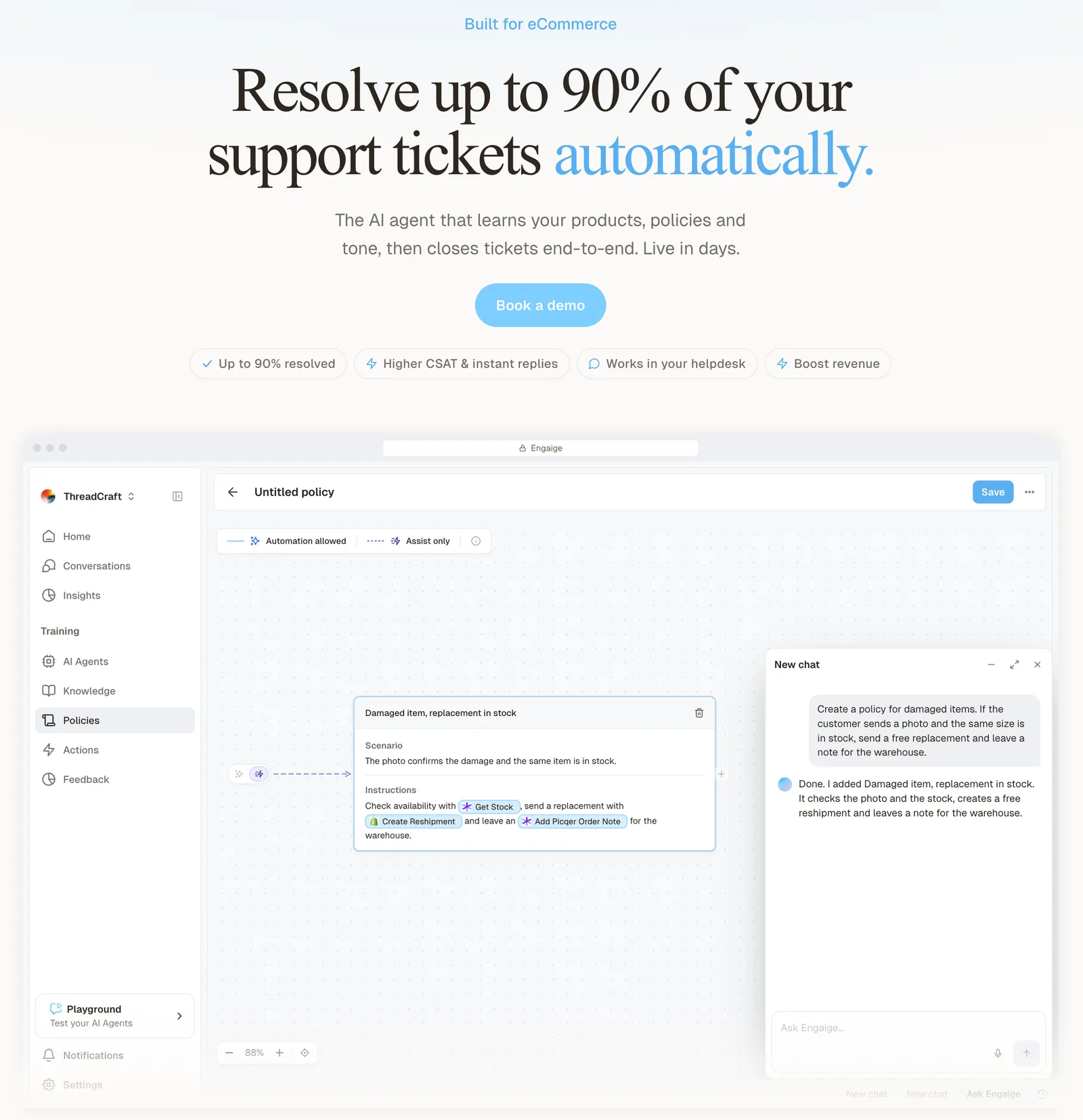
A segment decides which article a VIP or wholesale customer may read. The question in the ticket is usually about their order: where is it, can it be changed, what happens to the return. On Shopify, Engaige combines live Admin API data, pricing across markets and SKUs, inventory, orders and customers, with the marketing content from your storefront, and it reads several live systems in one answer. Open any conversation in Engaige and you see the full reasoning behind every answer and action.
Hi, where is my order? It's been eight days and the tracking hasn't moved.

Shopify
Order 48219 · fulfilled

Picqer
Still processing Contradicts Shopify

DHL
Returned to depot · 3 delivery attempts
Settles it: the parcel is not with the customer
Reasoning…
Not deliverable. Reship to a confirmed address, booked in Picqer.
Suggested reply
Your parcel went back to the depot after three delivery attempts, so it will not arrive. I have booked a reshipment to the address you confirmed, arriving Thursday.
Then it acts, with native Shopify actions such as refunds, cancellations, address changes and discounts, replies to the customer and closes the ticket. Where your policies want a person to decide, the ticket goes to your team with a summary of the agent’s reasoning as an internal note.
You can go live in Agent Assist in hours, and Engaige AI keeps improving the agent from your team’s normal work, with every change approved by you. After go-live, HelloPrint got a first response 90% faster.
Engaige proved to be invaluable. Their hands-on support during the implementation phase resulted in significant improvements to our automated resolution rate and CSAT.

Control per step and the full overview are in our Zendesk WhatsApp guide. See the Zendesk comparison or the Zendesk integration page, and Zendesk Shopify for the order data side. Segments often pair with Zendesk triggers, all inside the wider ticketing system you run.
Frequently asked questions
What is a user segment in Zendesk?
A group of signed-in users or staff that decides who can view or manage help centre content. You build one from filters on tags, organisations, groups and individual users, and apply it to articles, help centres or community topics.
How many user segments can you create in Zendesk?
Up to 200 per account. Each segment takes up to 50 tags in each of the ALL and ANY lists, 50 organisations or groups and 50 individual users, and an article takes up to 10 segments on Enterprise.
Which Zendesk plans include user segments?
Zendesk lists Suite Growth, Professional, Enterprise and Enterprise Plus, or Support with Knowledge Professional or Enterprise. On Suite Team, article permissions are limited to everyone or signed-in users.
What happens to articles when you delete a user segment?
The articles that used it fall back to Everyone, so wholesale terms or an internal refund procedure can go public. List the segment’s articles first.
Do Zendesk AI agents show restricted articles to customers?
Only to users whose segment matches the article’s view permission. On messaging, the user must be authenticated with a JWT and have its external ID mapped to their Zendesk user; on email or a web form, they must sit in a segment with view permission.
Are help centre user segments the same as AI agent segments?
No. Help centre user segments control who can view or manage articles. AI agent segments, set in the AI agents workspace, use session parameters such as locale or customer type to decide which use cases and procedure branches apply.
Are user segments shared across Zendesk brands?
Yes, segments are shared across all brands. See our Zendesk multi-brand guide.
Can an AI agent answer a VIP or wholesale customer about their own order?
Segments gate articles, not orders. Engaige answers from the live Shopify order and customer record, combining several live systems in one answer, then takes the action, replies and closes the ticket, with the full reasoning visible in the conversation.
Does Engaige replace Zendesk user segments?
No. Keep Zendesk and its help centre permissions. Engaige replaces the AI layer and works on your existing tickets.